 Training
Chapter 1 of 10 · Arrive and get briefed
Training
Chapter 1 of 10 · Arrive and get briefed

Learn to use the Command Center
A narrated tour of every Command Center view, from the Executive Briefing through all process phases to Portfolio Governance. 74 steps in 10 chapters · about 10:52.

Welcome to Command Center training. In about eleven minutes, you'll learn every view here, from the Executive Briefing through each process phase to Portfolio Governance.
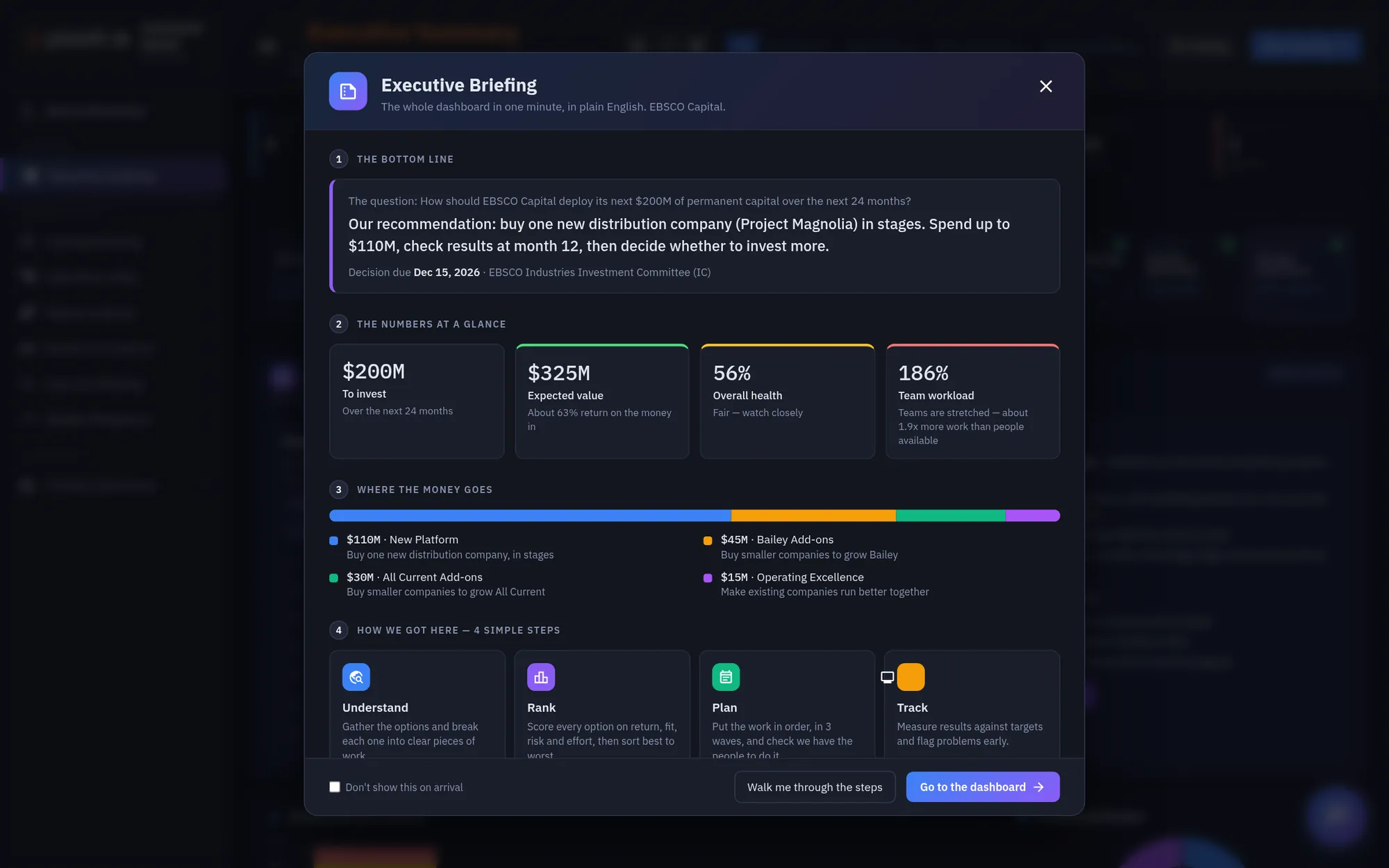
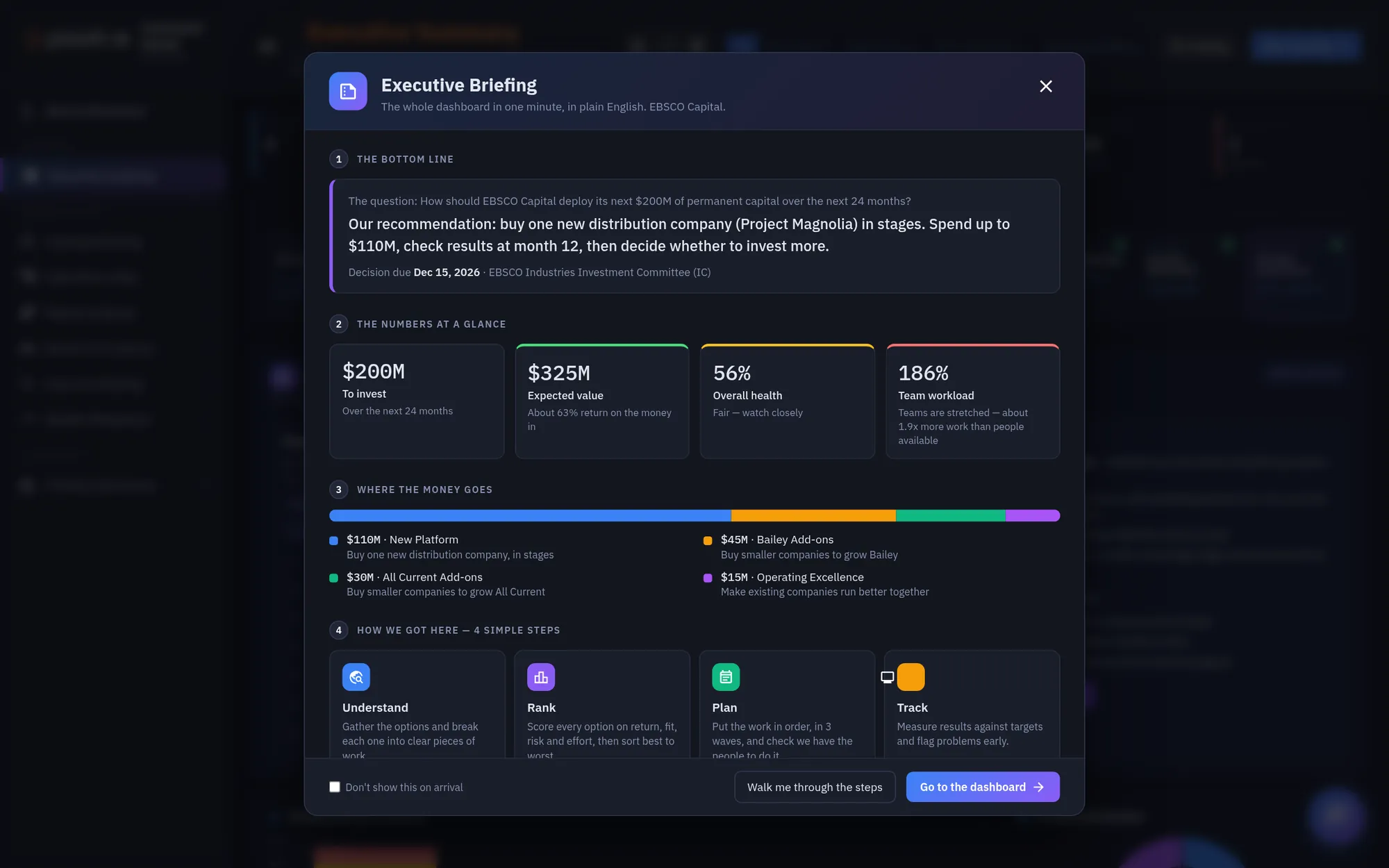
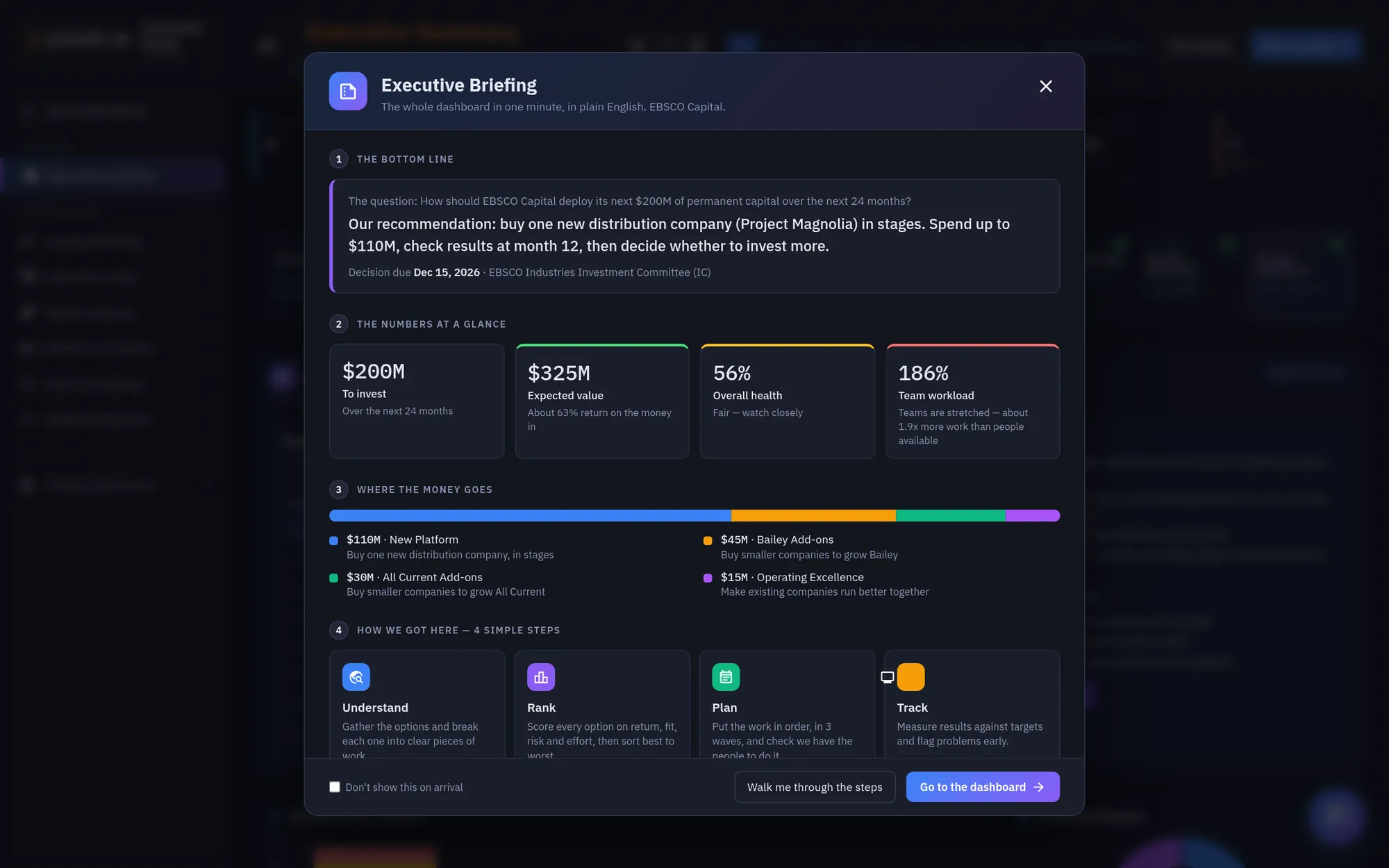
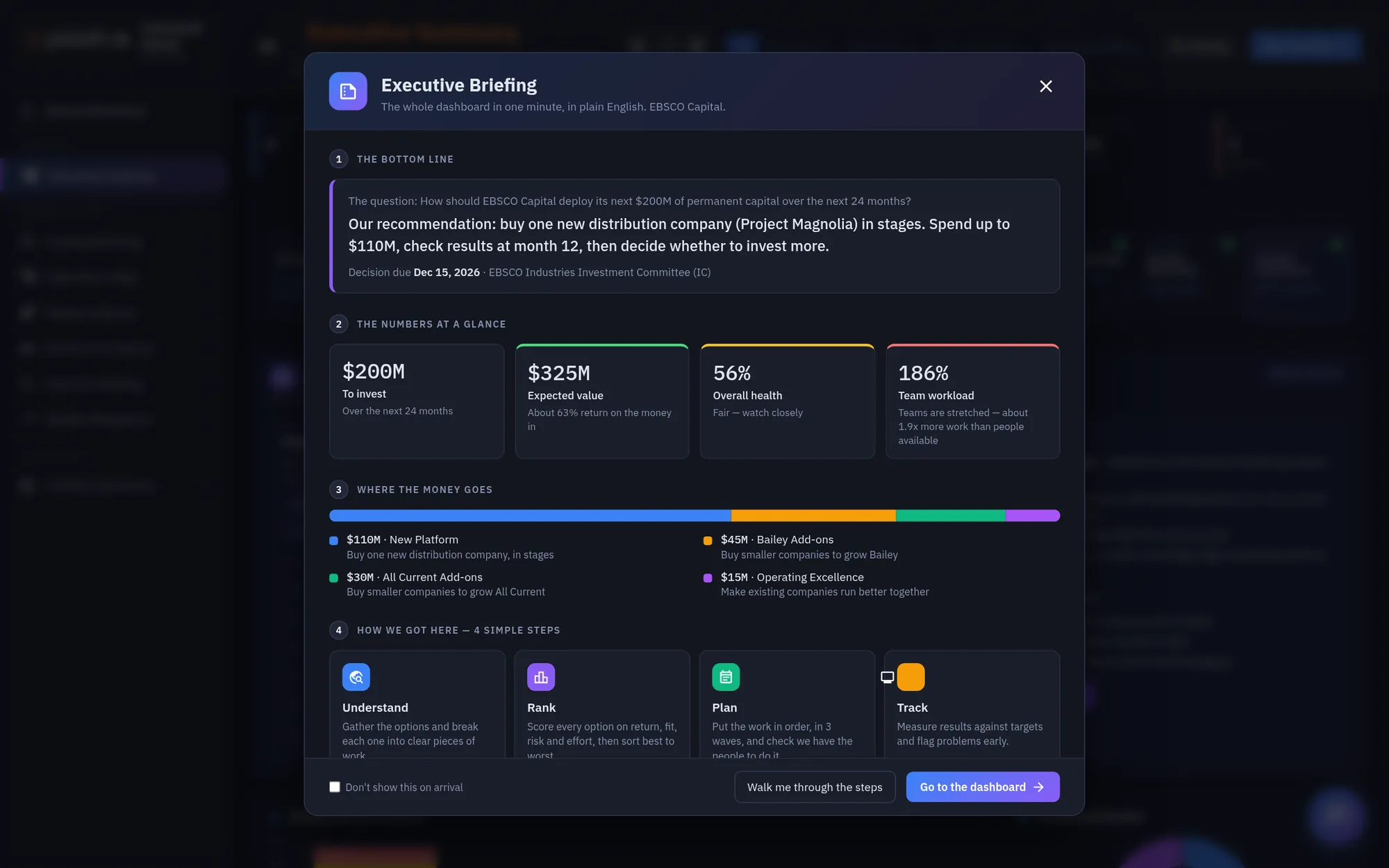
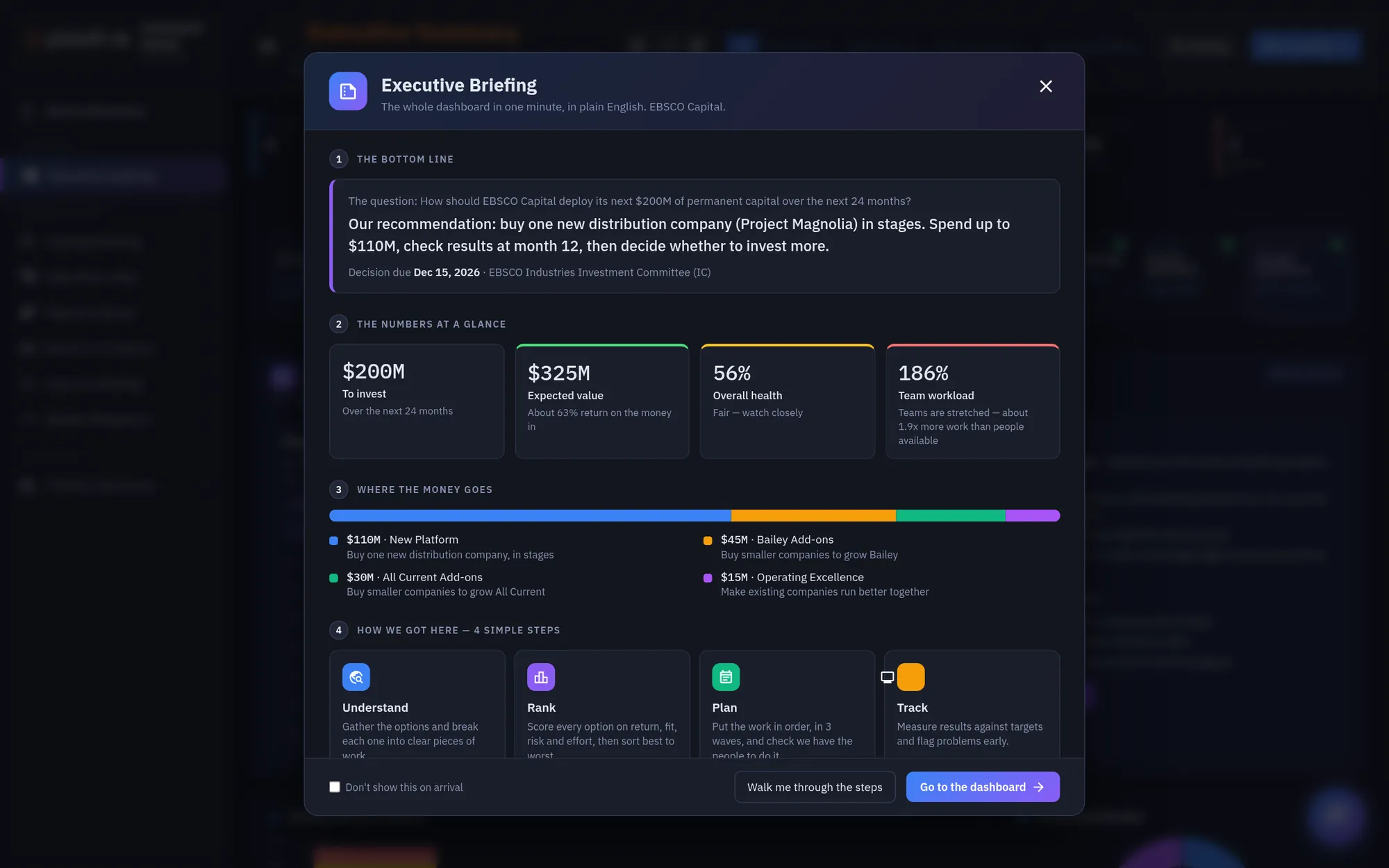
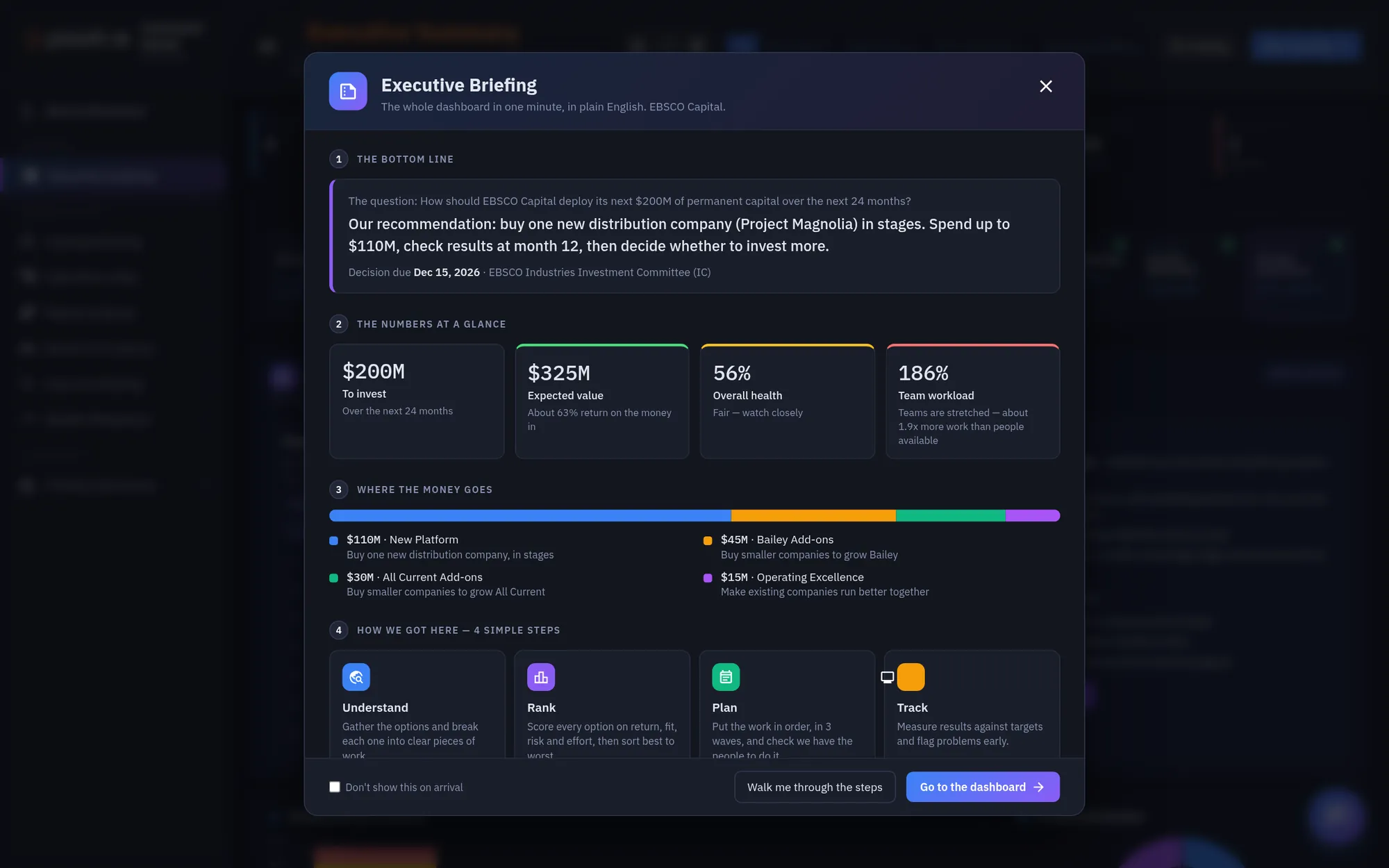
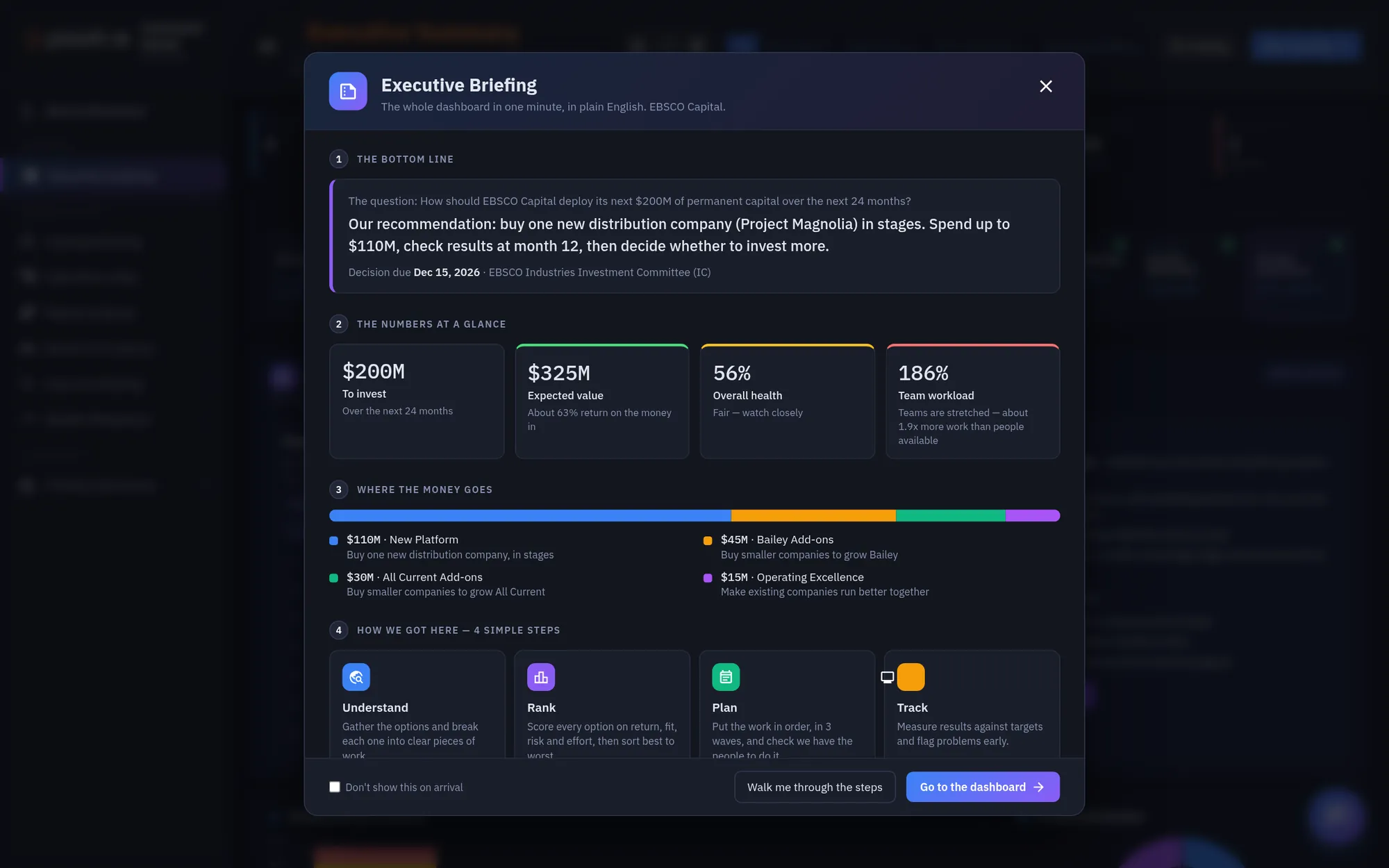
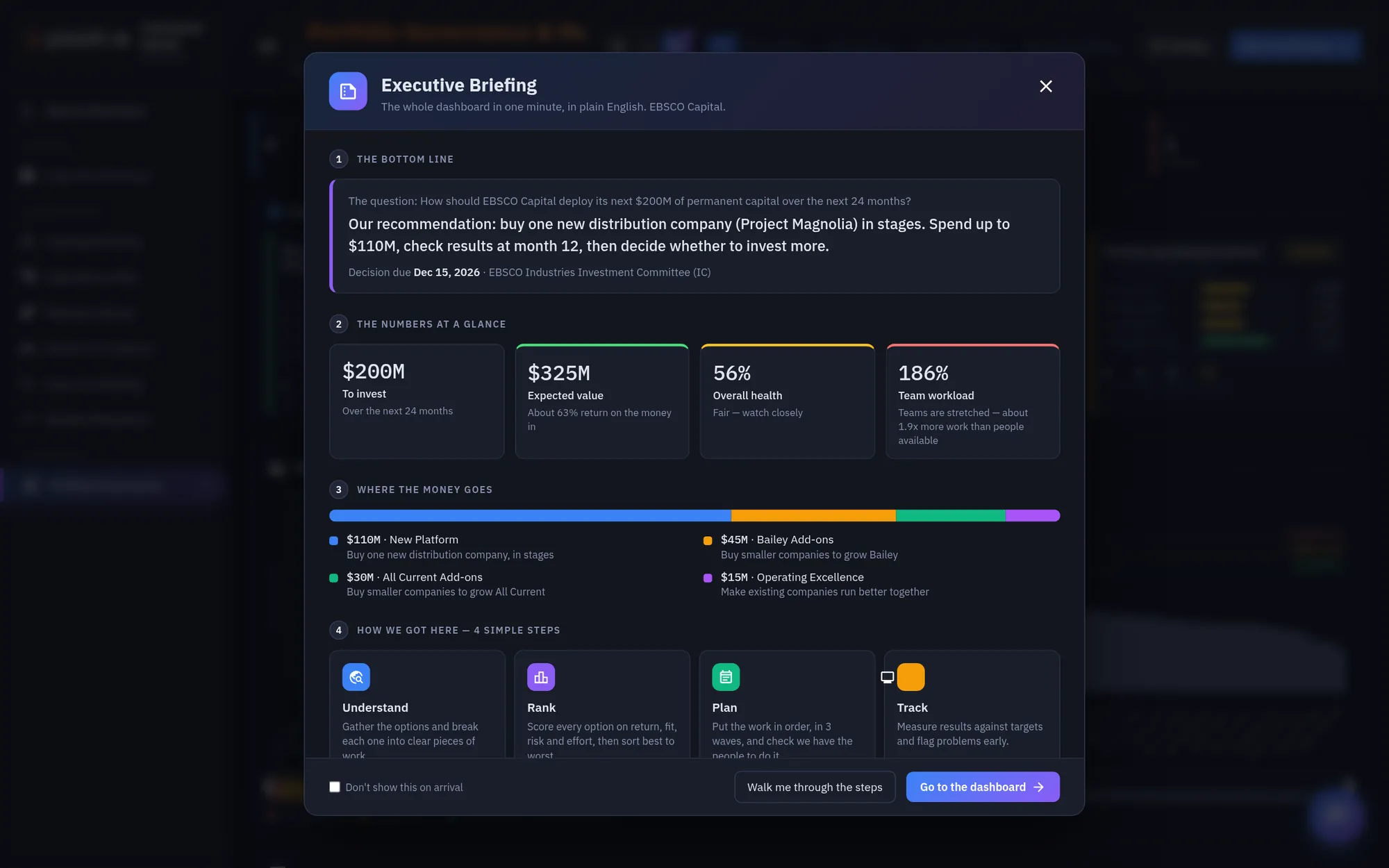
Each time you arrive, the Executive Briefing opens first. It explains the whole dashboard in one minute, in plain English.
Section one is the bottom line: the question being decided, the recommendation, the decision date, and the forum that decides.
Section two shows four numbers at a glance. The colored edge tells you how each one reads: green is good, amber needs watching, and red needs action.
Section three shows where the money goes: the capital envelope split across the four capital pools, with what each pool buys.
Section four explains the method in four steps: understand the options, rank them, plan the work, and track the results.
At the bottom, choose Walk me through the steps to start at Scoring, or Go to the dashboard. Tick the box if you don't want the briefing on arrival.
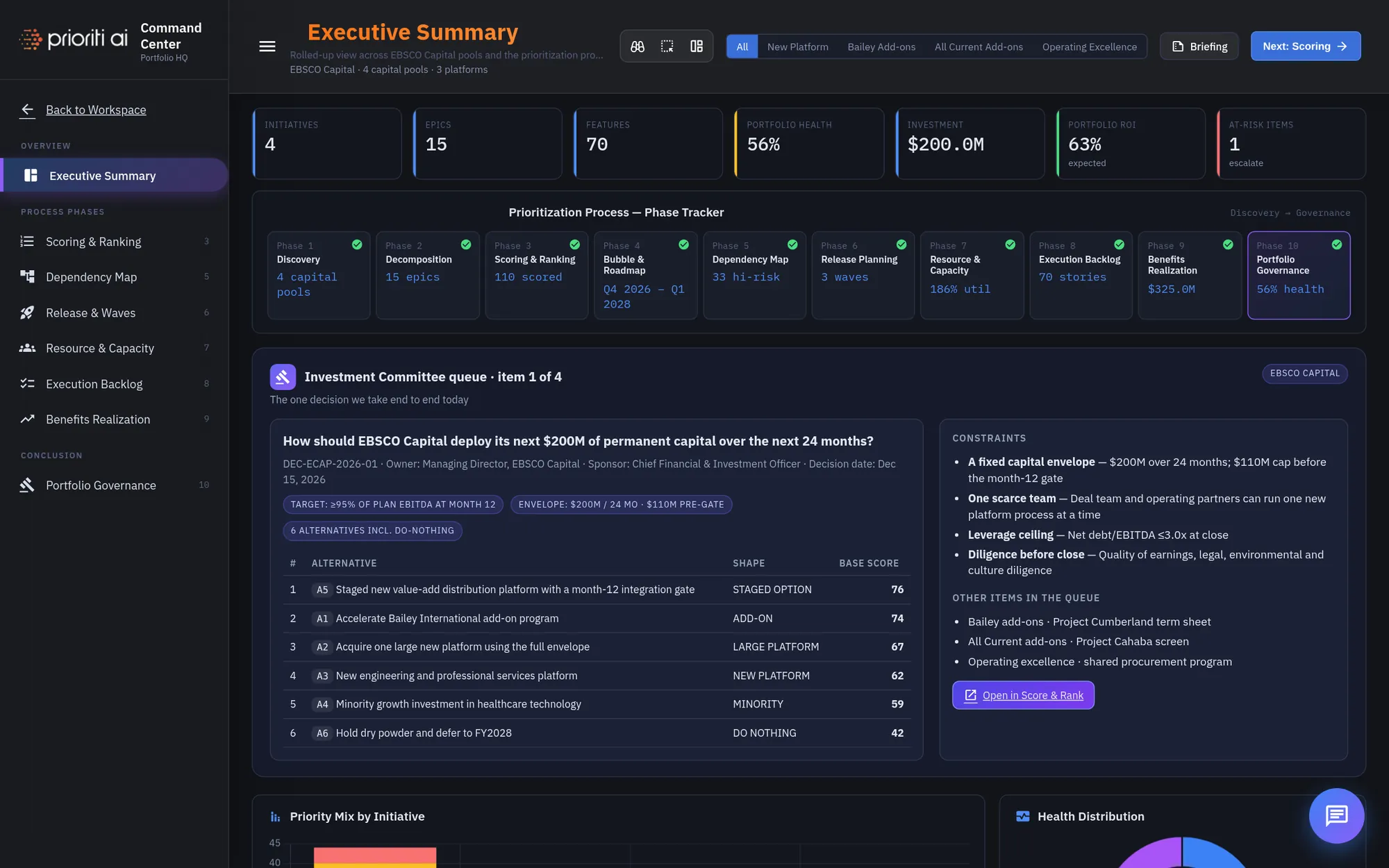
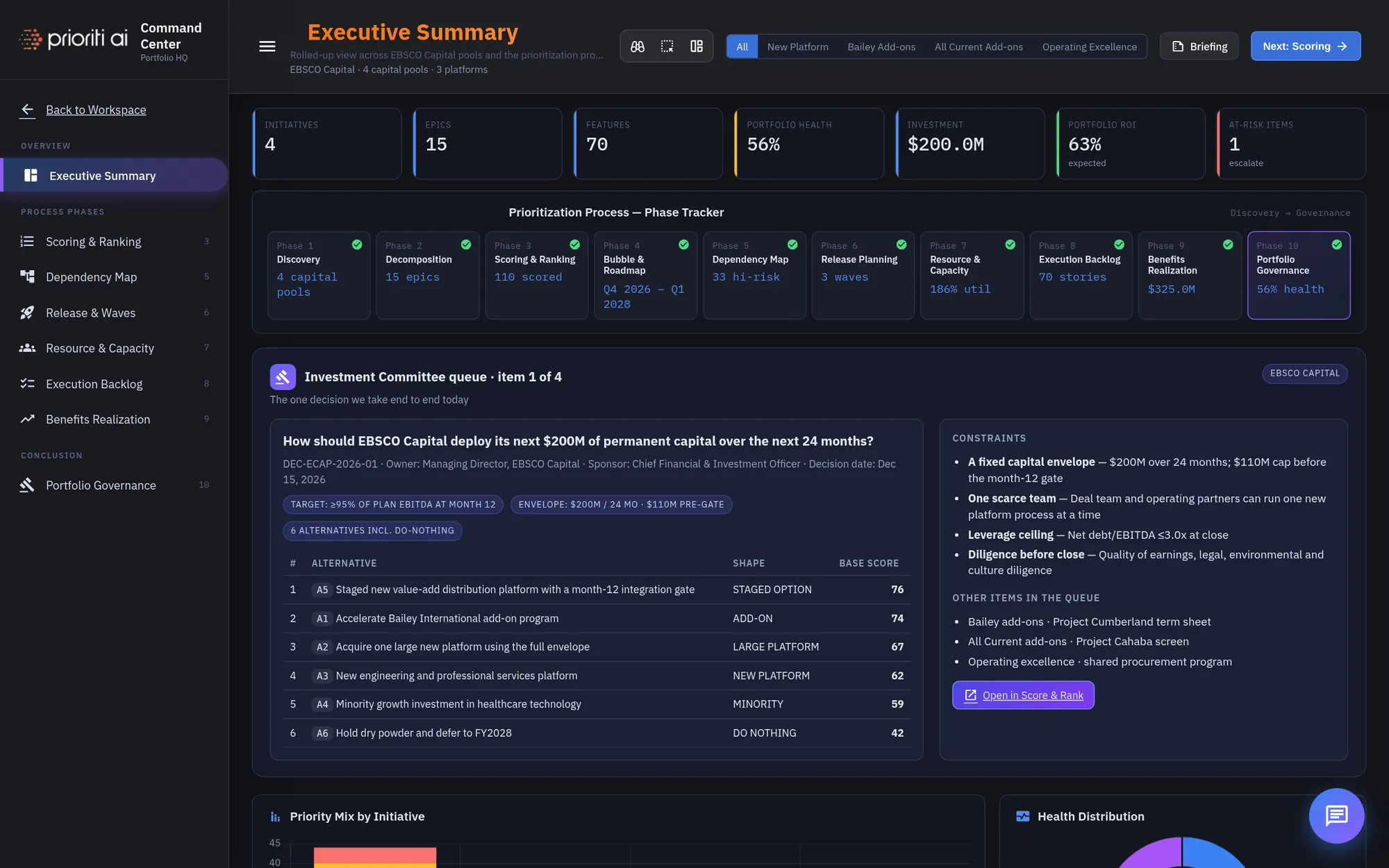
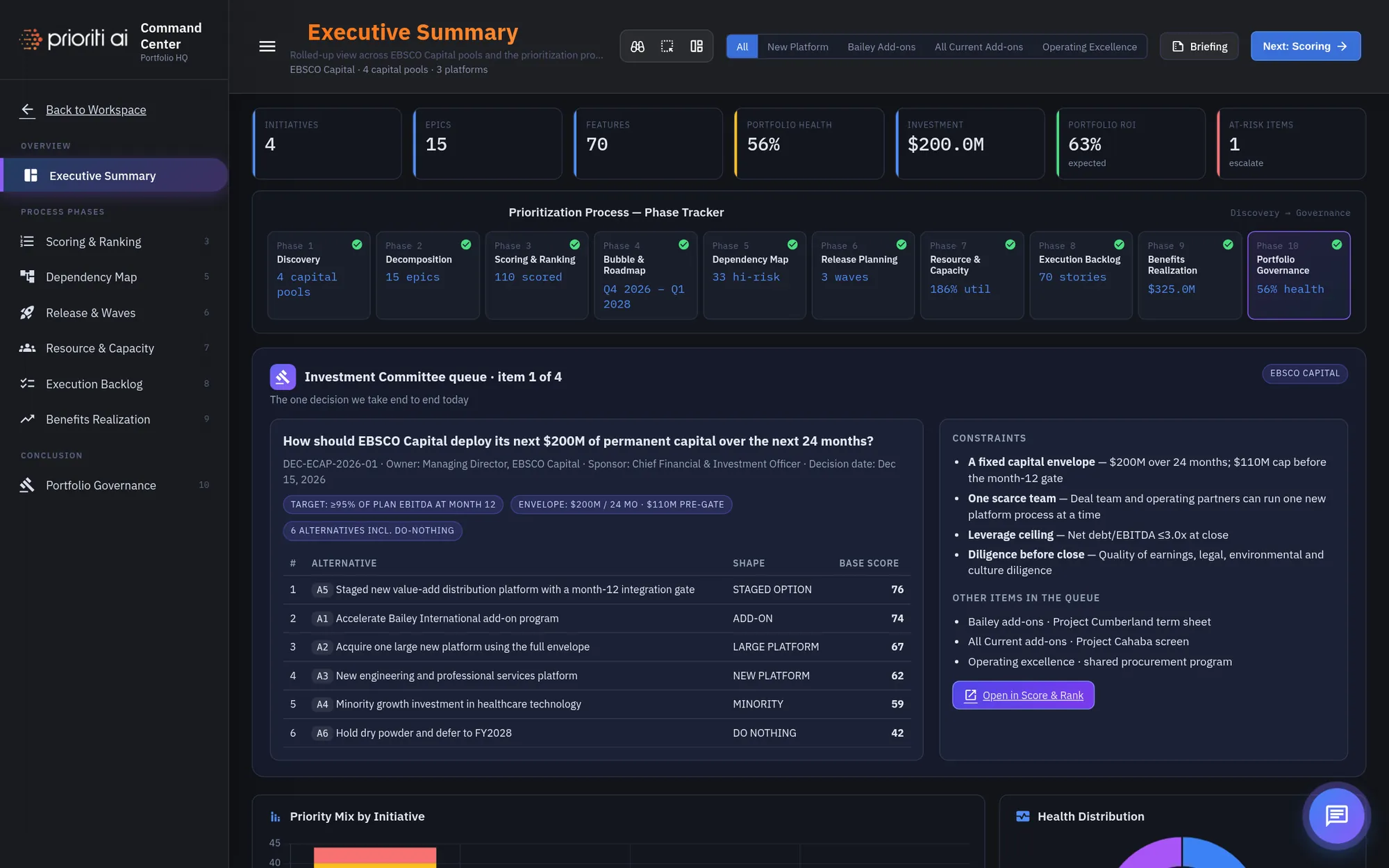
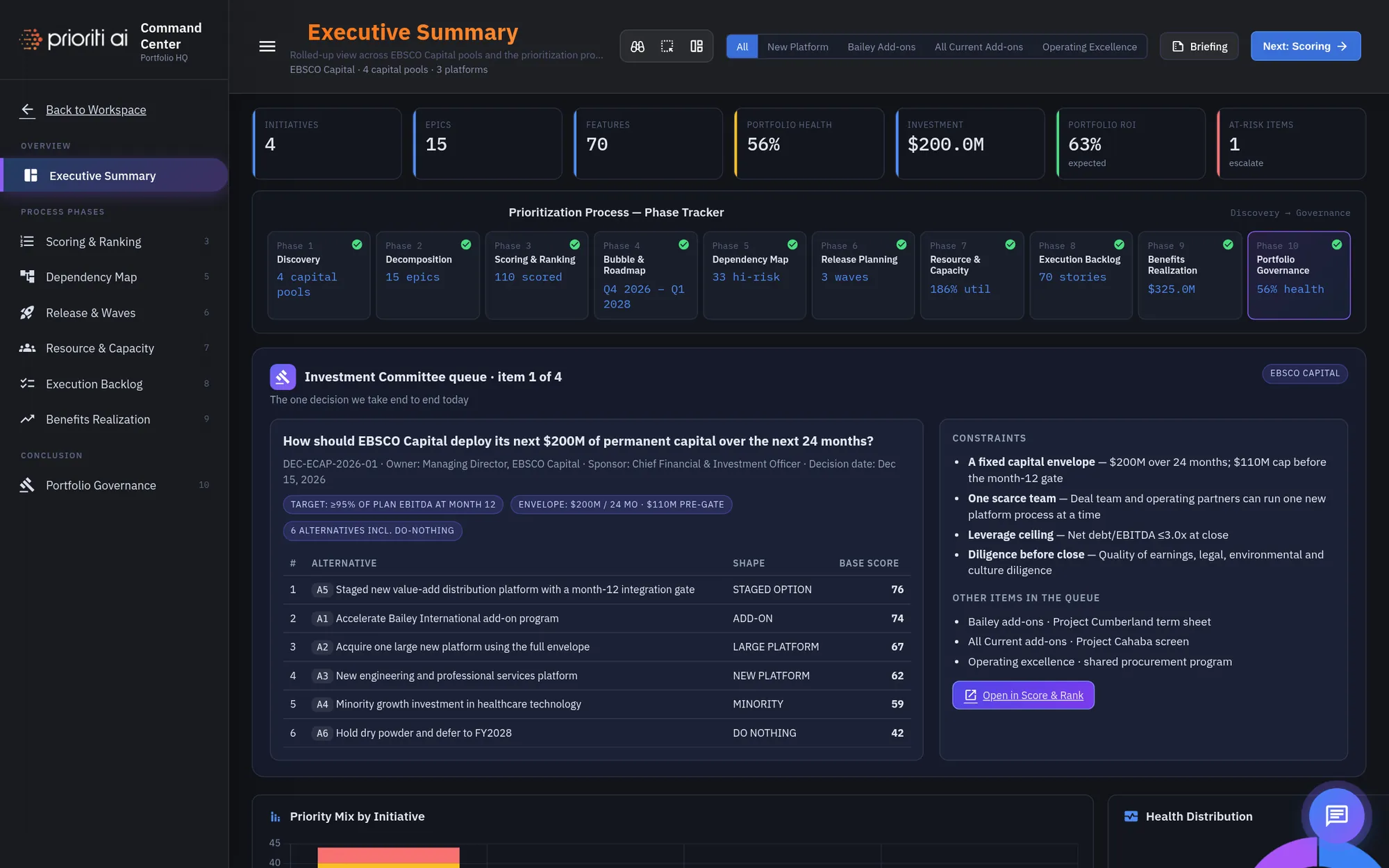
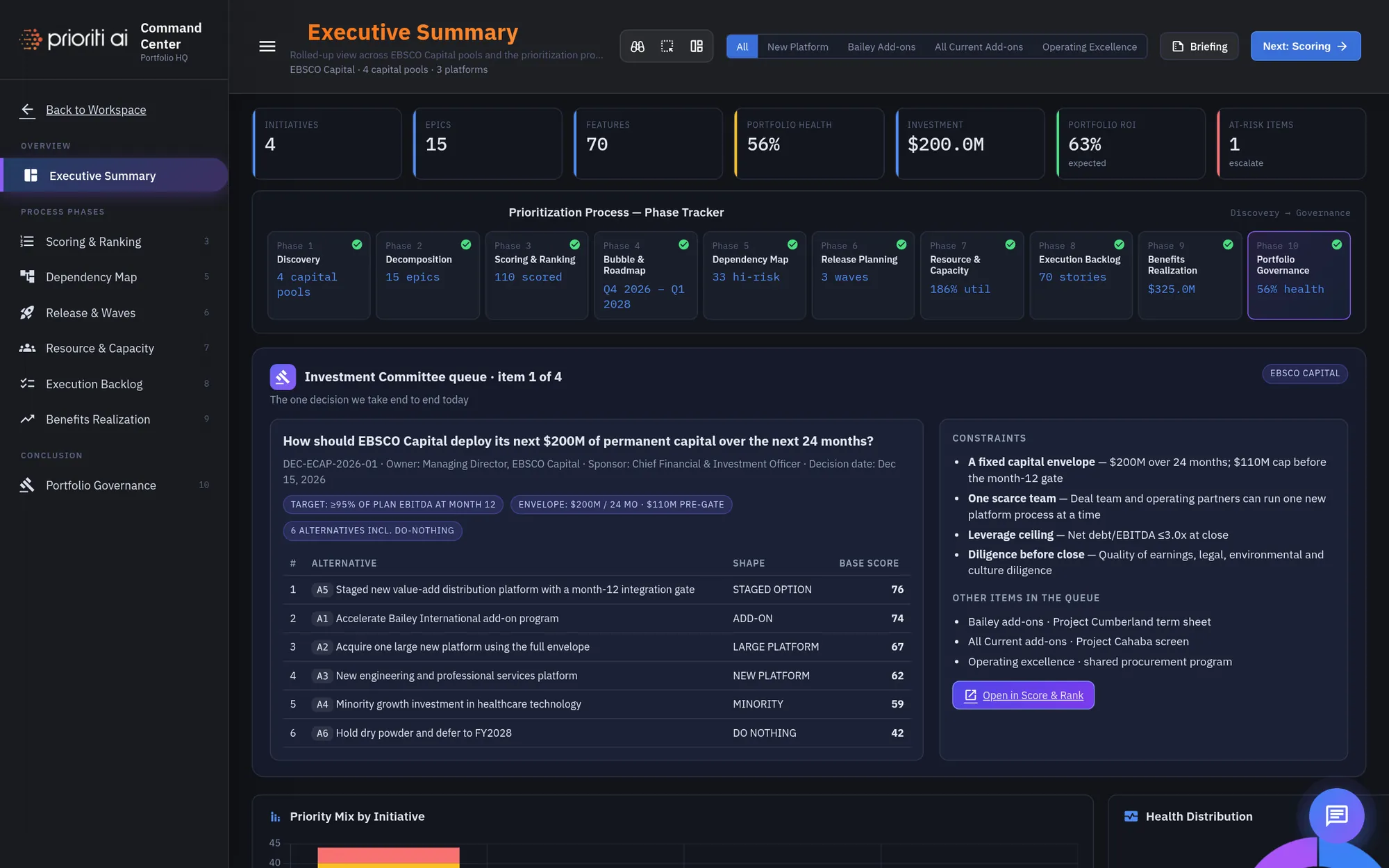
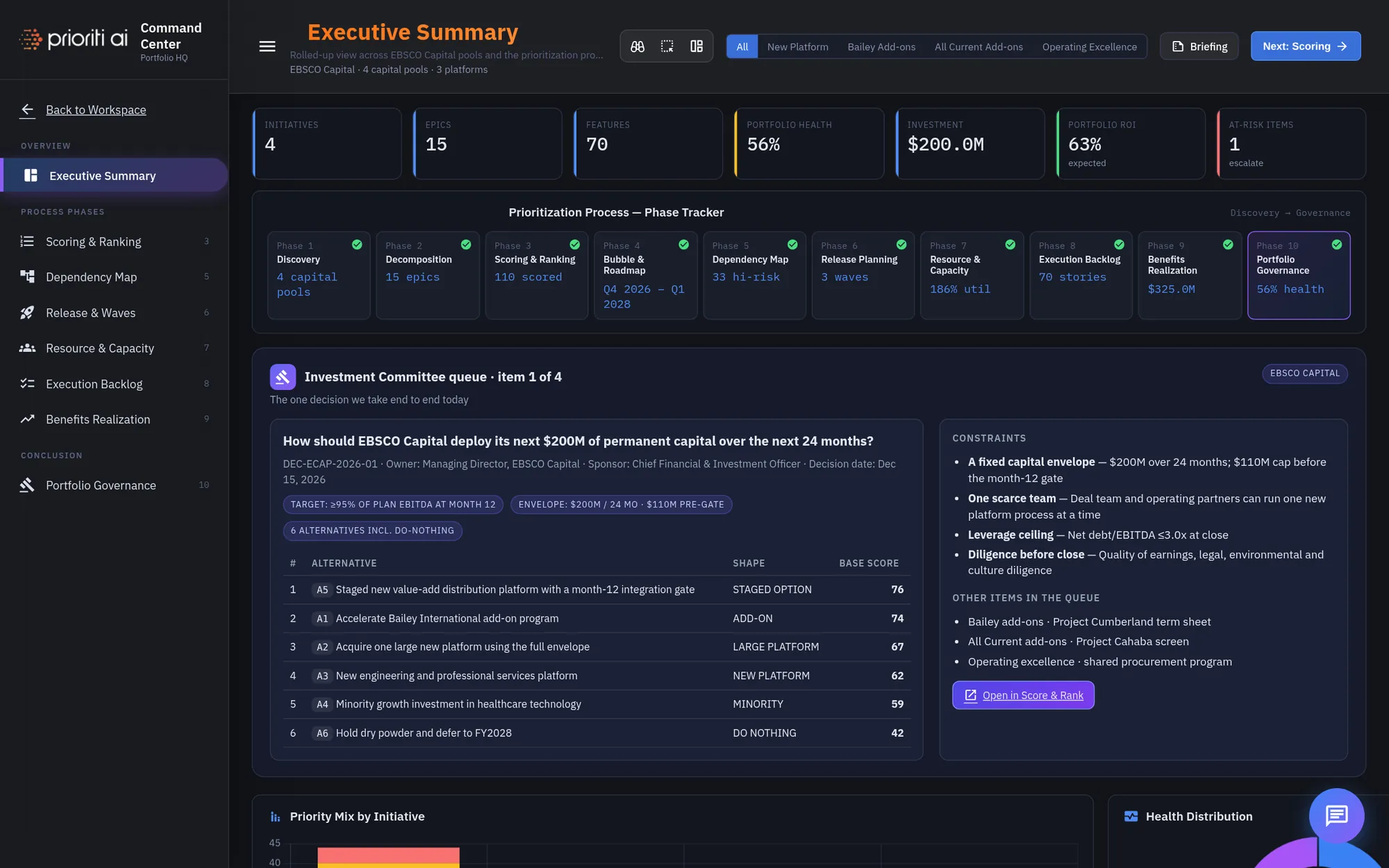
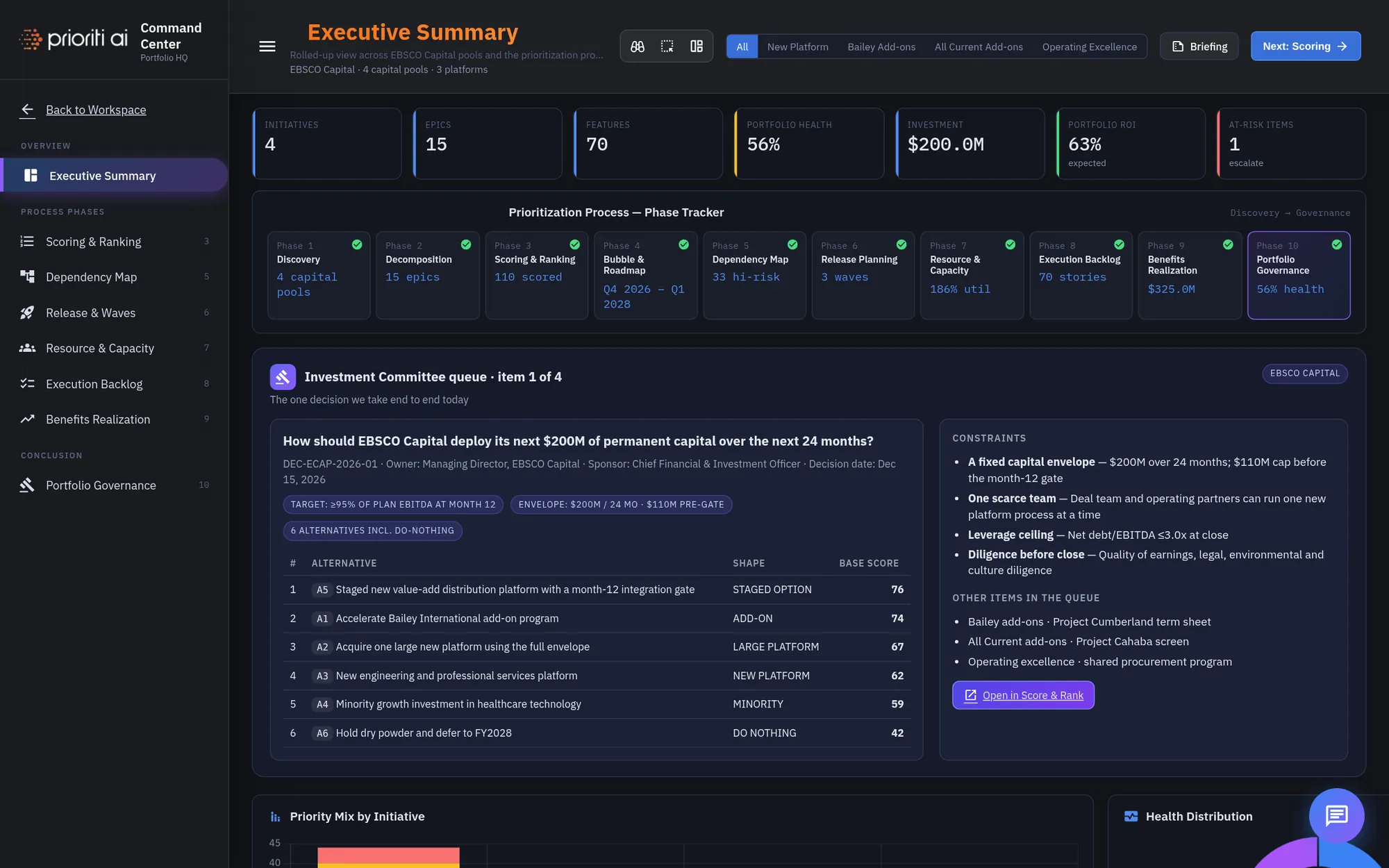
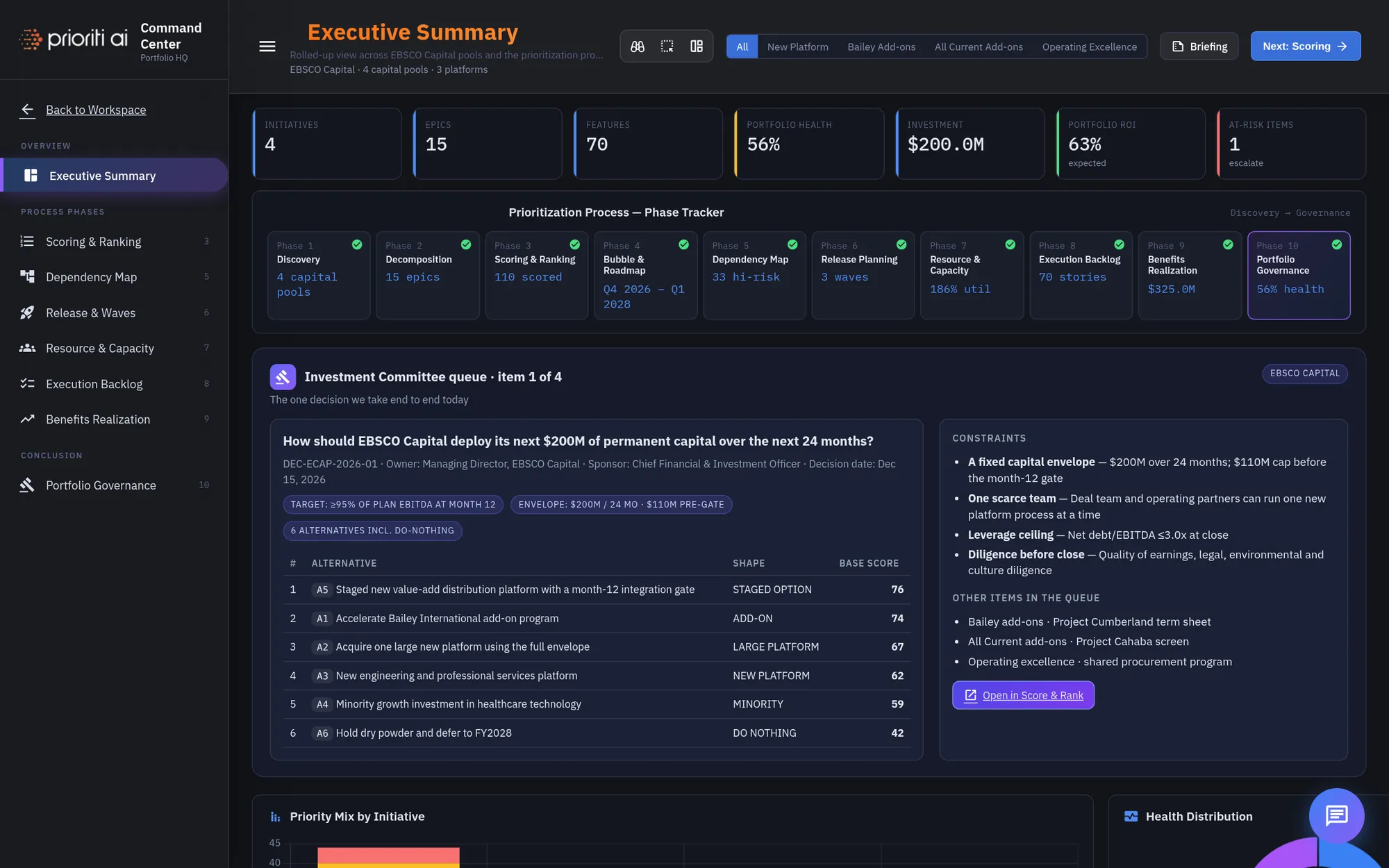
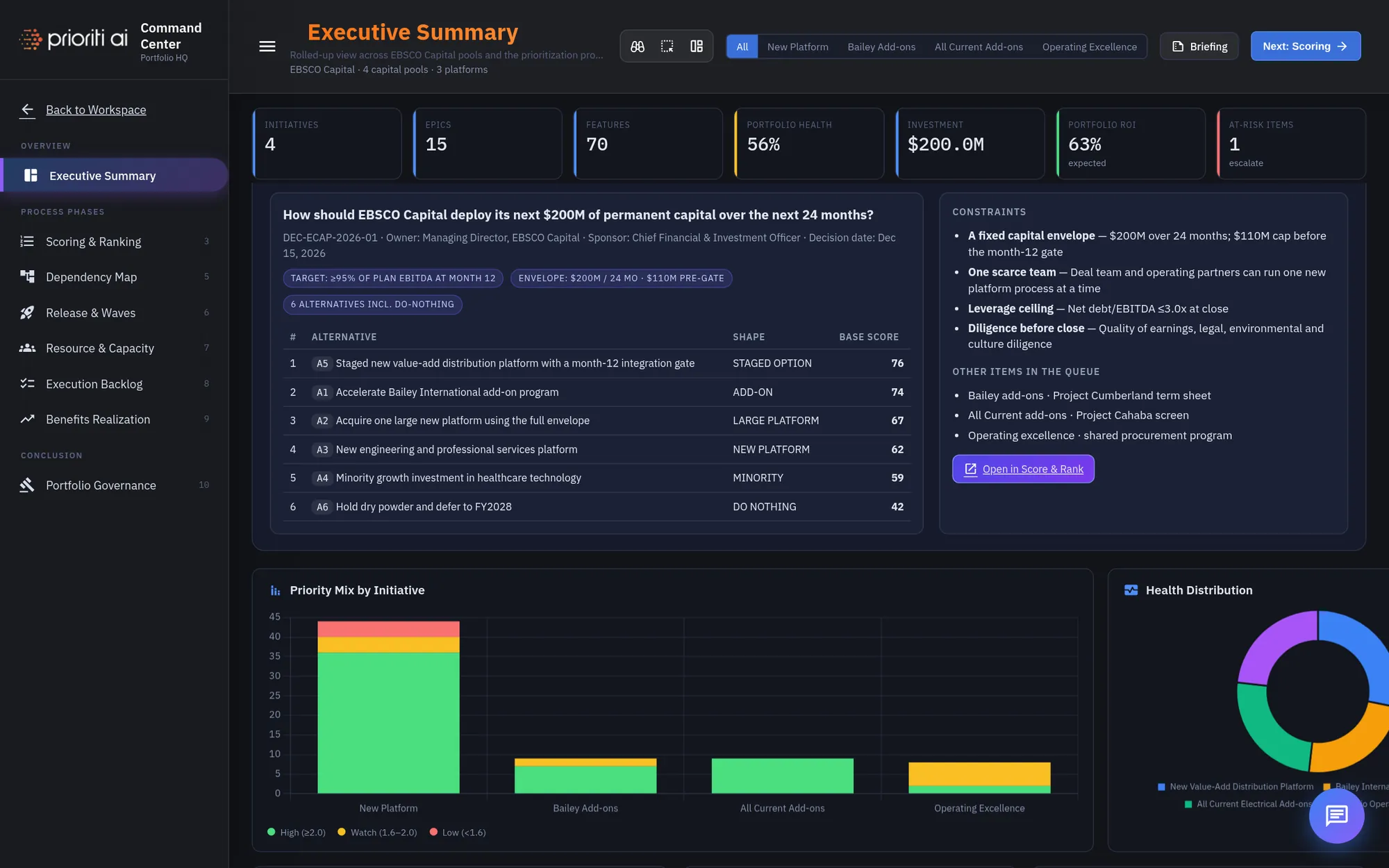
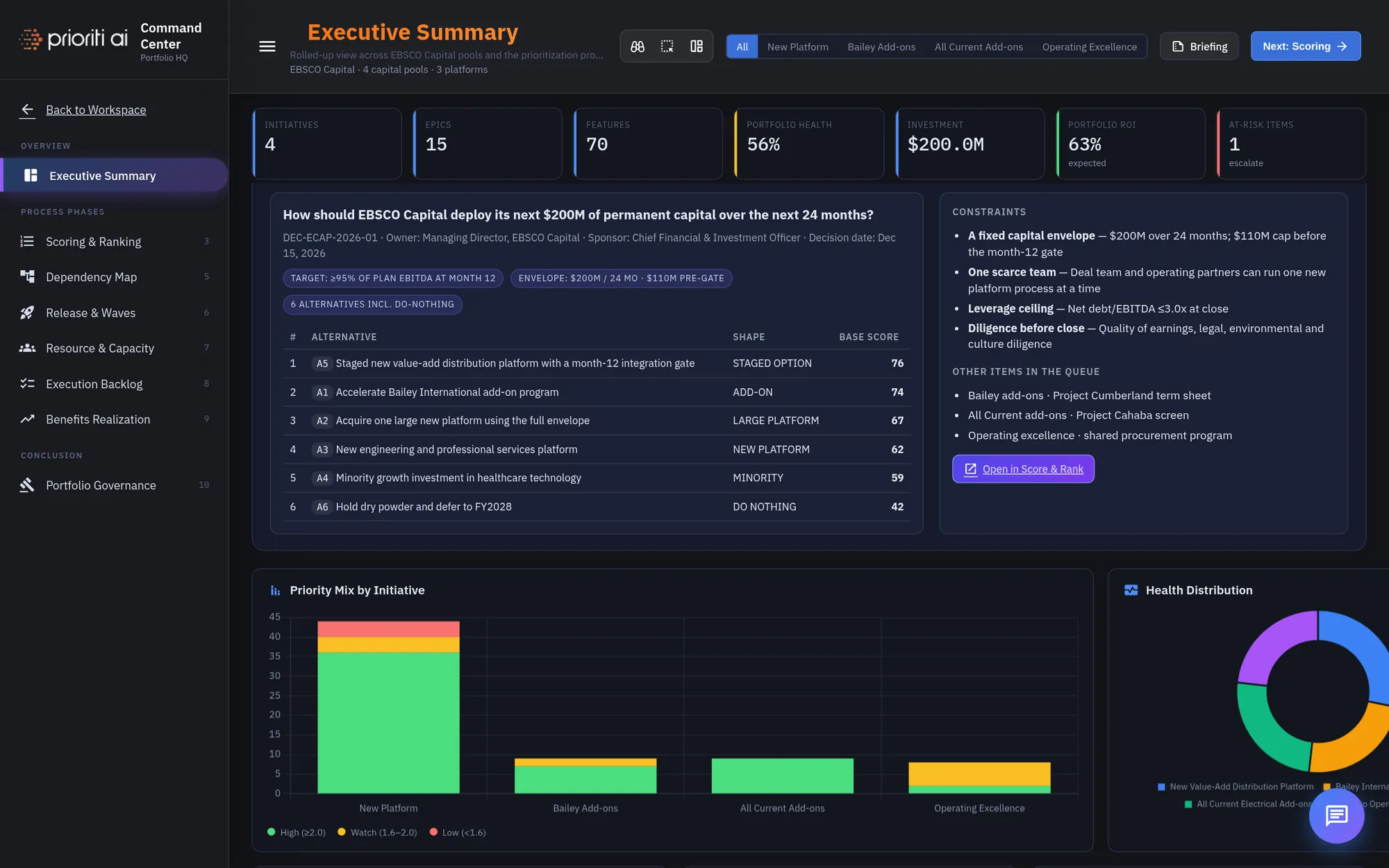
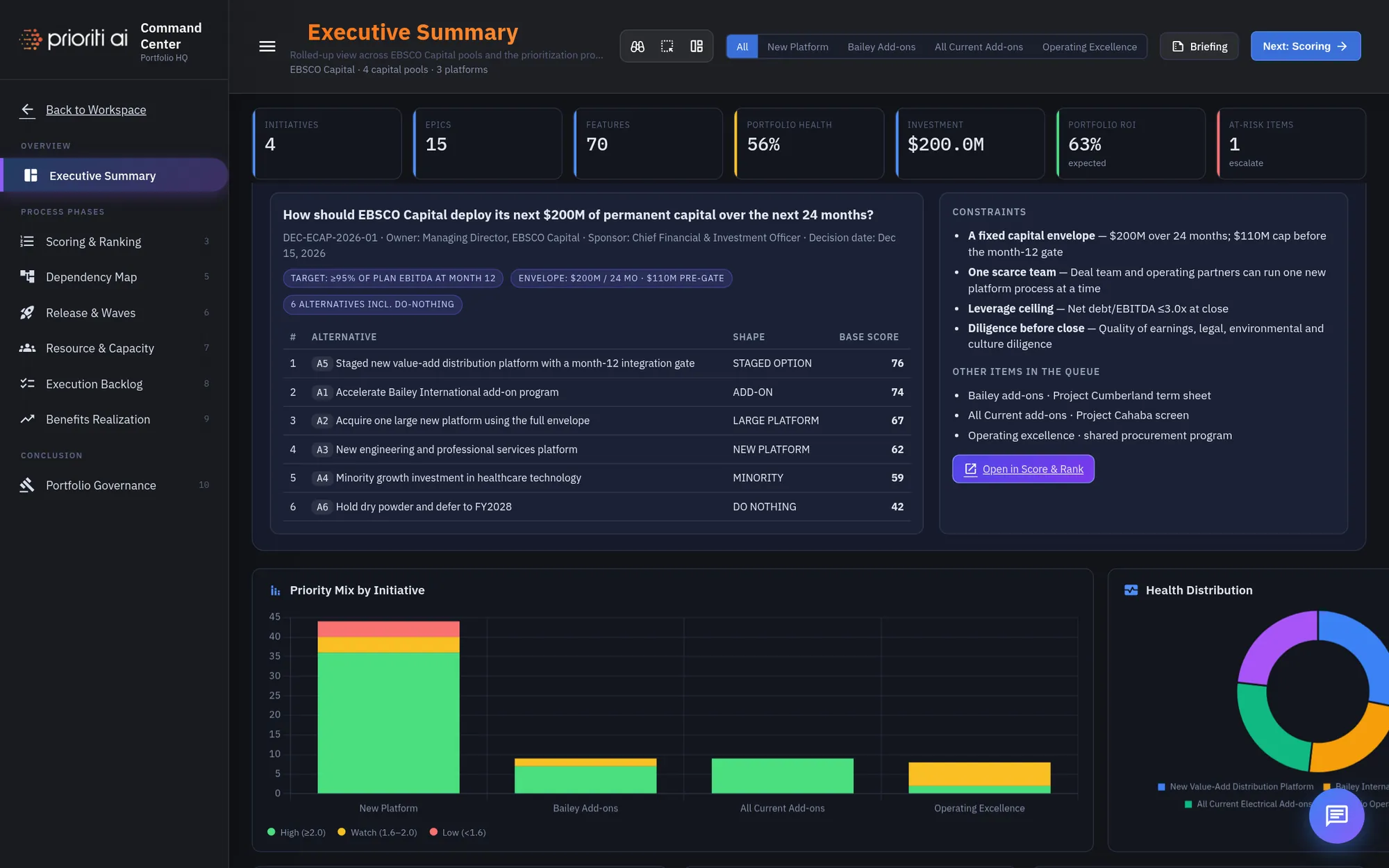
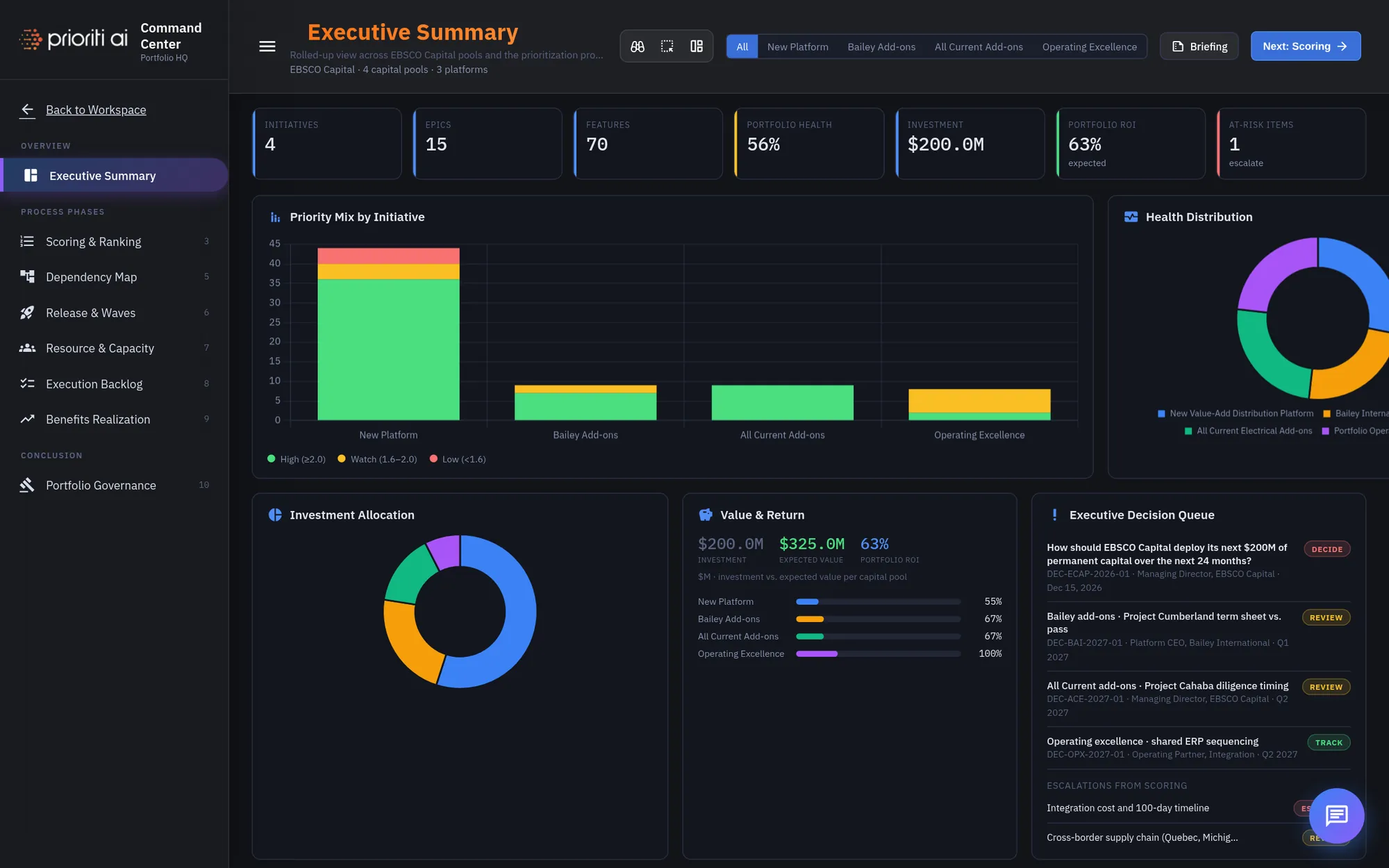
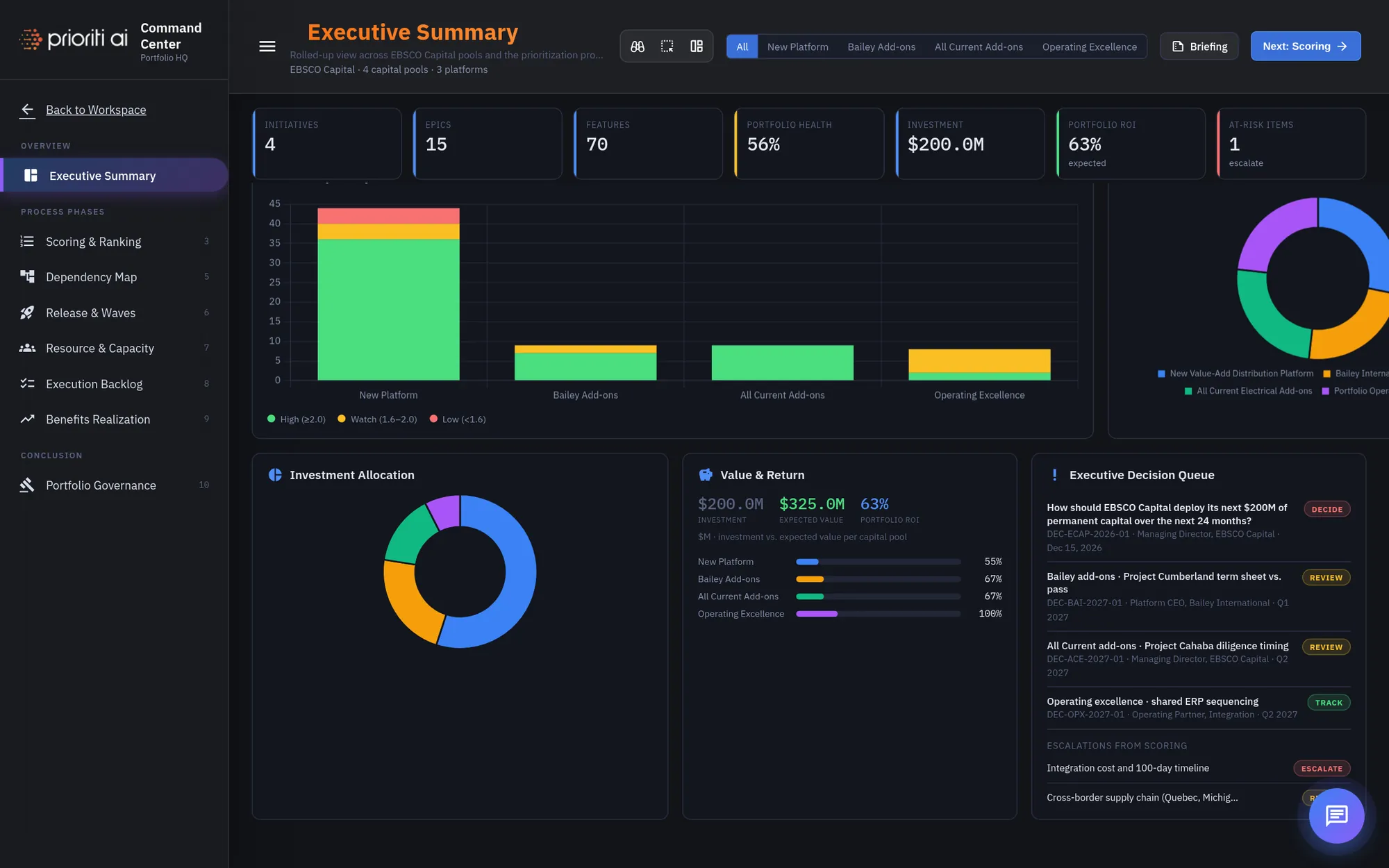
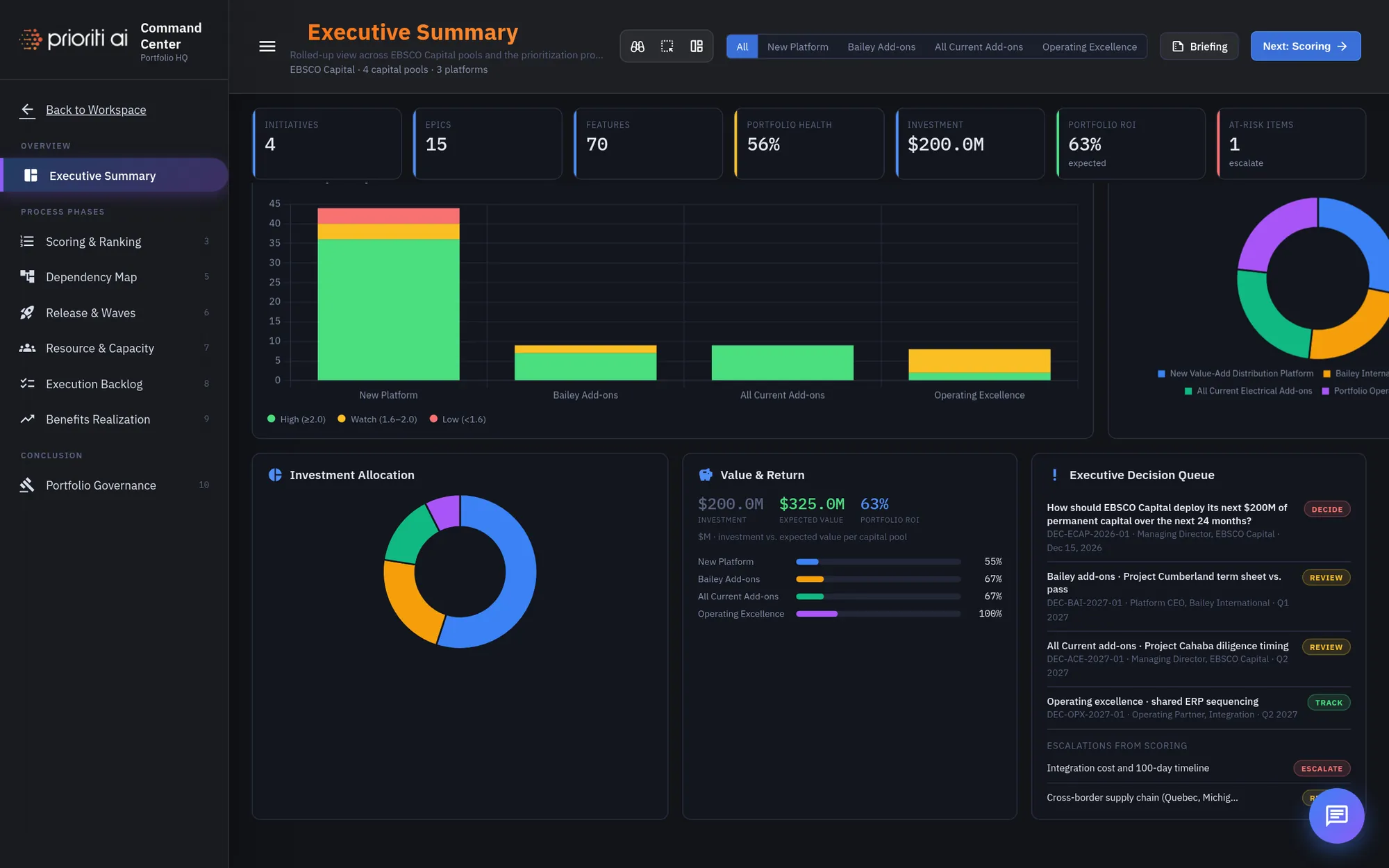
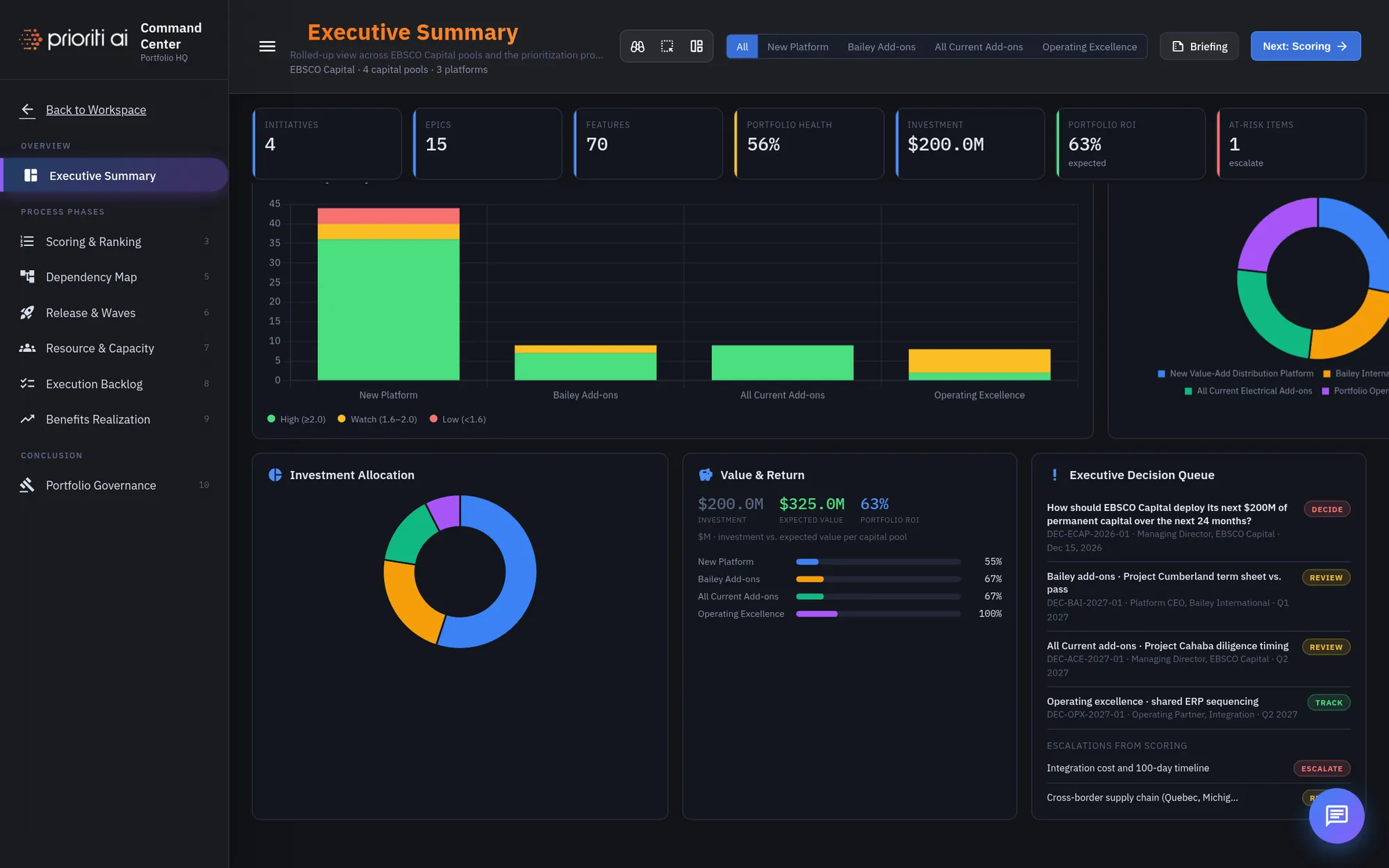
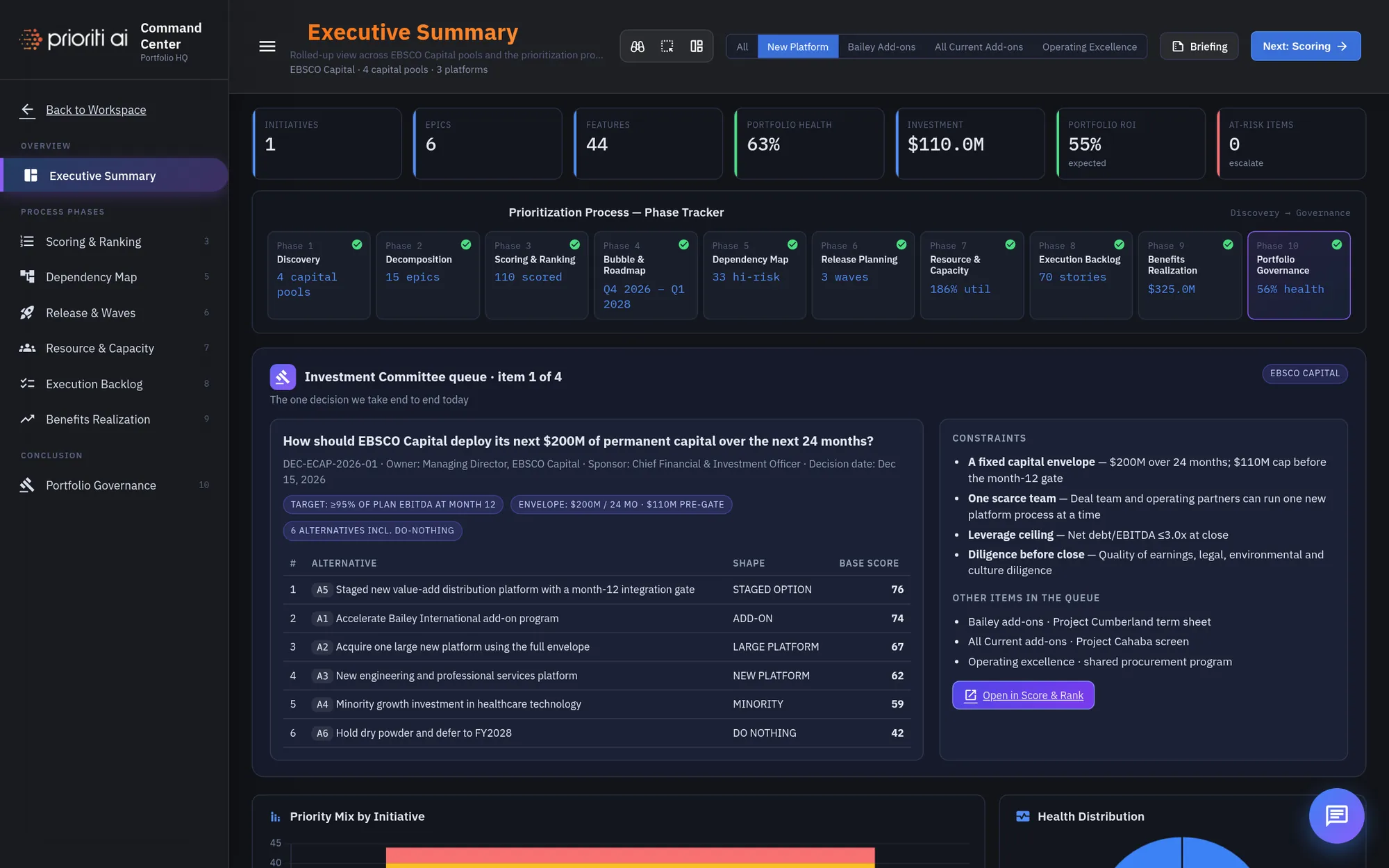
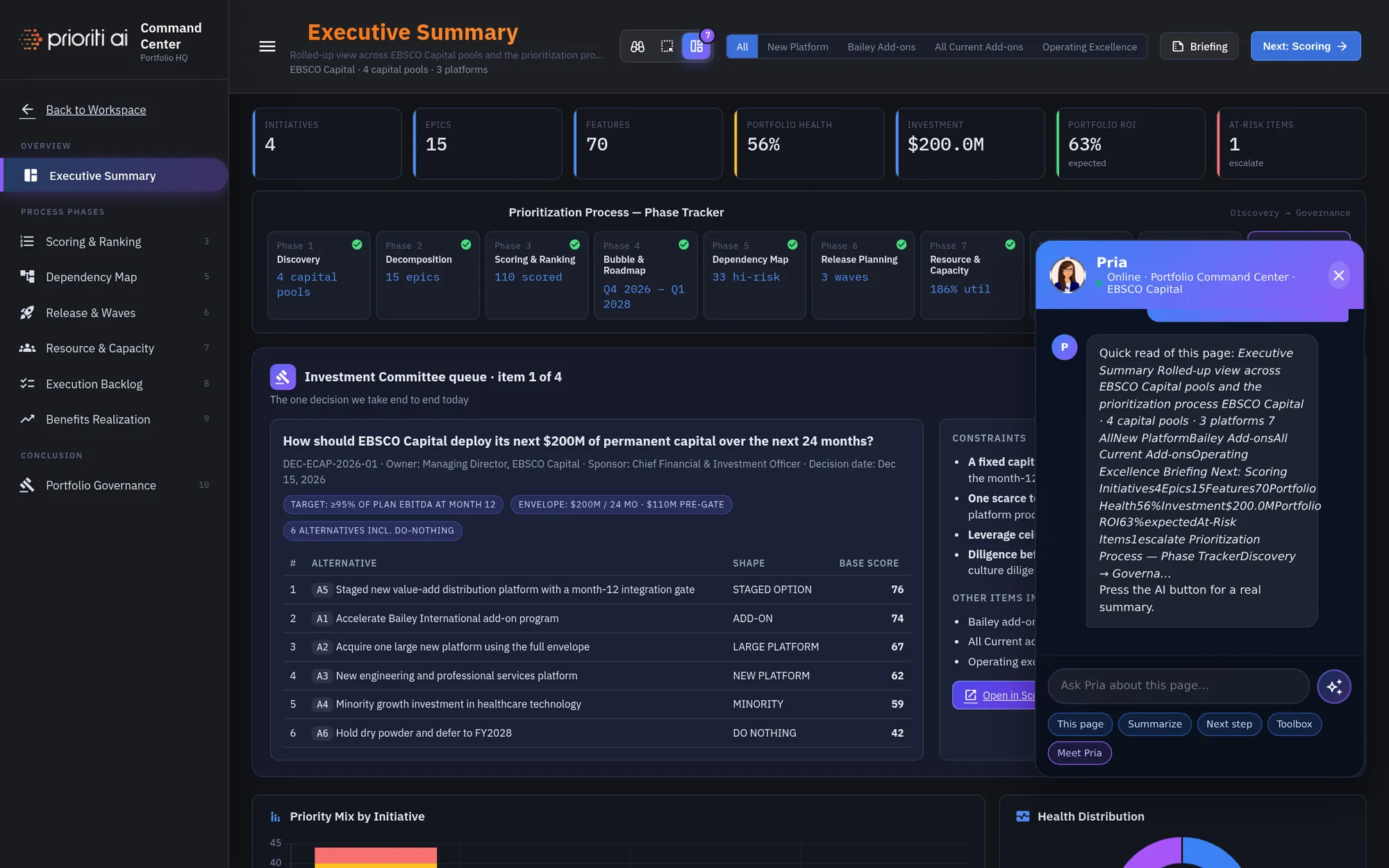
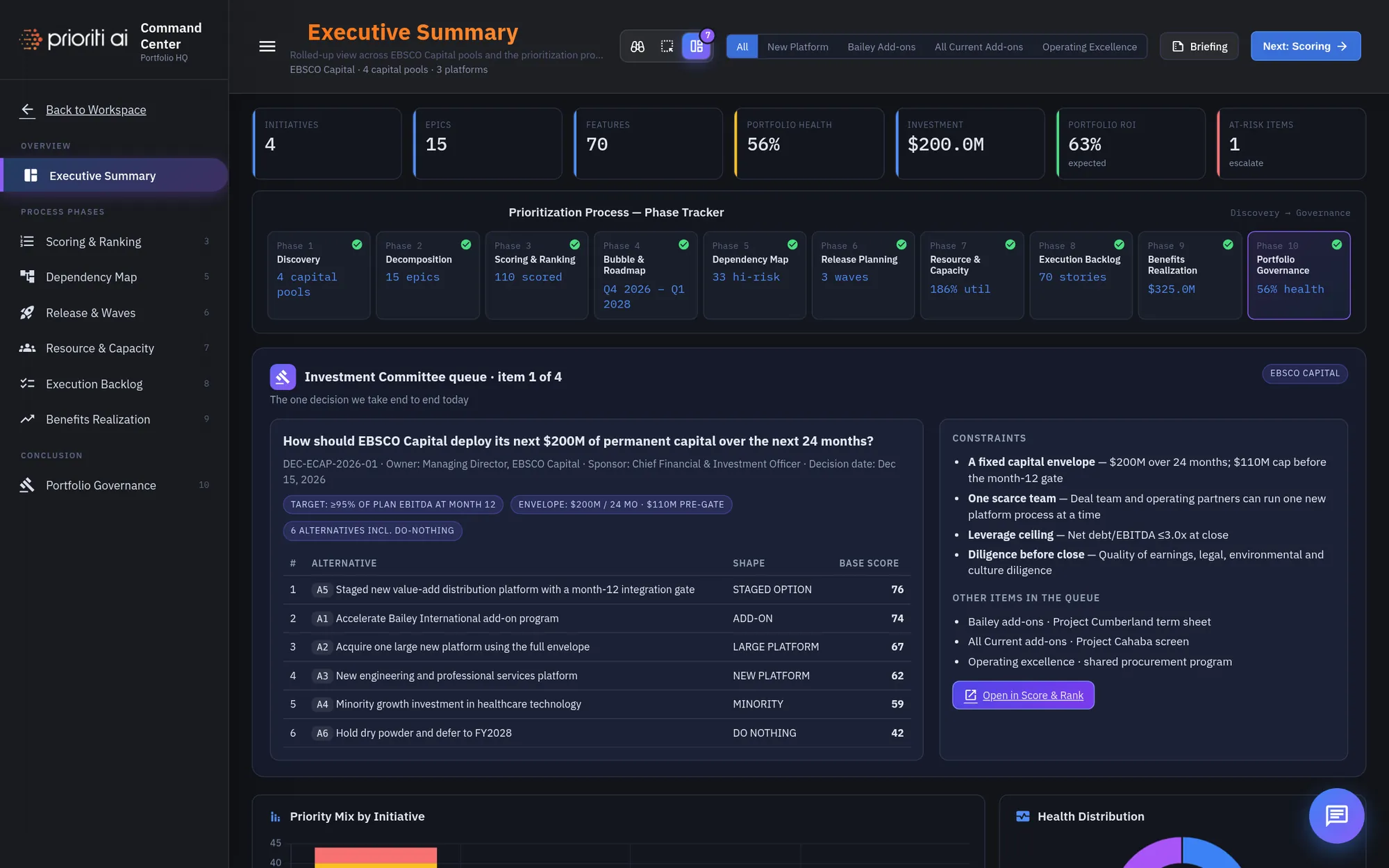
This is the Command Center: one rolled-up view of the portfolio across the whole prioritization process.
The left rail is organized like the process itself: an Overview, the Process Phases, and a Conclusion. Back to Workspace sits at the top.
The small numbers show each view's step in the ten-phase process, from Scoring at step three to Governance at step ten.
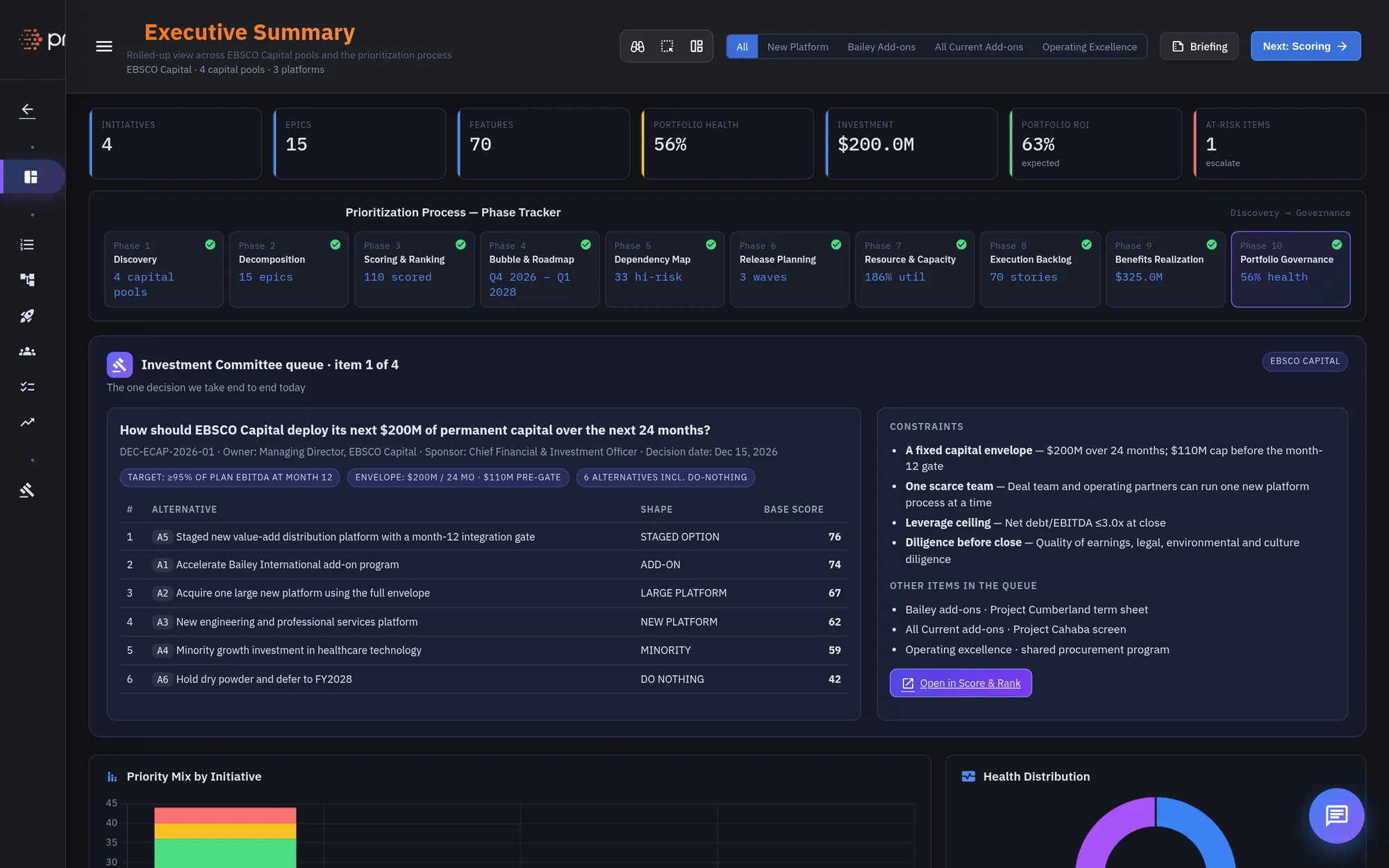
The menu button collapses the rail to icons, which gives charts and tables more room.
The header names the view you're on, with a one-line description and the portfolio it covers.
On the right: the Lens tools, the capital pool filter, the Briefing button to reopen the briefing, and Next phase.
The KPI row stays on screen in every view. It changes to fit the view you're on, and a colored edge flags anything at risk.
The Phase Tracker shows all ten phases, from Discovery to Portfolio Governance, each with its headline result. A green check means the phase is complete.
The first phases happen upstream: Discovery frames the capital pools, Decomposition breaks them into epics, then Scoring and the Bubble and Roadmap view follow.
The Investment Committee queue holds the live decision. It names the owner, the sponsor, the decision date, and the targets it must meet.
Every decision carries its alternatives, including doing nothing, each with a shape and a base score.
Constraints sit beside it, followed by the other items in the queue. Open in Score and Rank takes the decision into live scoring.
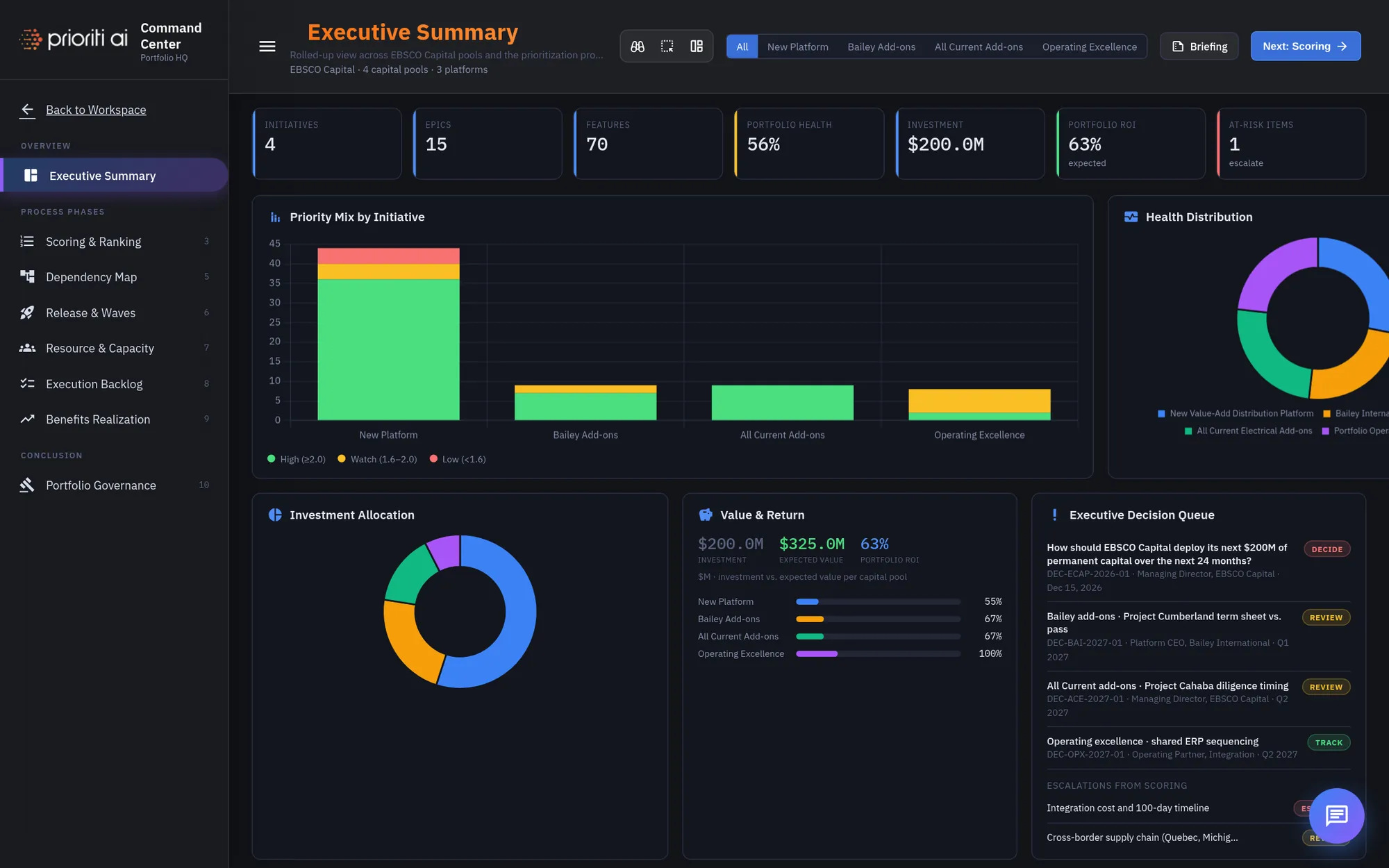
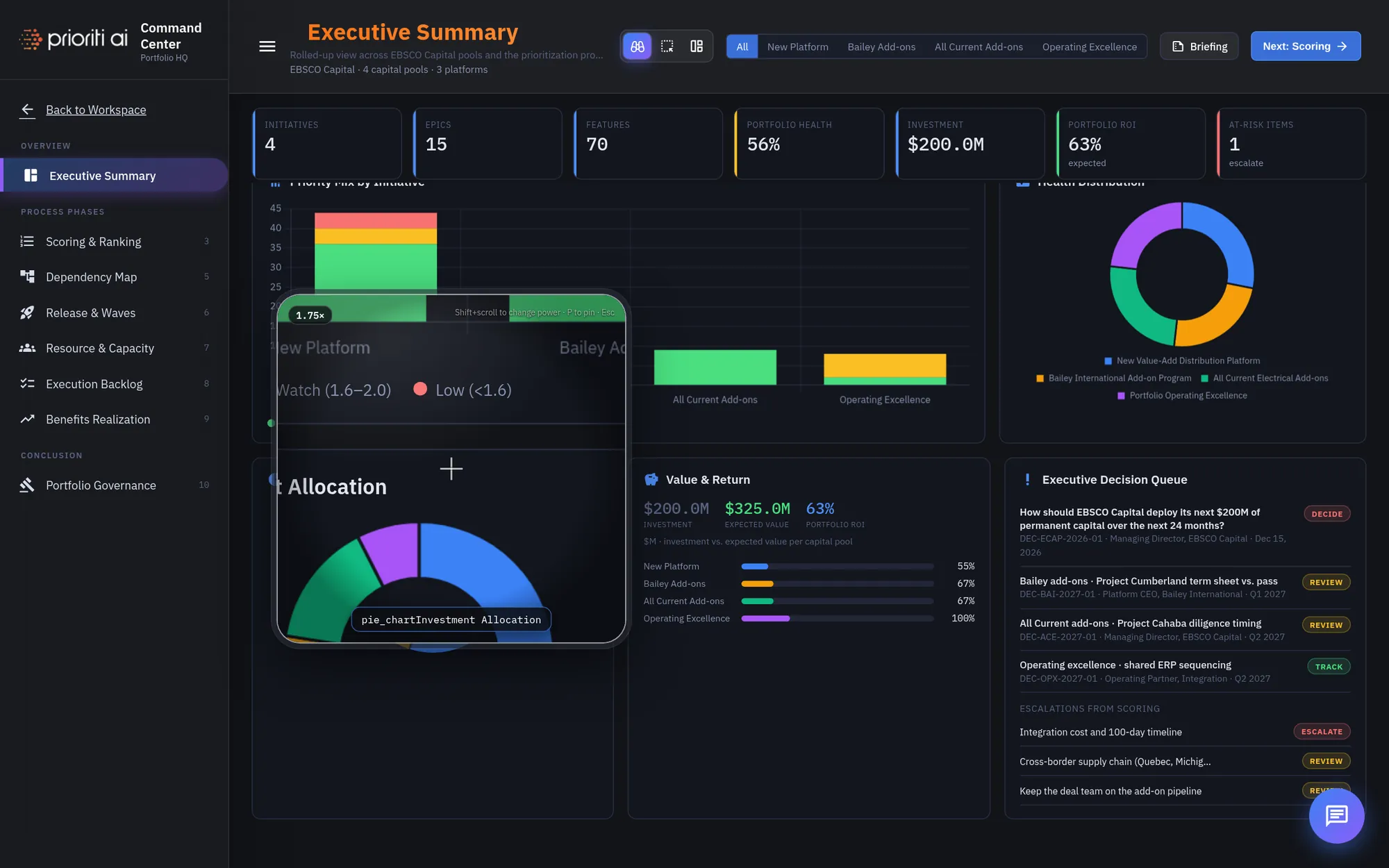
Priority Mix shows how many items in each initiative score high, need watching, or score low. Hover a bar for the counts.
Health Distribution shows how portfolio health is spread across the four initiatives.
Investment Allocation shows the envelope by capital pool.
Value and Return compares money in with expected value, and shows the return for each pool.
The Executive Decision Queue lists every item waiting on a call, tagged decide, review, or track, plus escalations raised during scoring.
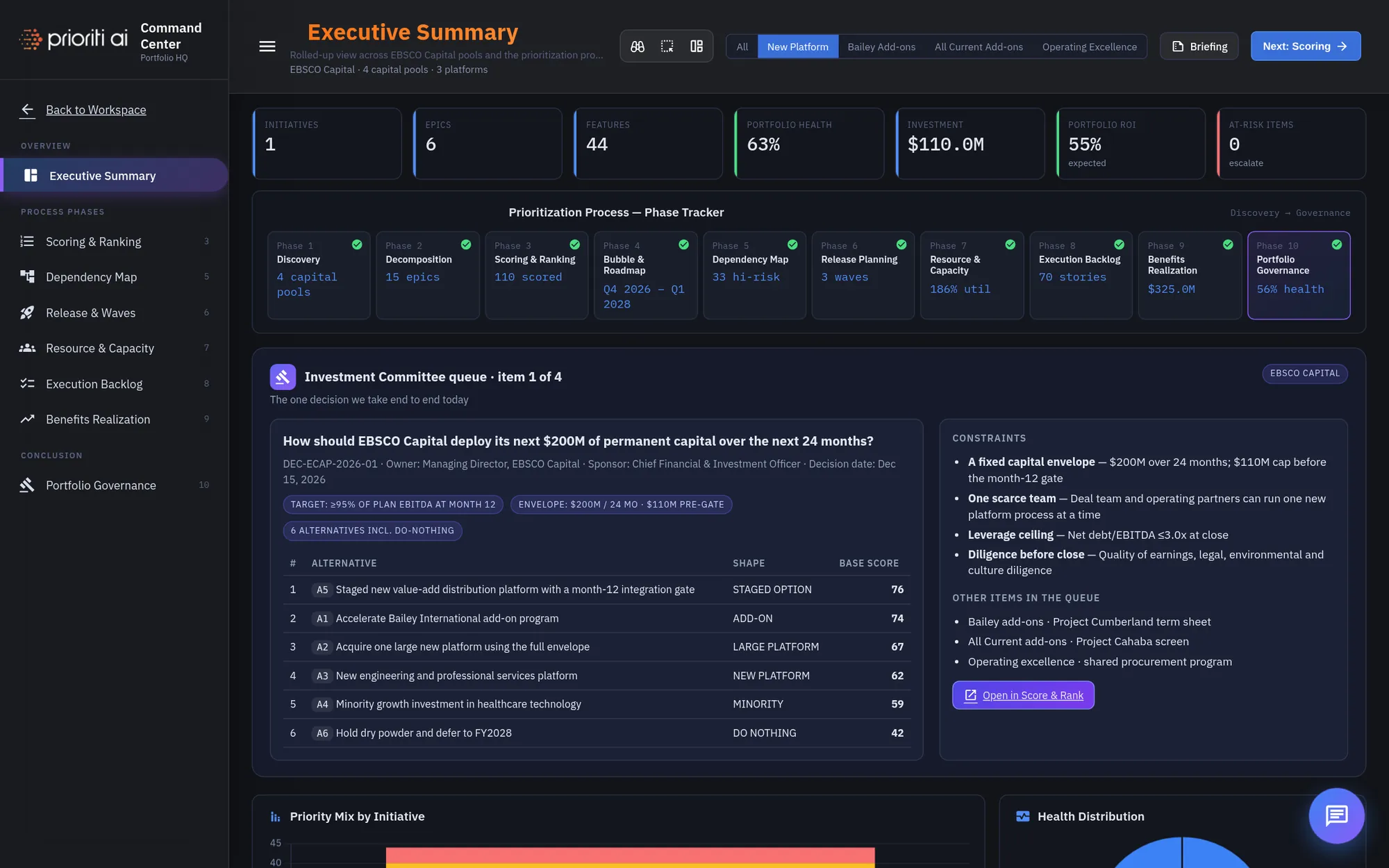
Use the pool filter to focus on one initiative. Here, New Platform is selected.
The KPI row, the tracker, and every chart update to that pool. Choose All to return to the full portfolio.
Now the Lens tools. The Loupe magnifies whatever is under your cursor and reads the value there. Press P to pin it, or Escape to close it.
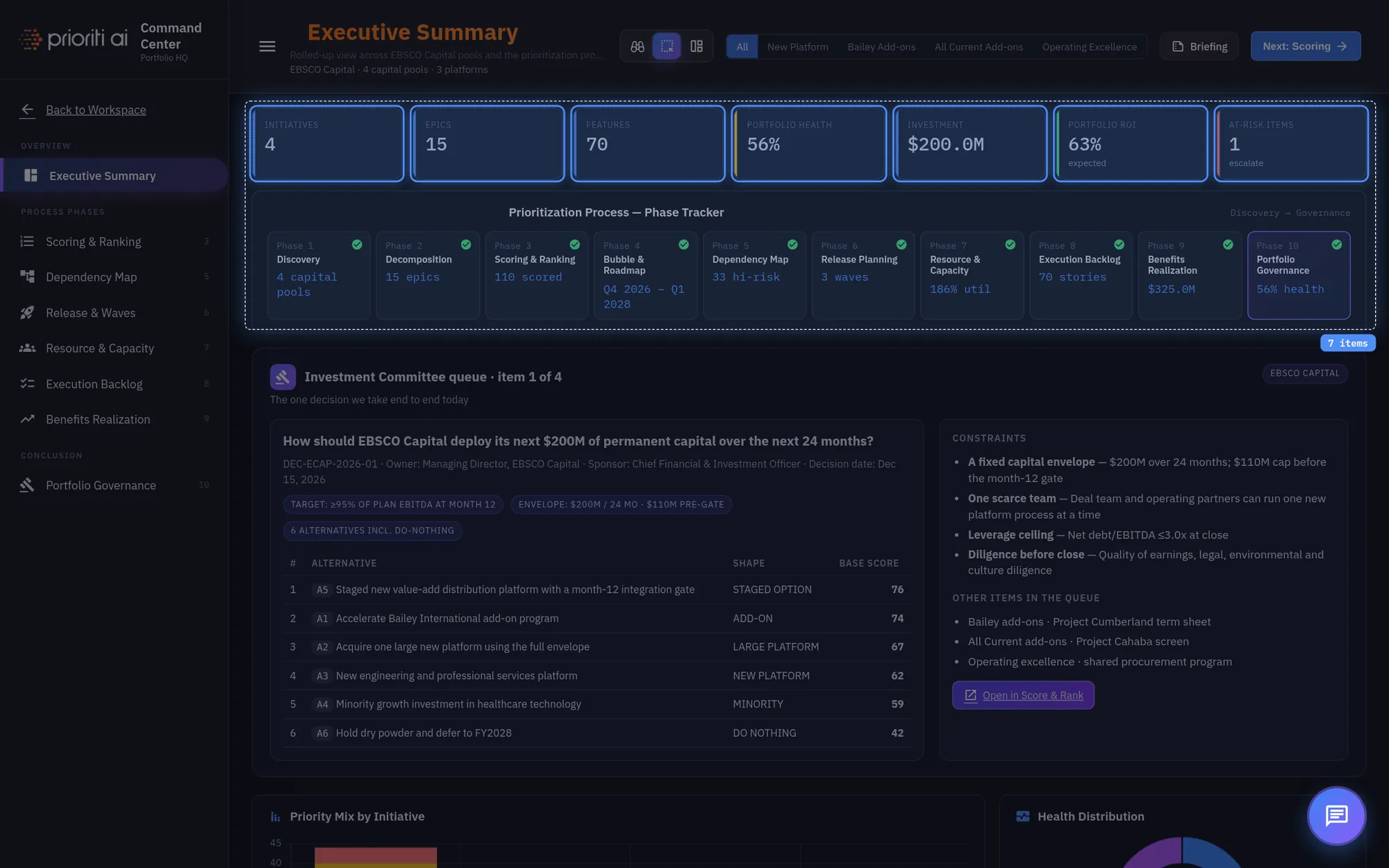
Capture lets you drag a box across any charts, tiles, or rows. Everything inside the box lights up.
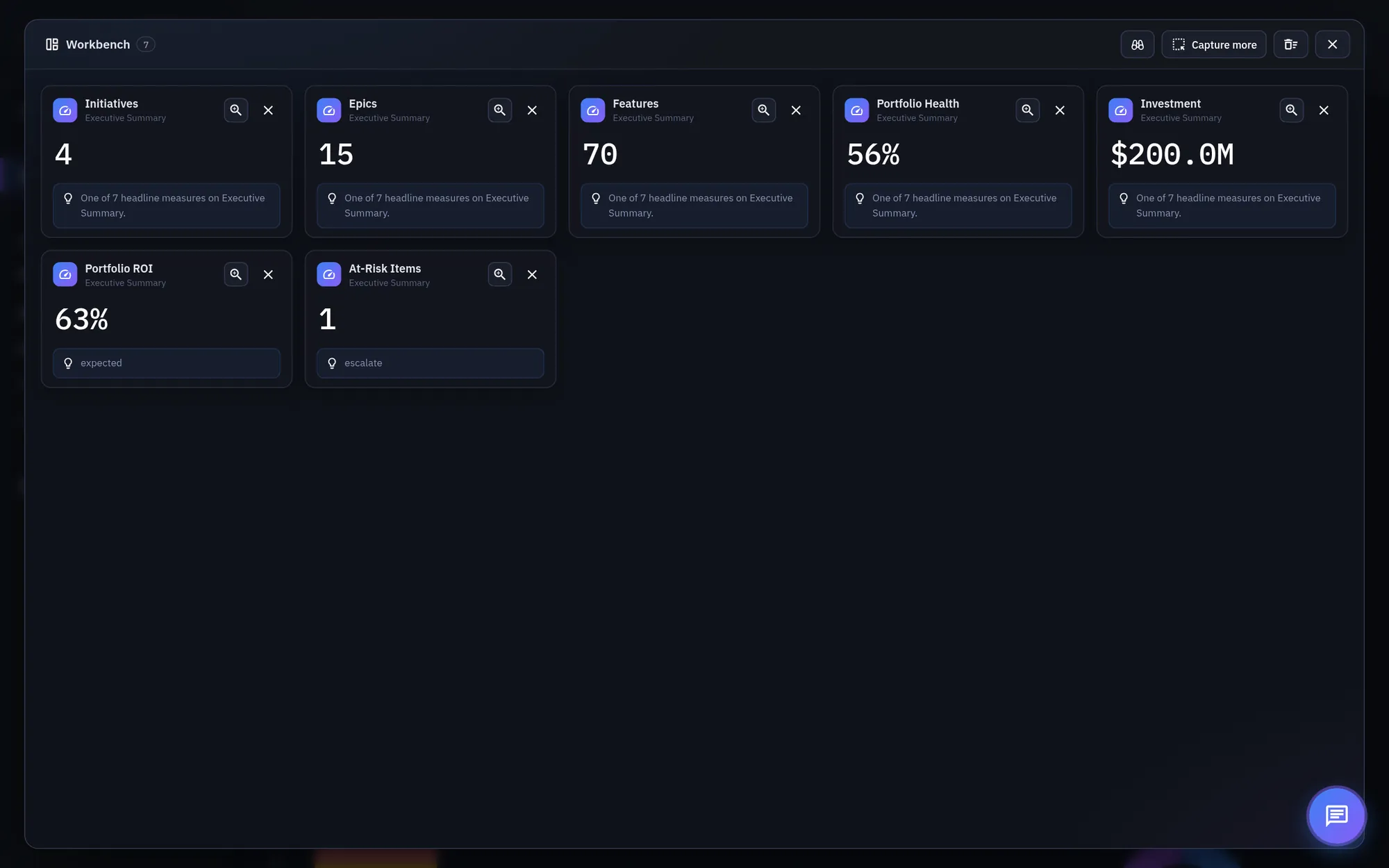
Let go, and your capture opens in the Workbench as live widgets, each with a short takeaway.
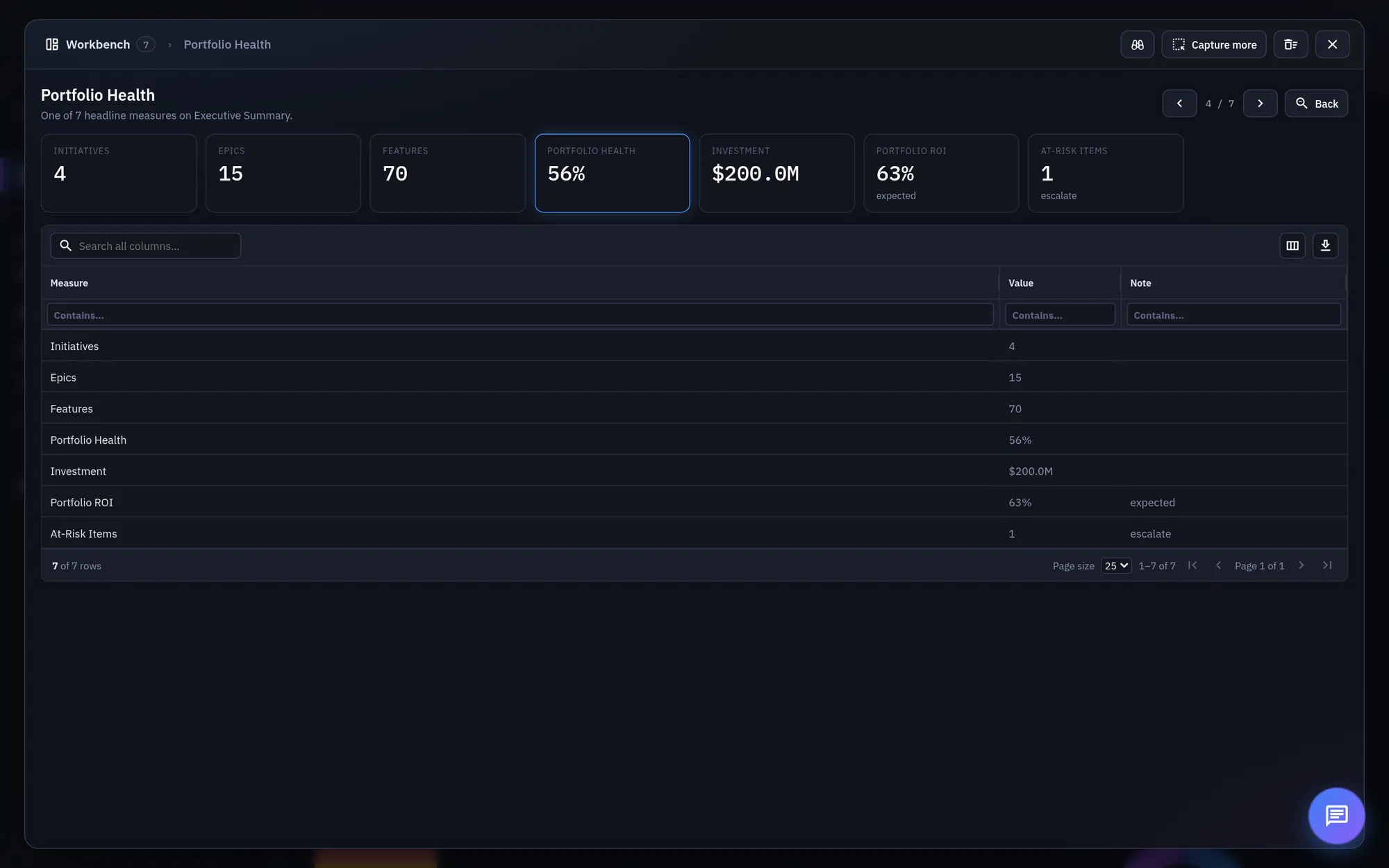
Click a widget's zoom icon to open Focus, with the full data set behind it as a chart and a sortable grid. Step through widgets with the arrows.
Pria, your assistant, sits in the corner of every view. Ask about the page, get a summary, or ask where to go next.
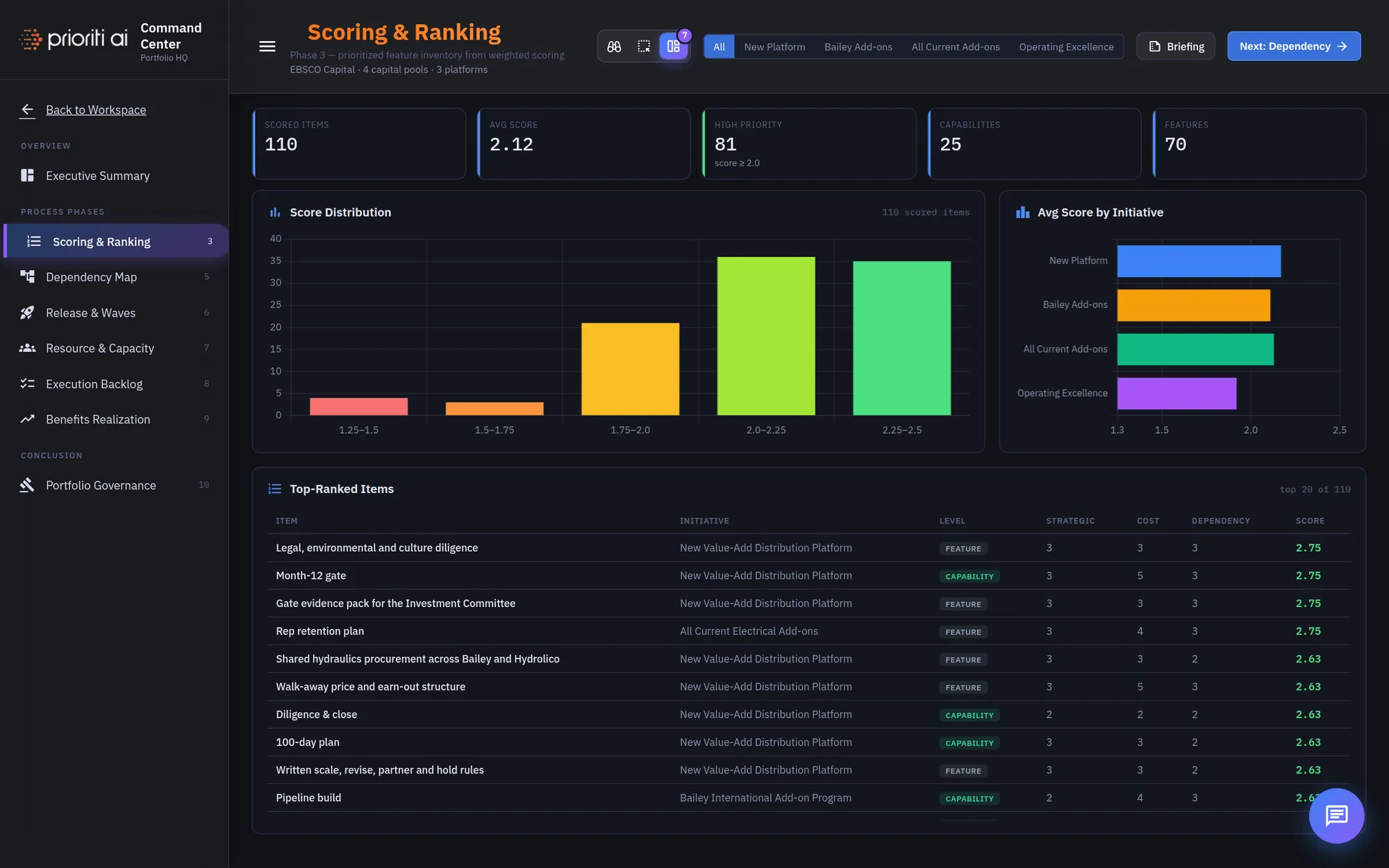
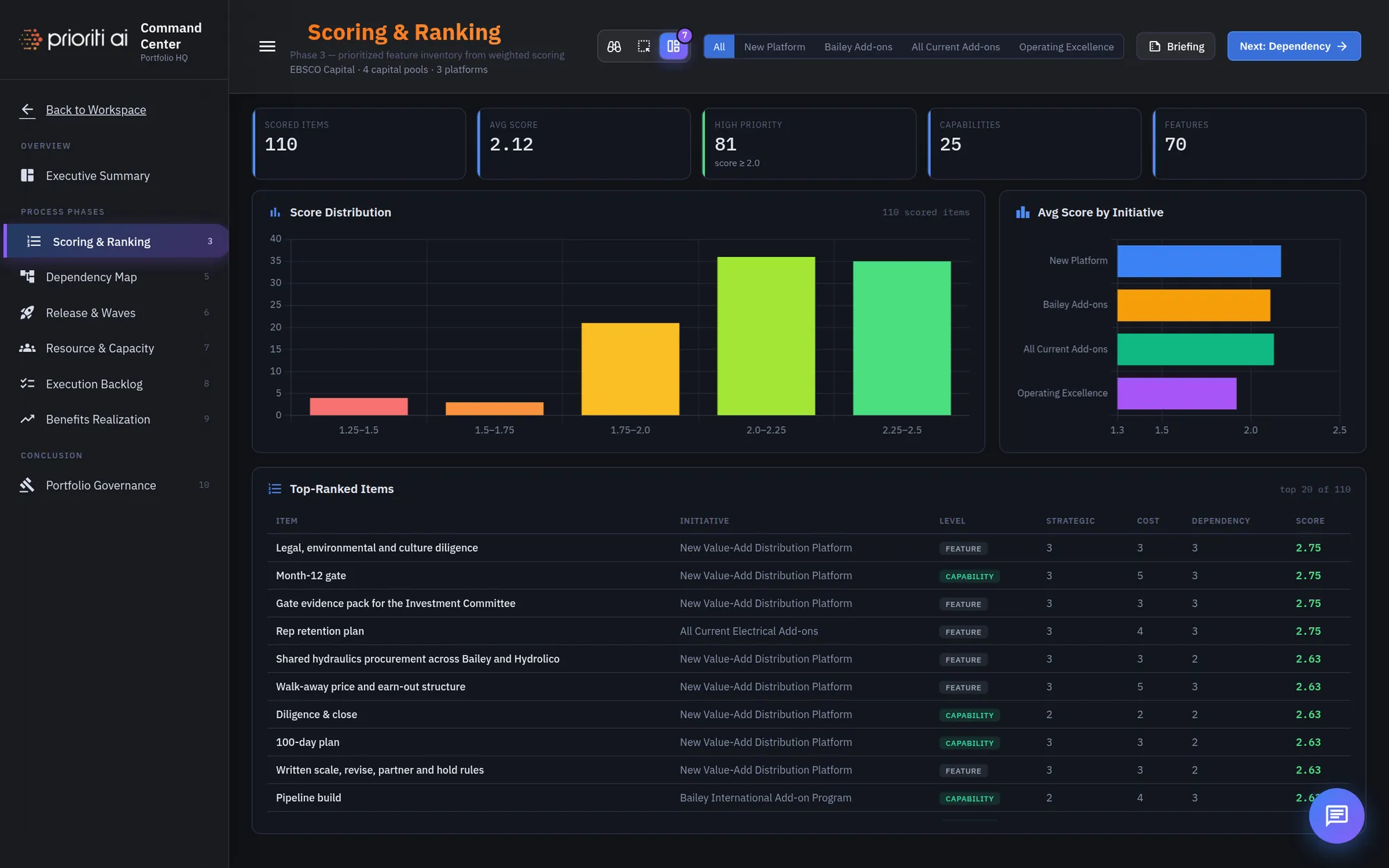
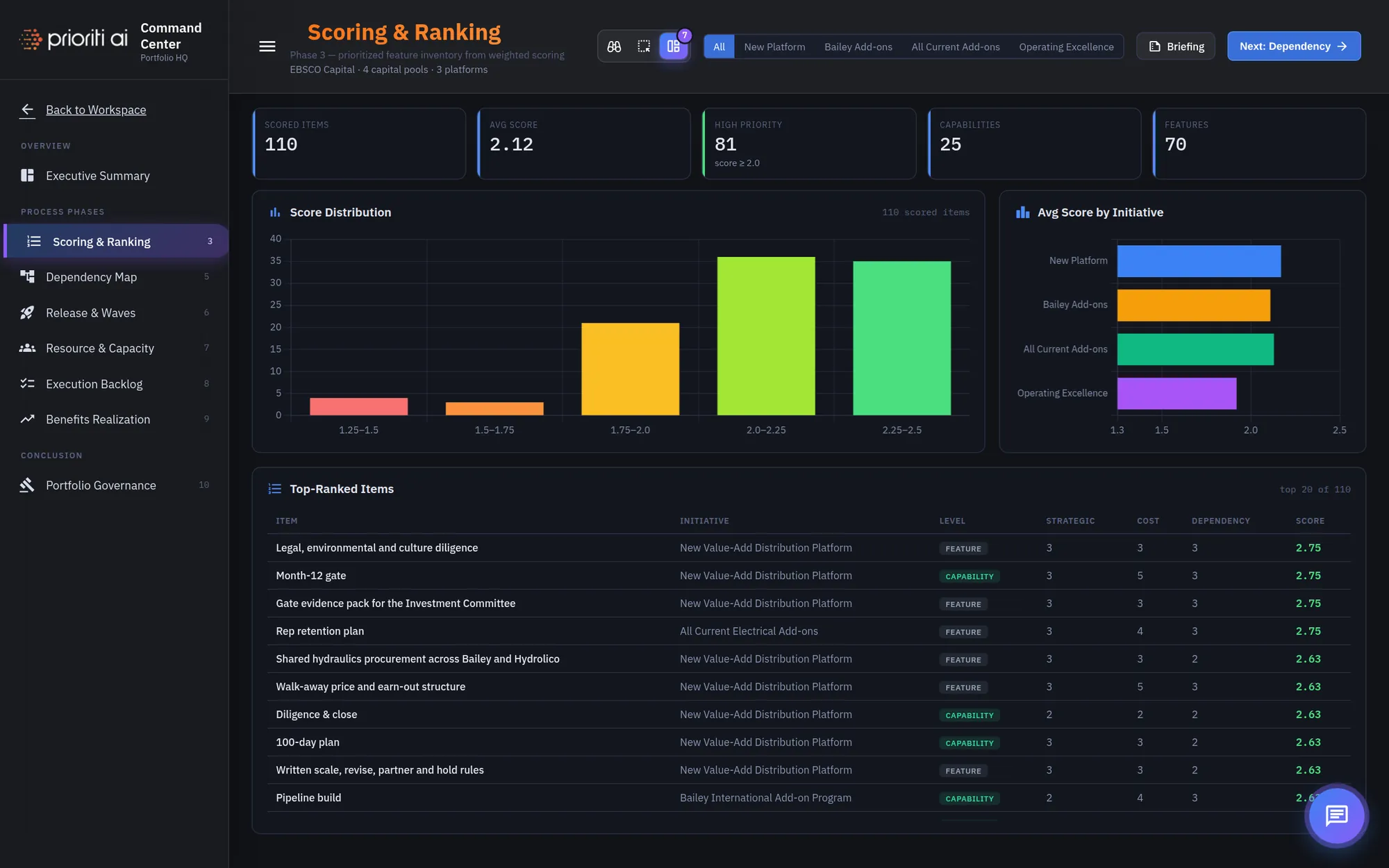
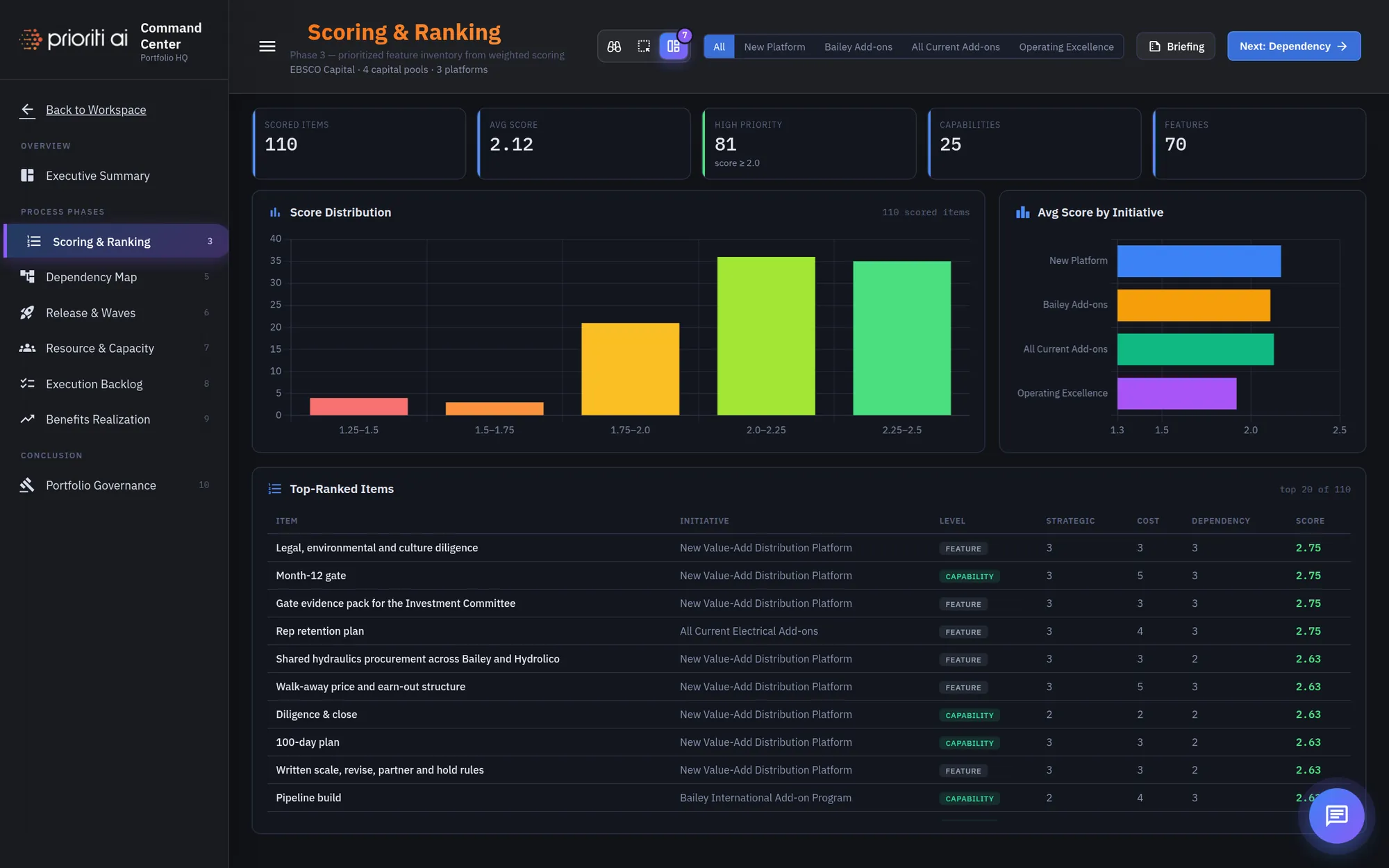
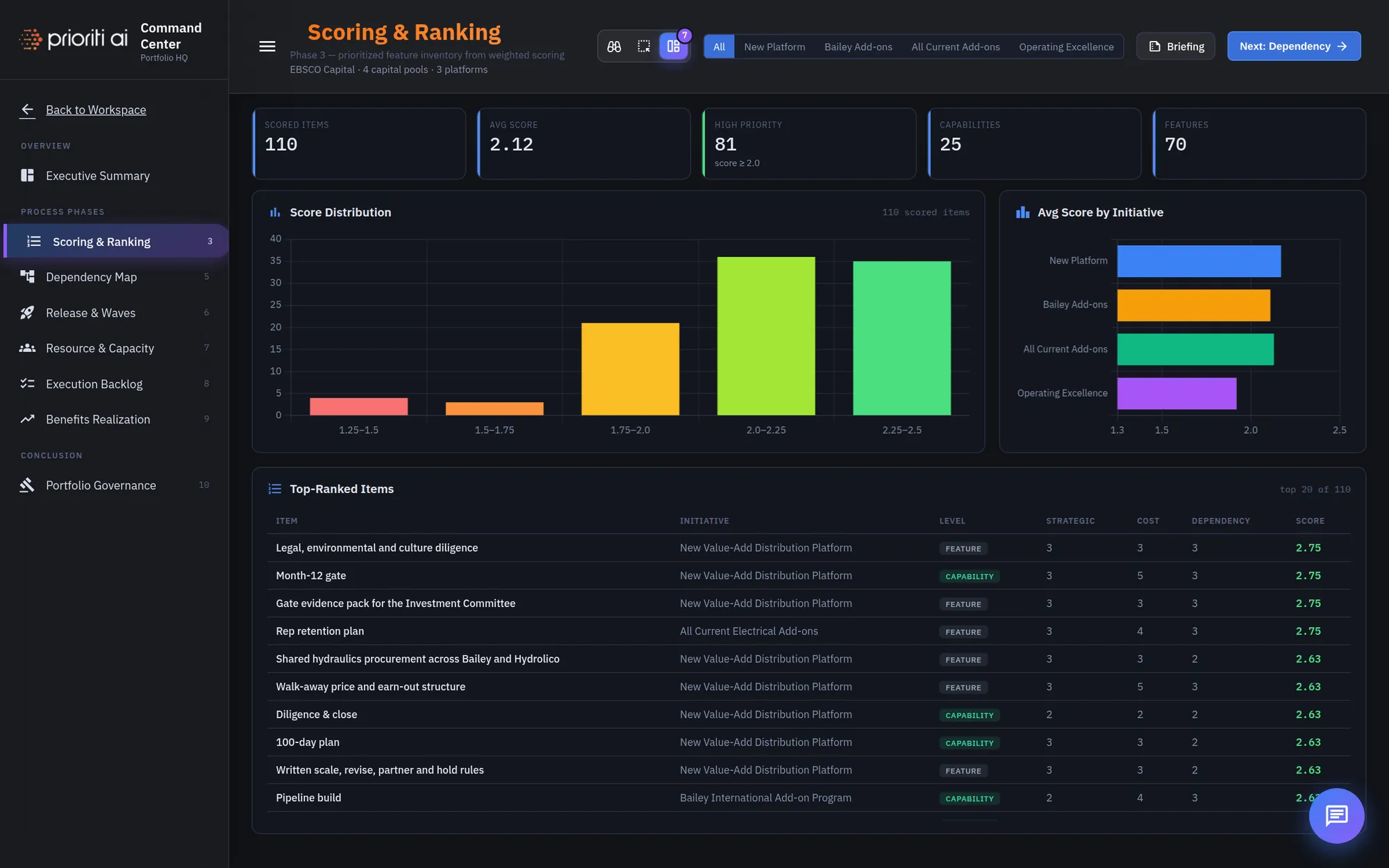
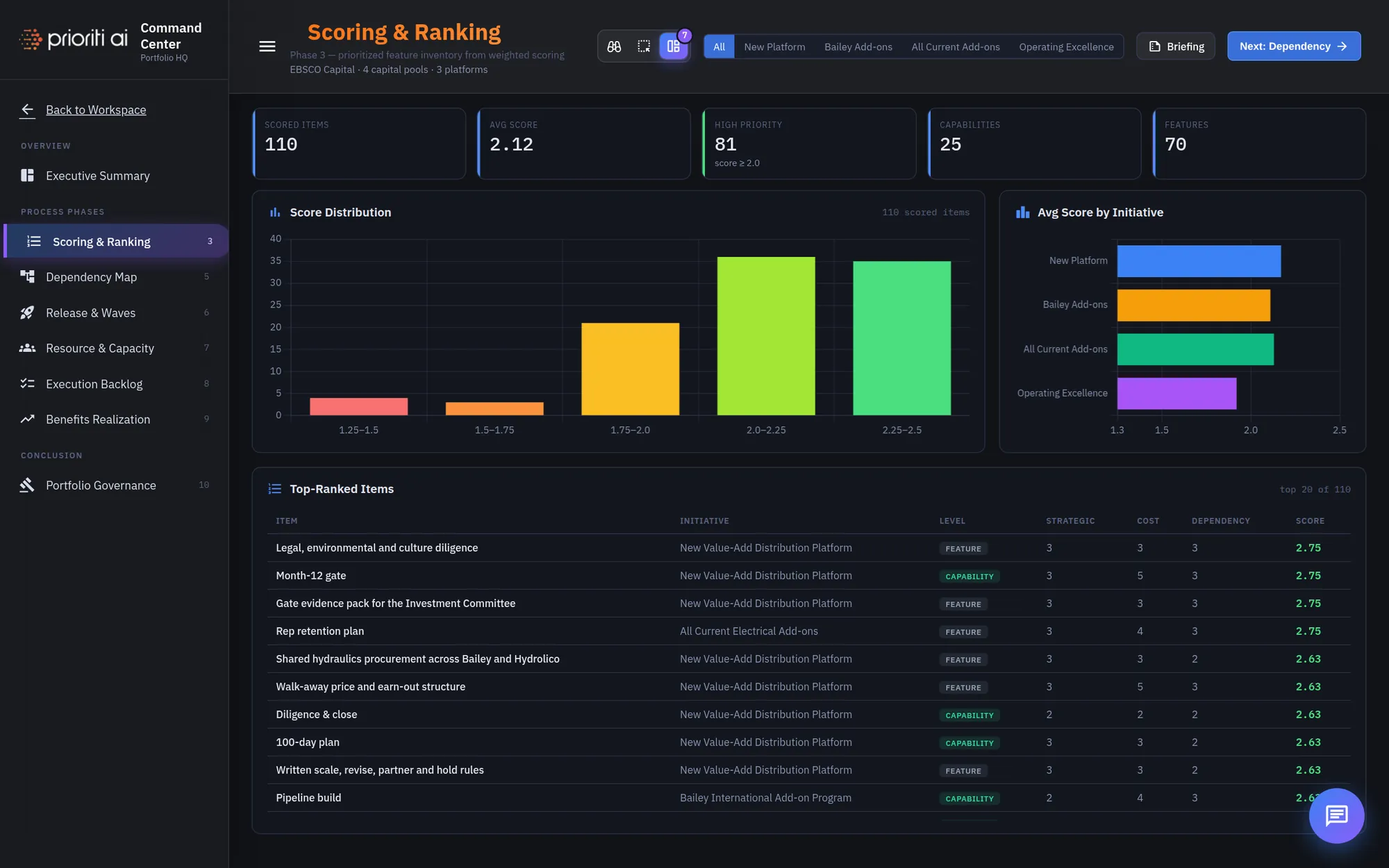
Now the process views. Select Scoring and Ranking, phase three. It shows how every item in the portfolio scored.
The KPIs change with the view: items scored, the average score, how many score high, and the number of capabilities and features.
Score Distribution groups items by score band, so you can see how much of the portfolio clears the high-priority bar.
Average Score by Initiative compares the four initiatives side by side.
Top-Ranked Items lists the highest scorers, with their initiative, level, and component scores. To change the weights, open Score and Rank.
Next phase always moves you to the following view in order. Here it reads Next: Dependency.
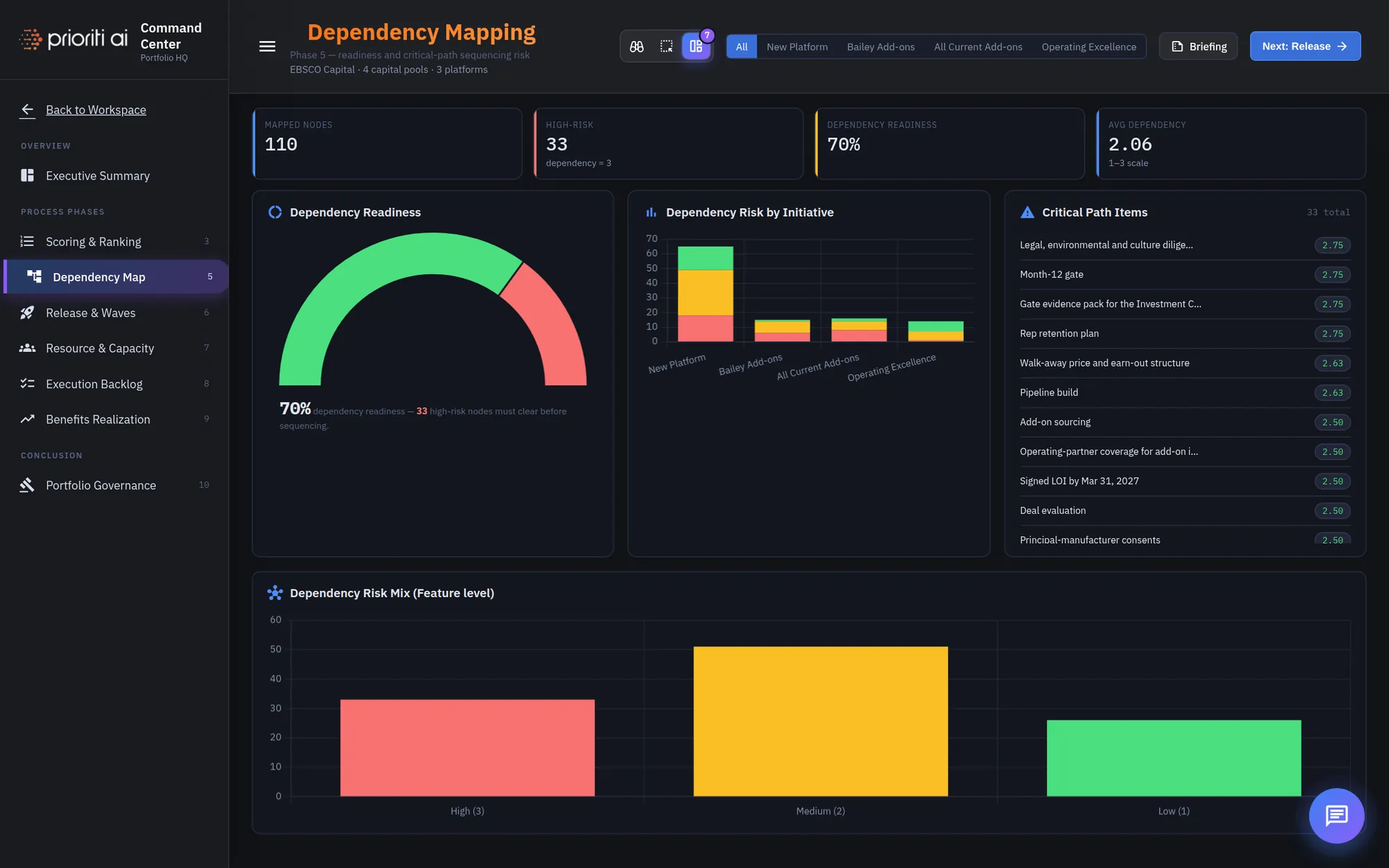
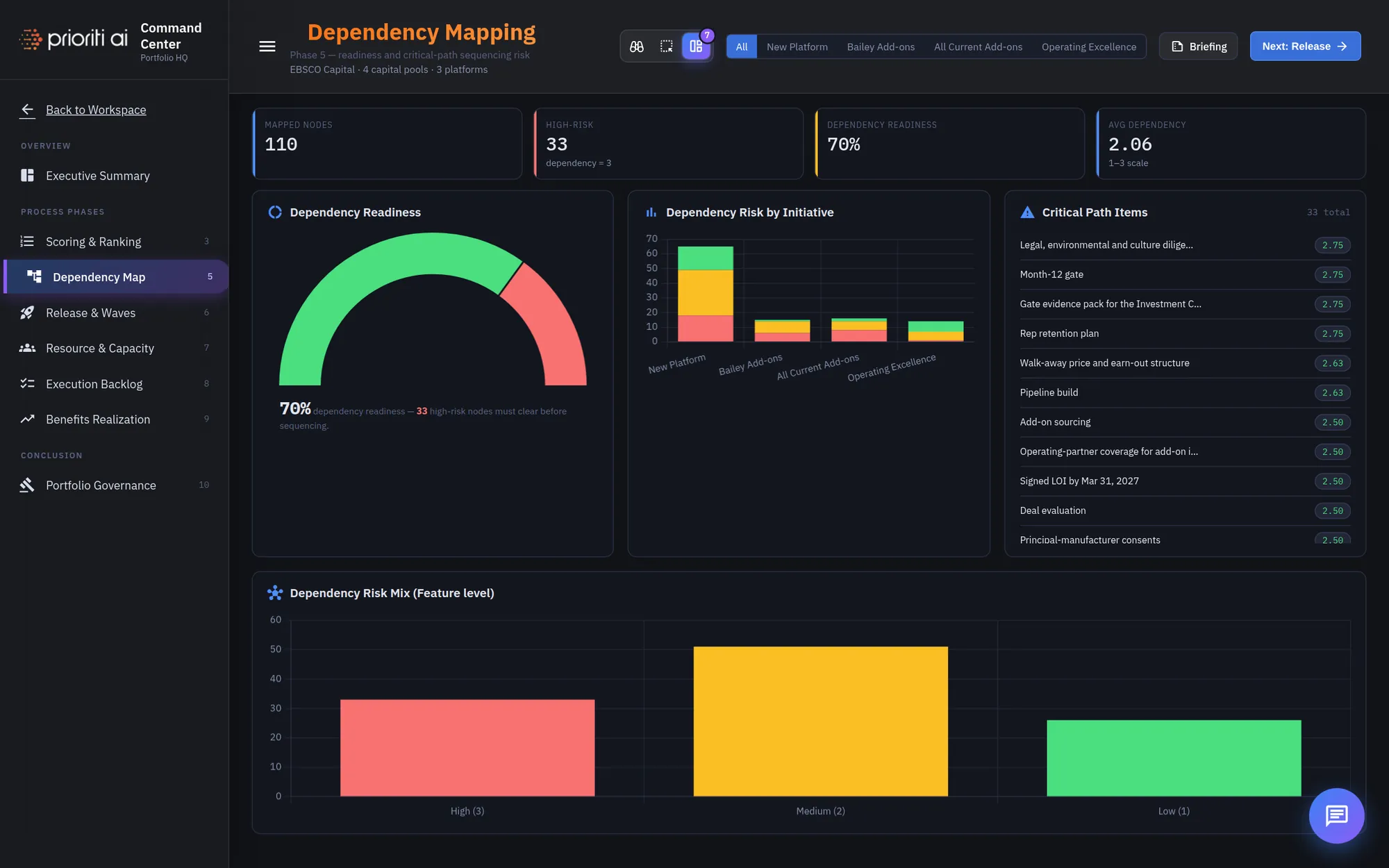
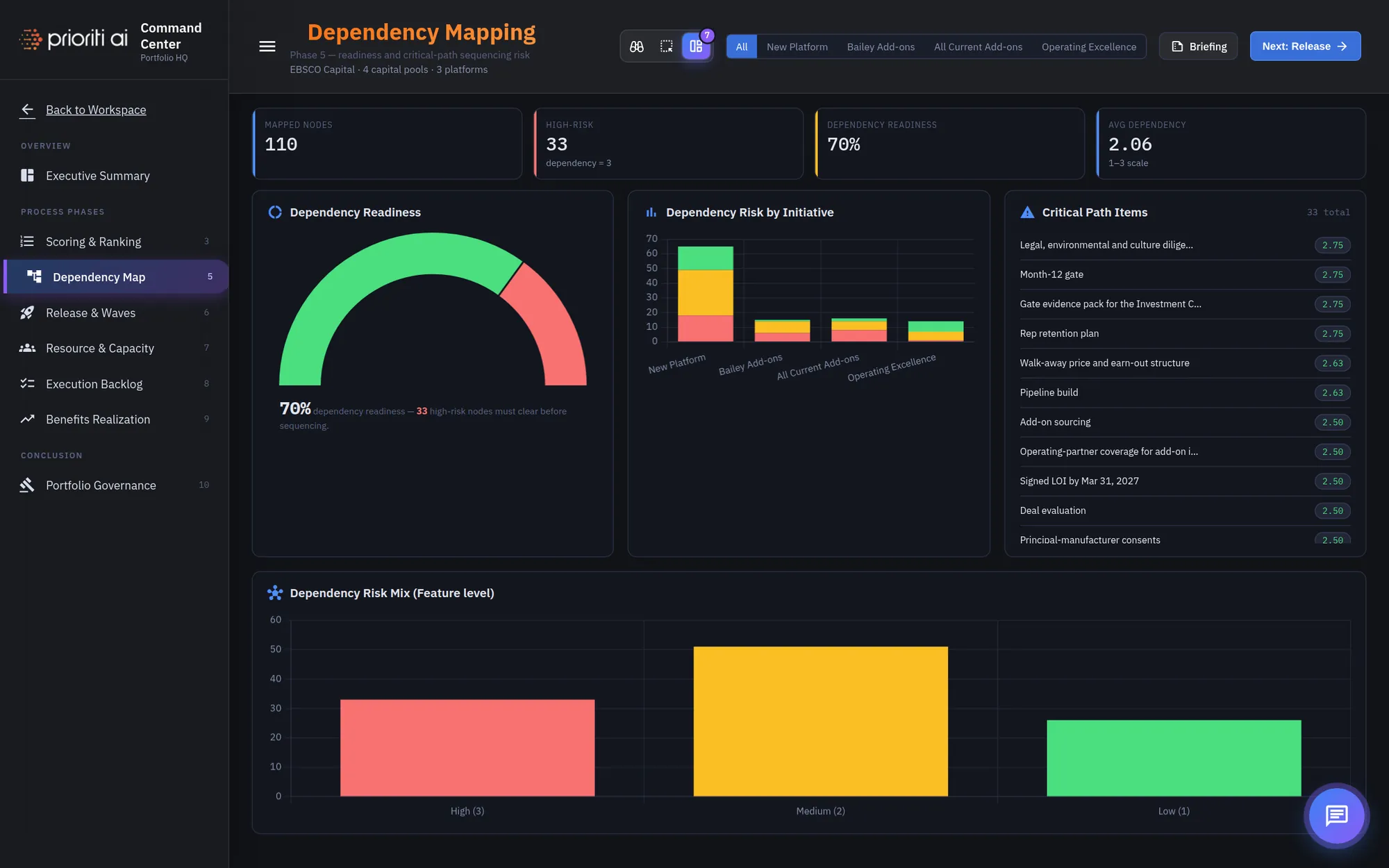
Phase five, Dependency Map, shows what has to happen before what, and where the risk sits.
The readiness gauge shows the share of dependencies that are clear. The rest are open or at risk.
Dependency Risk by Initiative shows which initiatives carry the most high-risk dependencies.
Critical Path Items lists the dependencies that gate everything downstream. Clear these first.
Dependency Risk Mix counts features by high, medium, and low risk across the portfolio.
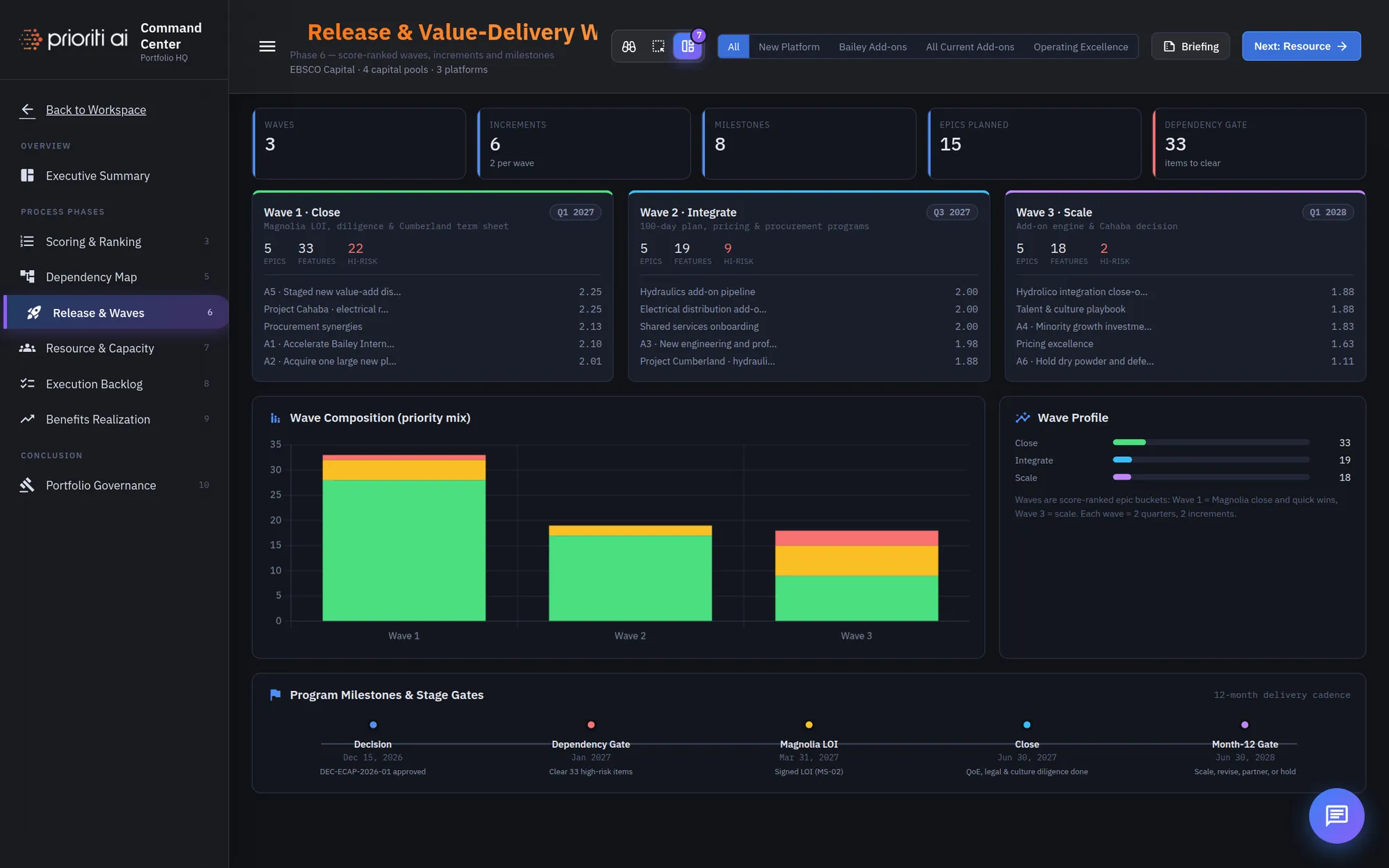
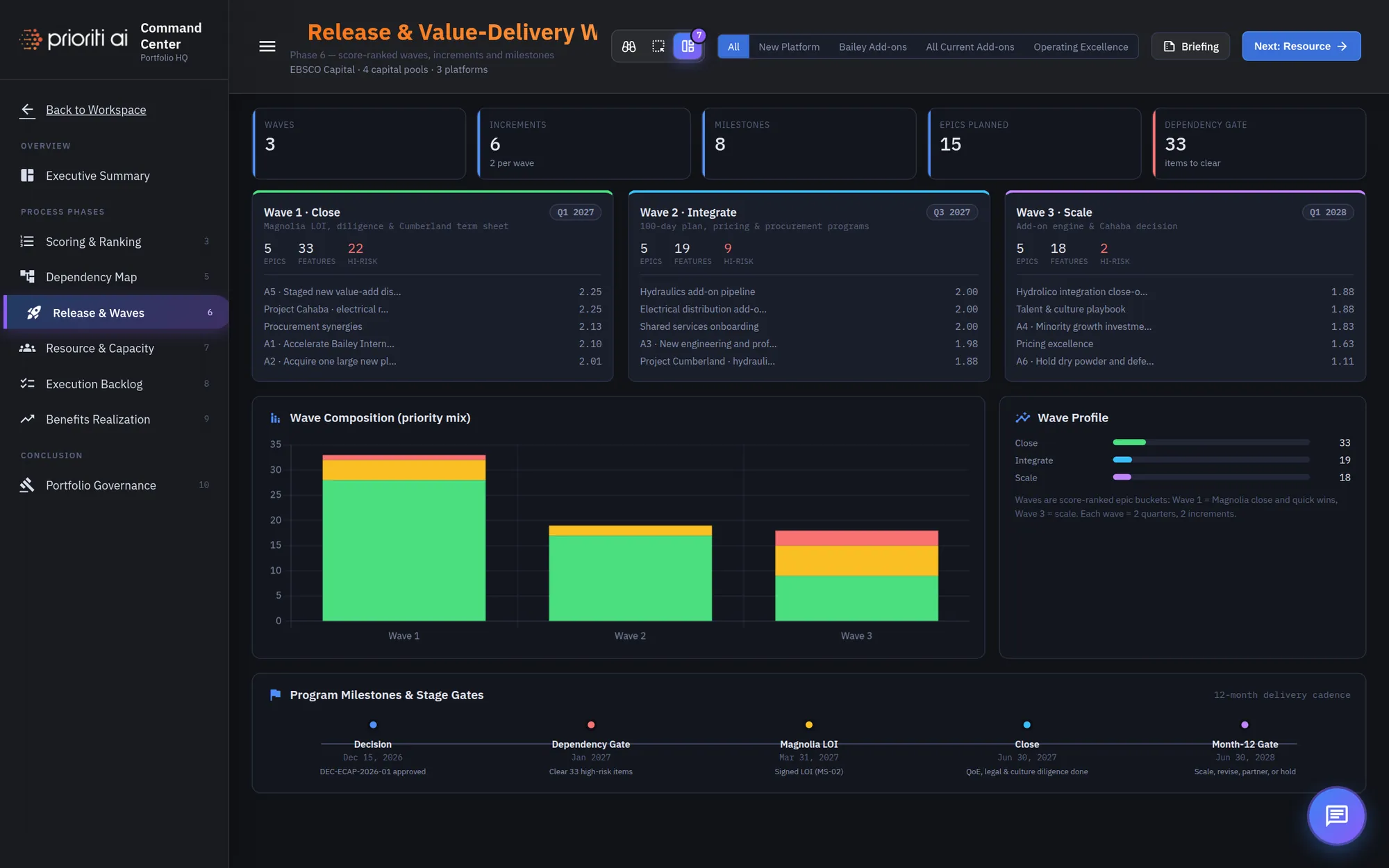
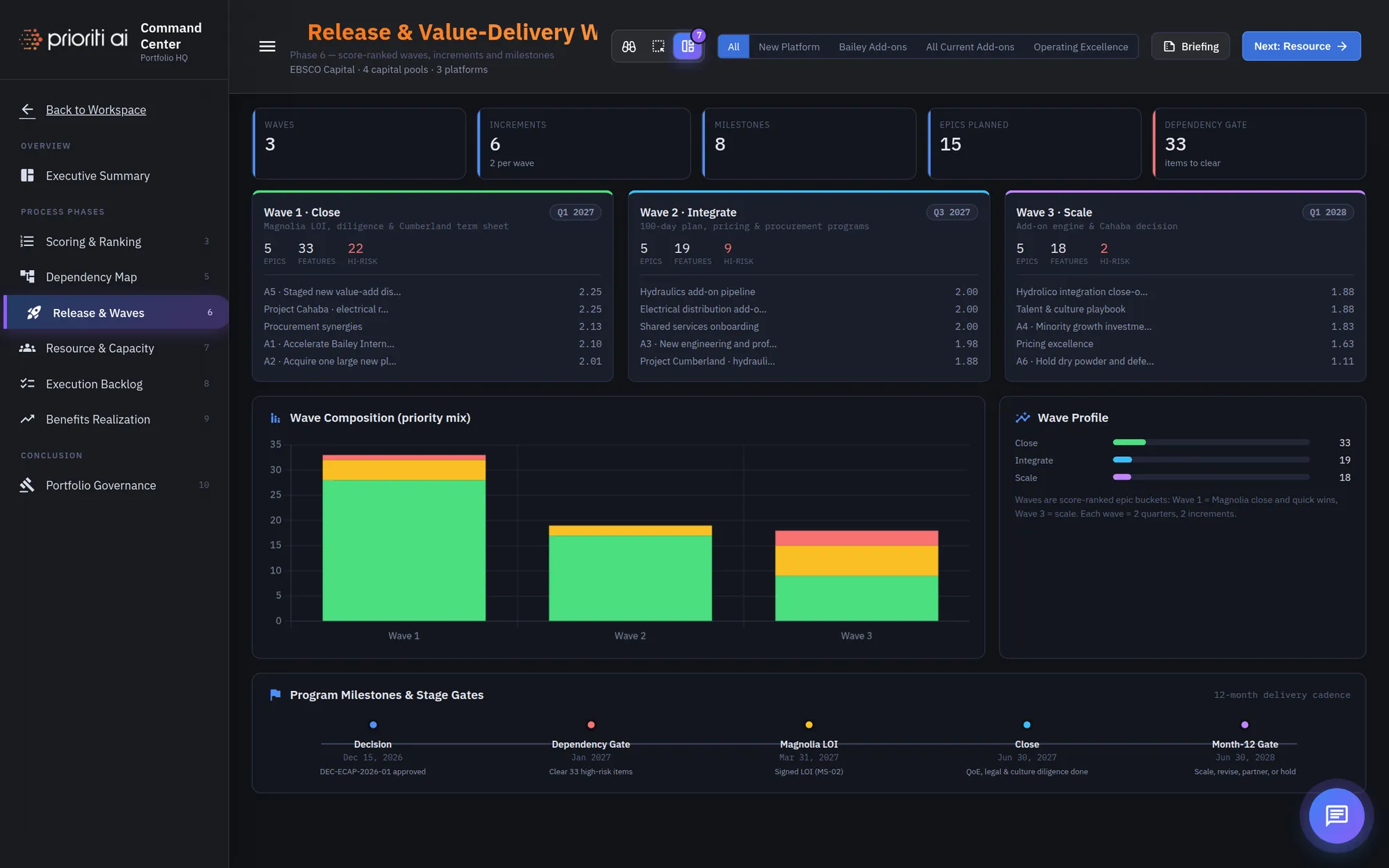
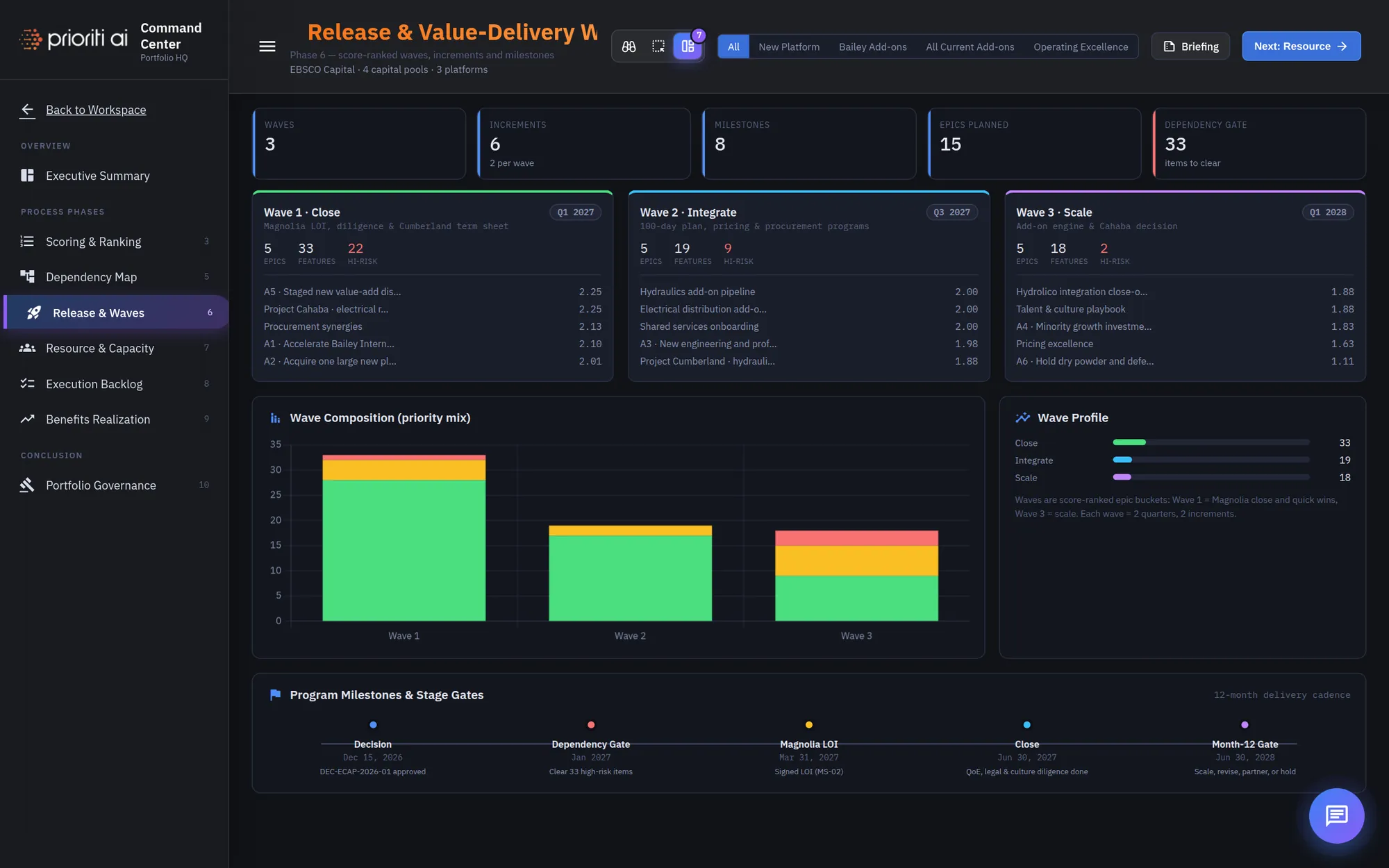
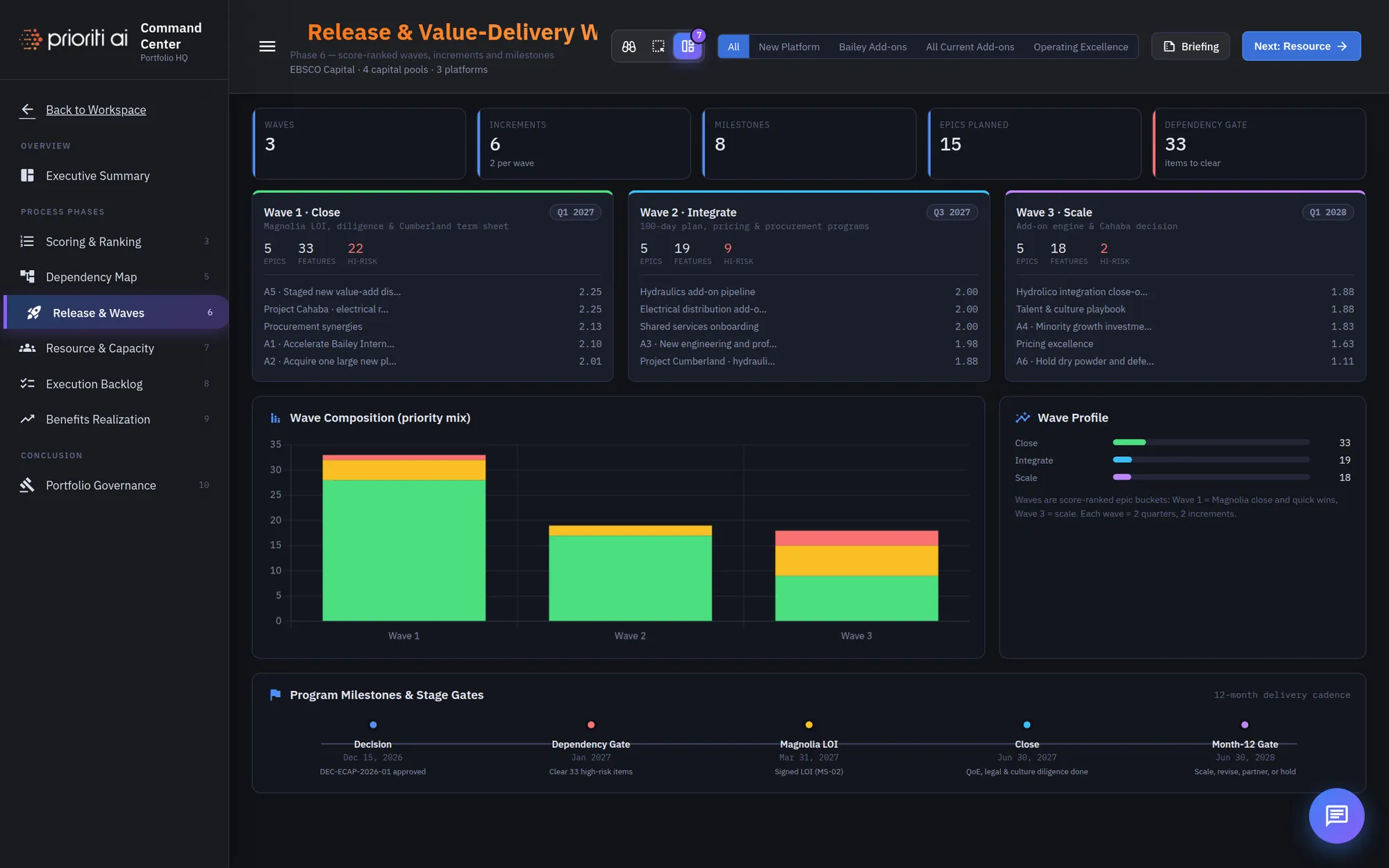
Phase six, Release and Waves, sequences the work into three delivery waves.
Each wave card shows its timing, the number of items and stories, and what's in it.
Wave Composition shows the priority mix in each wave. High-priority work should land early.
Wave Profile compares the waves on the measures that matter for sequencing.
Program Milestones and Stage Gates lay out the twelve-month delivery cadence, from decision to the month-twelve gate.
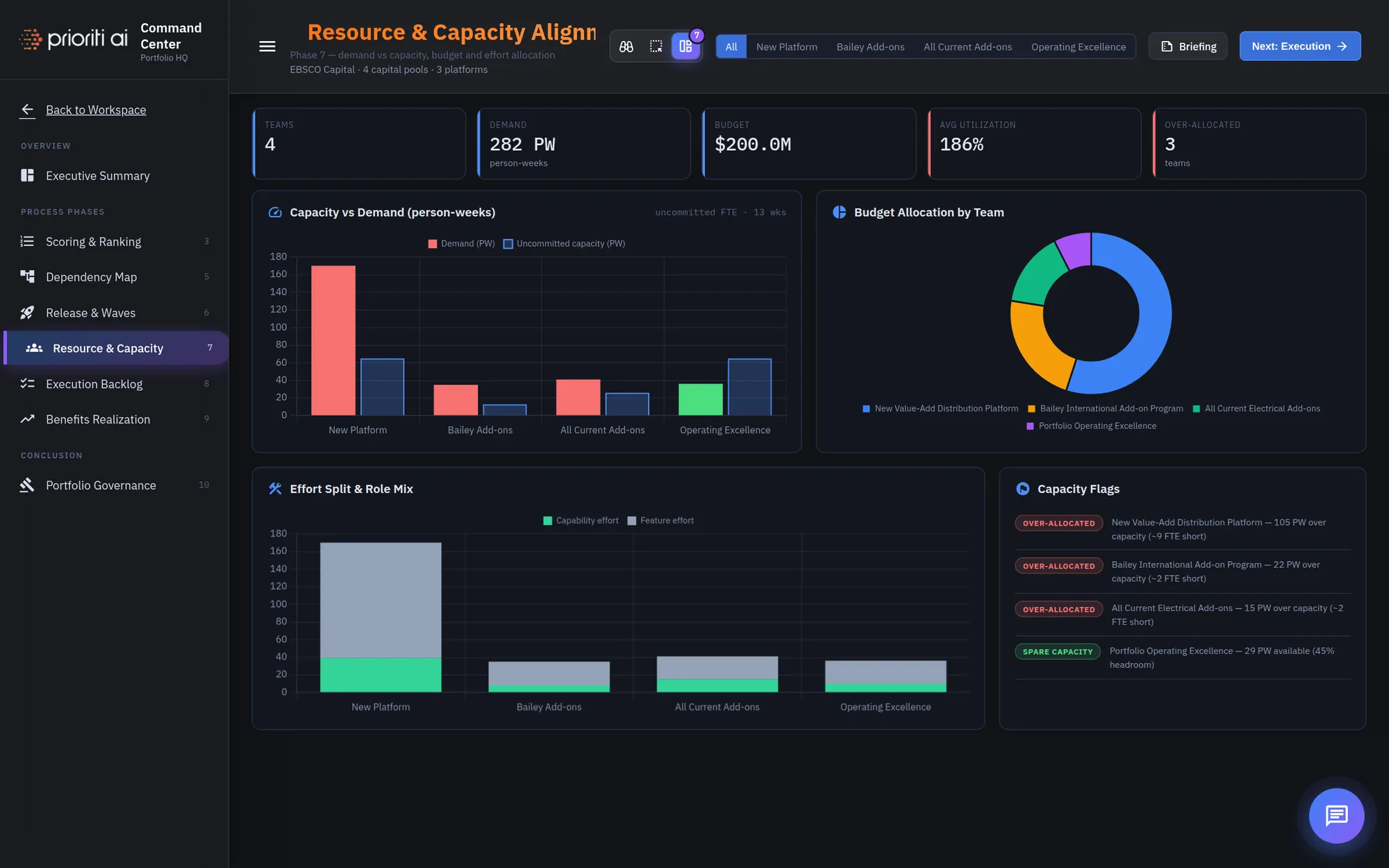
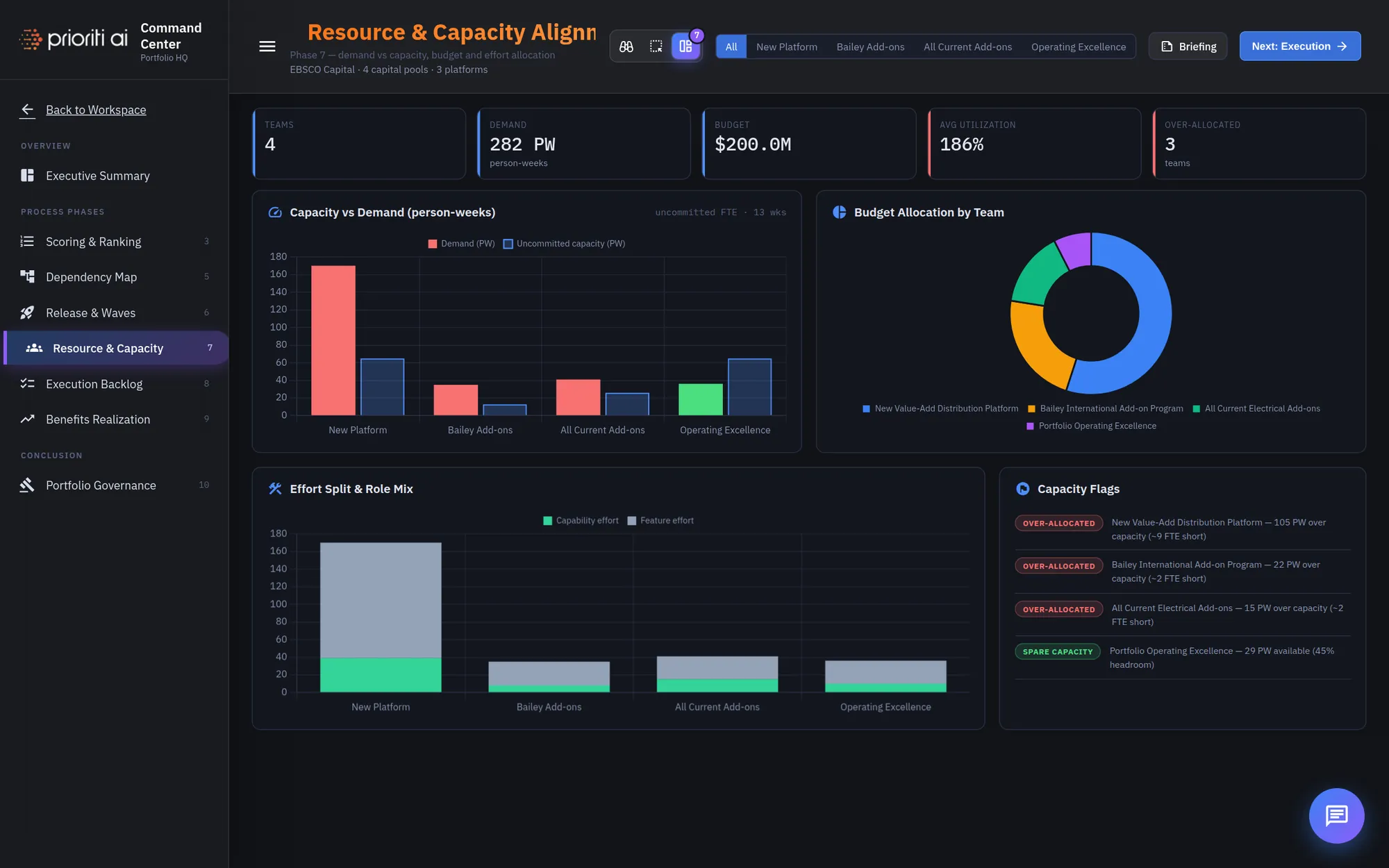
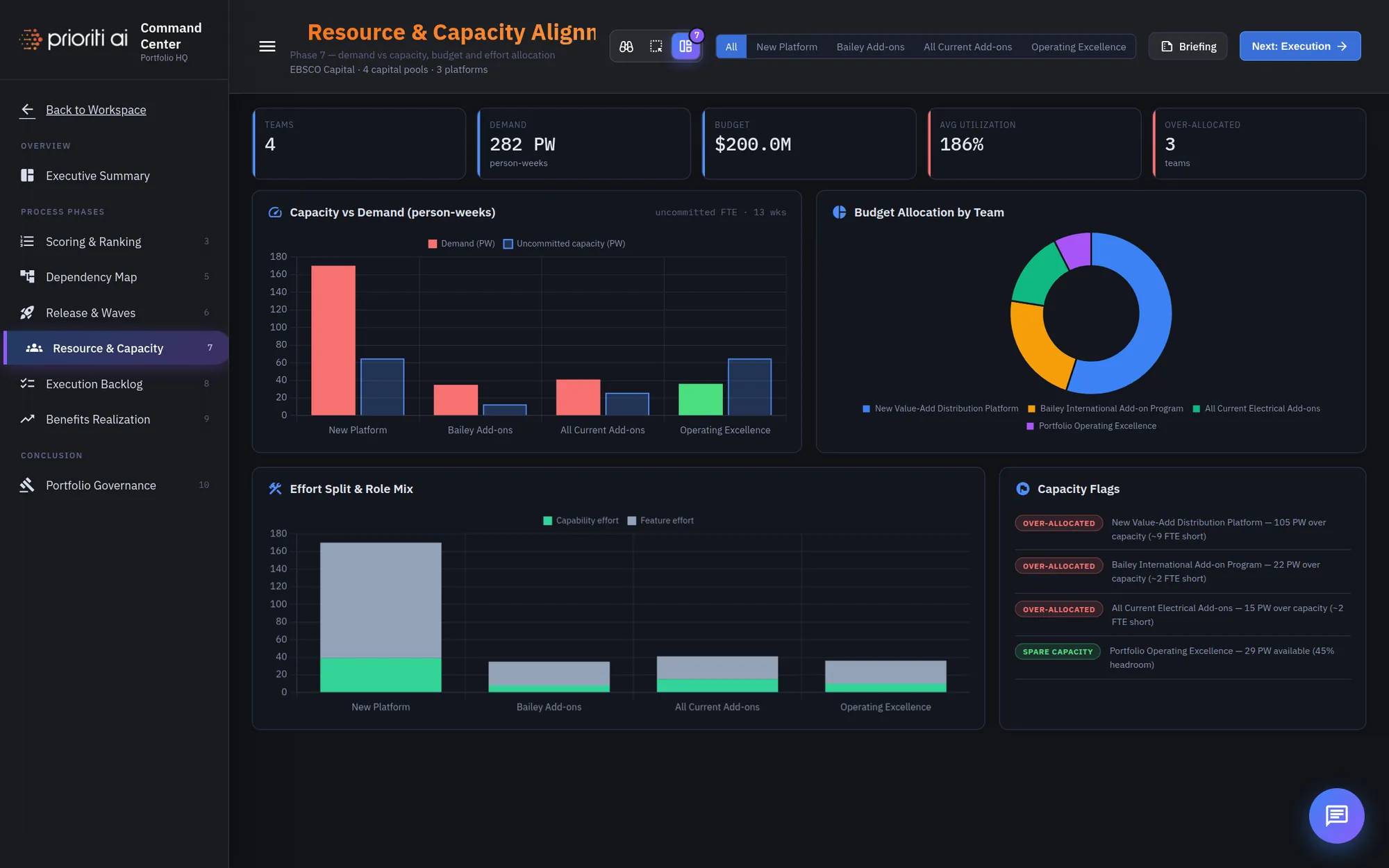
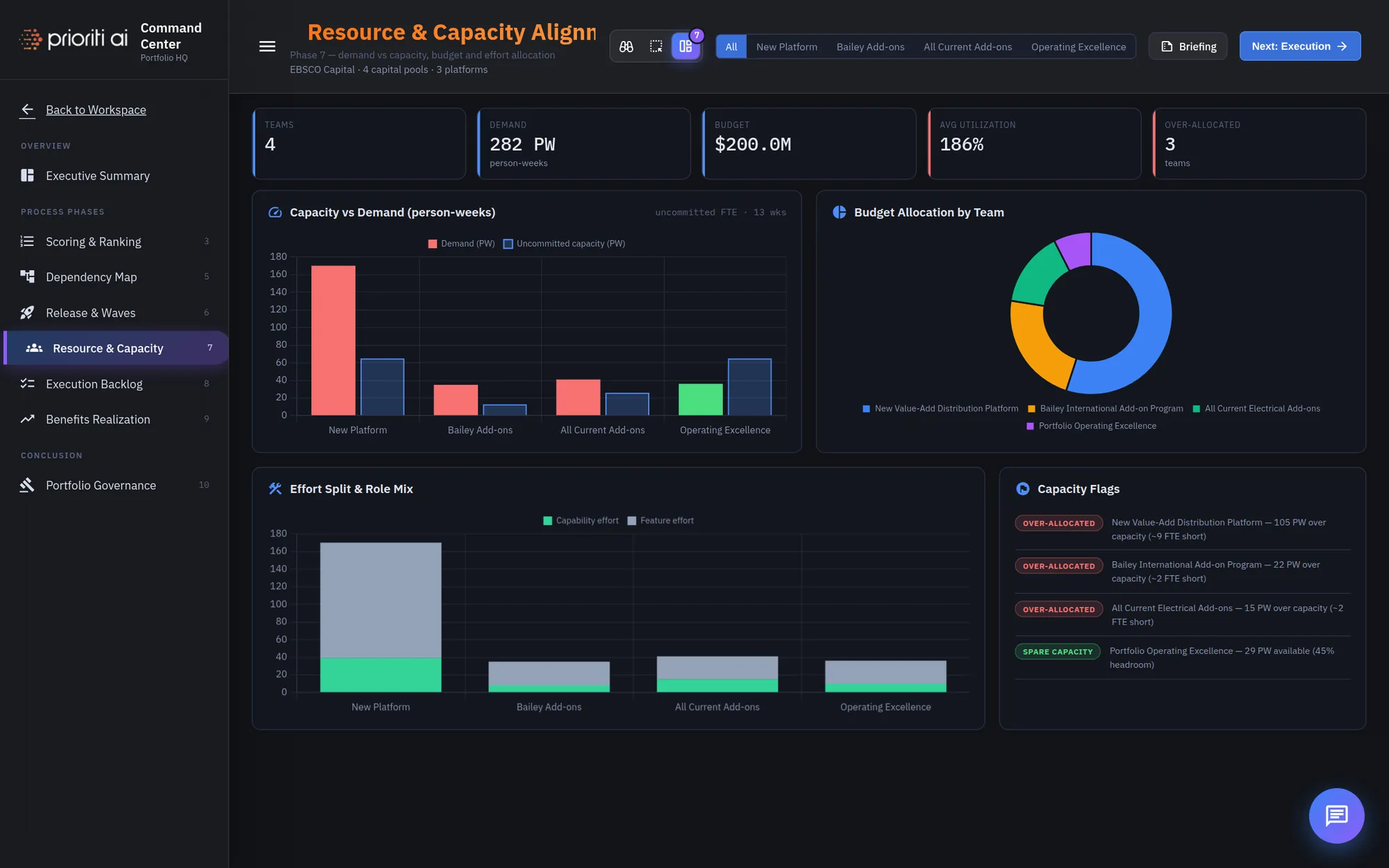
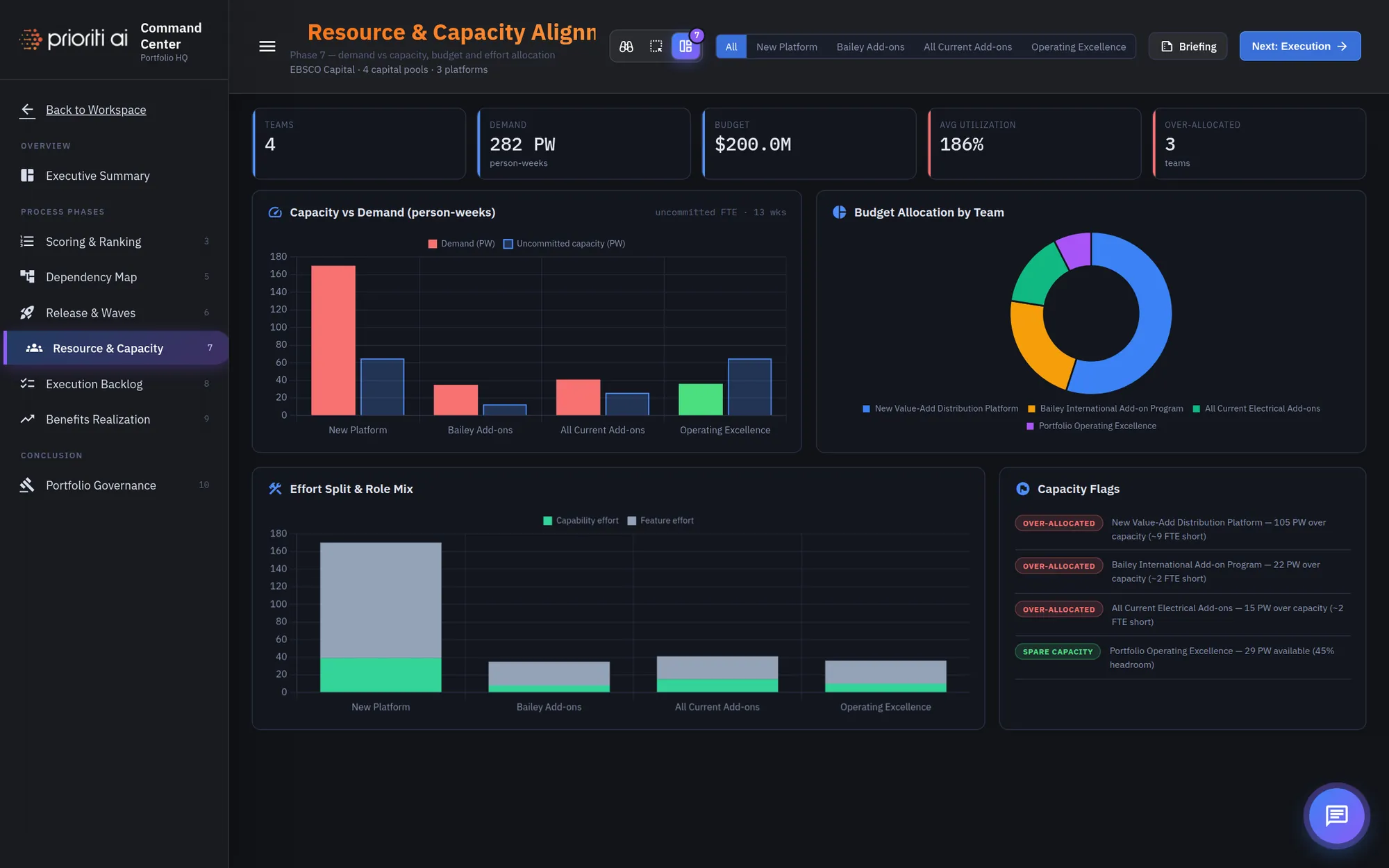
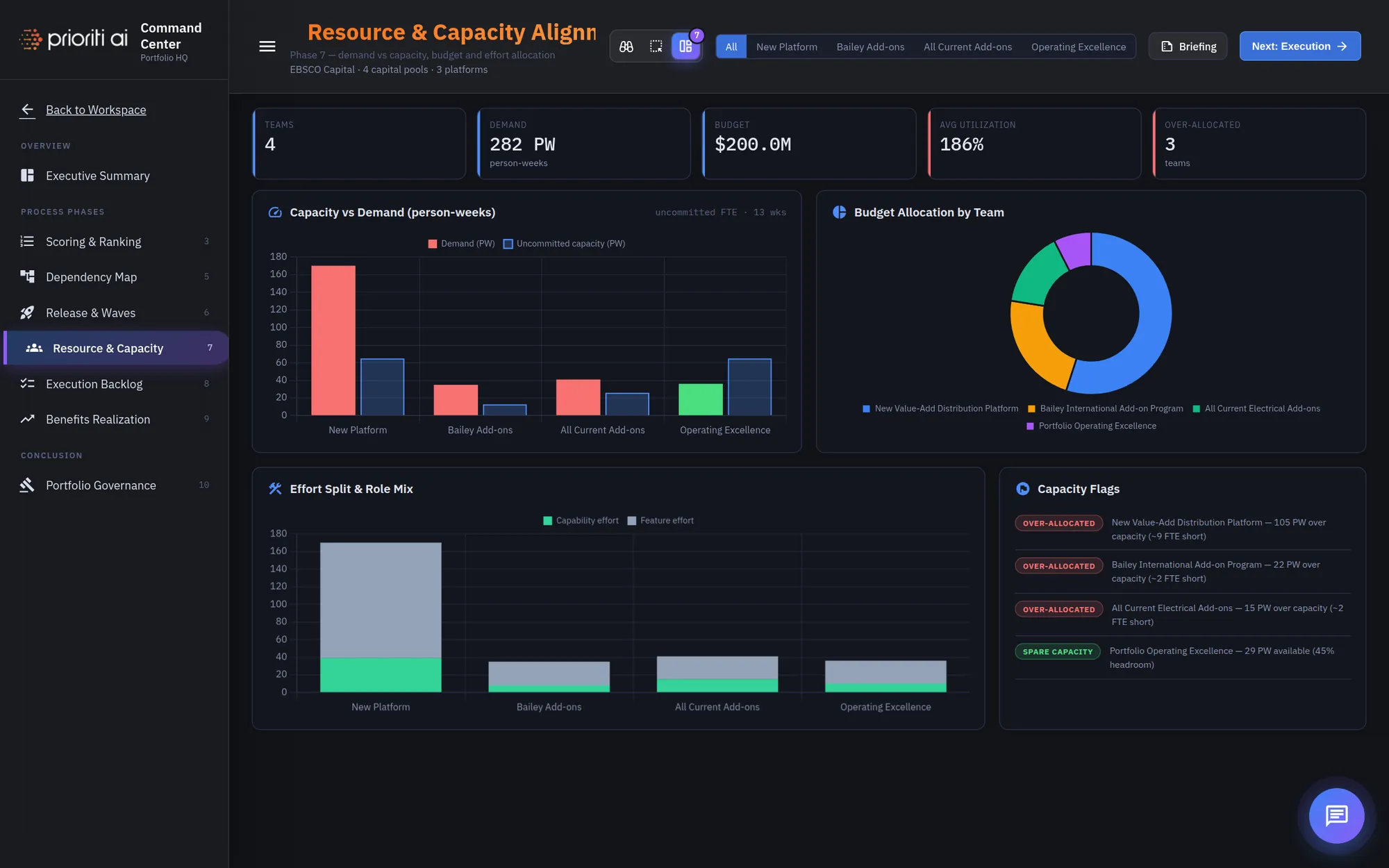
Phase seven, Resource and Capacity, checks whether the teams can actually do the work.
The KPIs show teams, total effort, budget, utilization, and how many teams are over-allocated.
Capacity versus Demand compares available person-weeks with the work asked of each initiative. When demand is taller than capacity, that initiative is over-allocated.
Budget Allocation by Team shows where the money for people goes.
Effort Split and Role Mix shows the kind of effort each initiative needs.
Capacity Flags call out over-allocated teams and where spare capacity exists to rebalance.
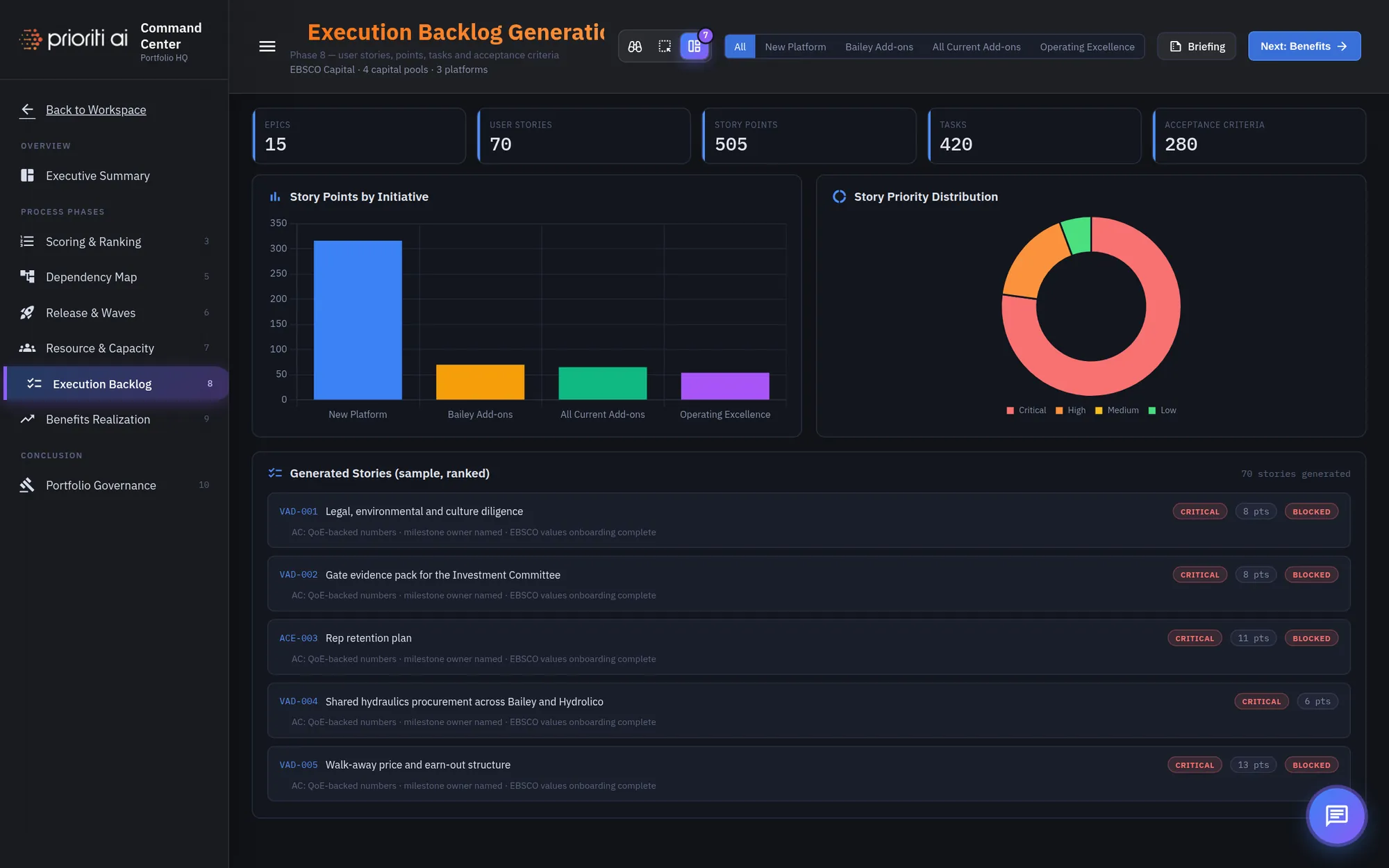
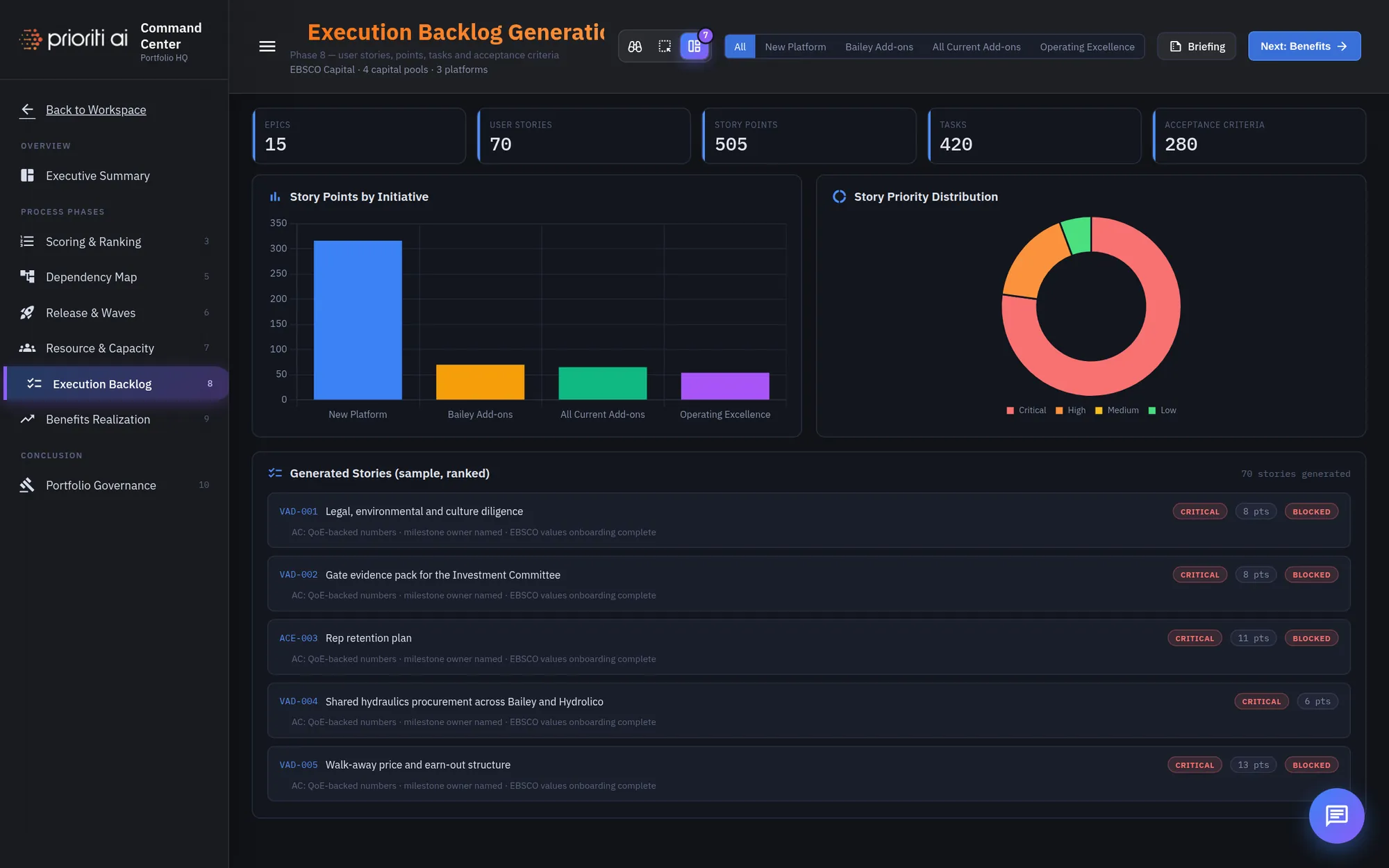
Phase eight, Execution Backlog, turns the ranked work into stories teams can build.
Story Points by Initiative shows the size of the backlog for each initiative.
Story Priority Distribution shows the backlog by priority, from critical to low.
Generated Stories lists a ranked sample, each with its priority, points, and status, so blocked work is easy to spot.
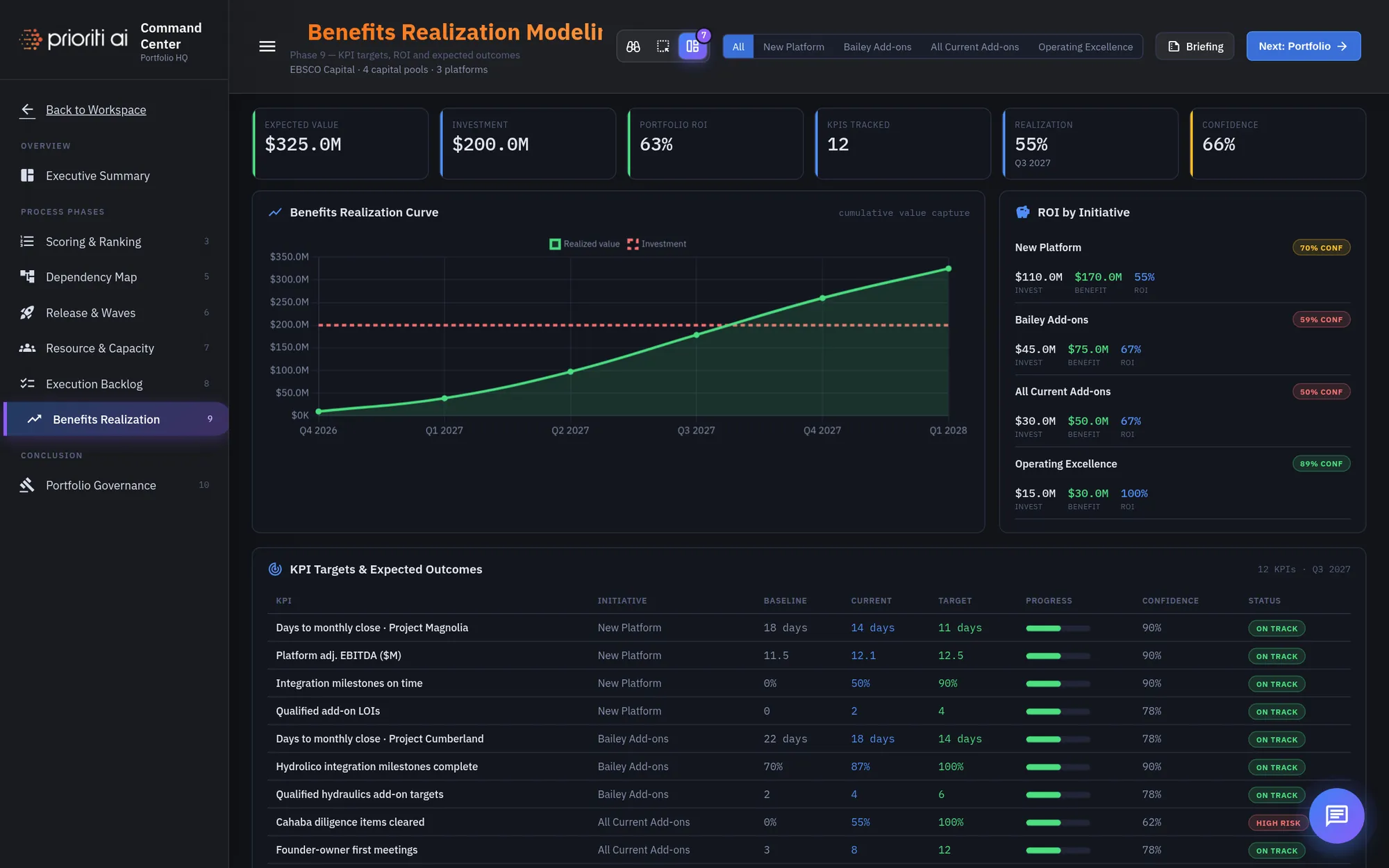
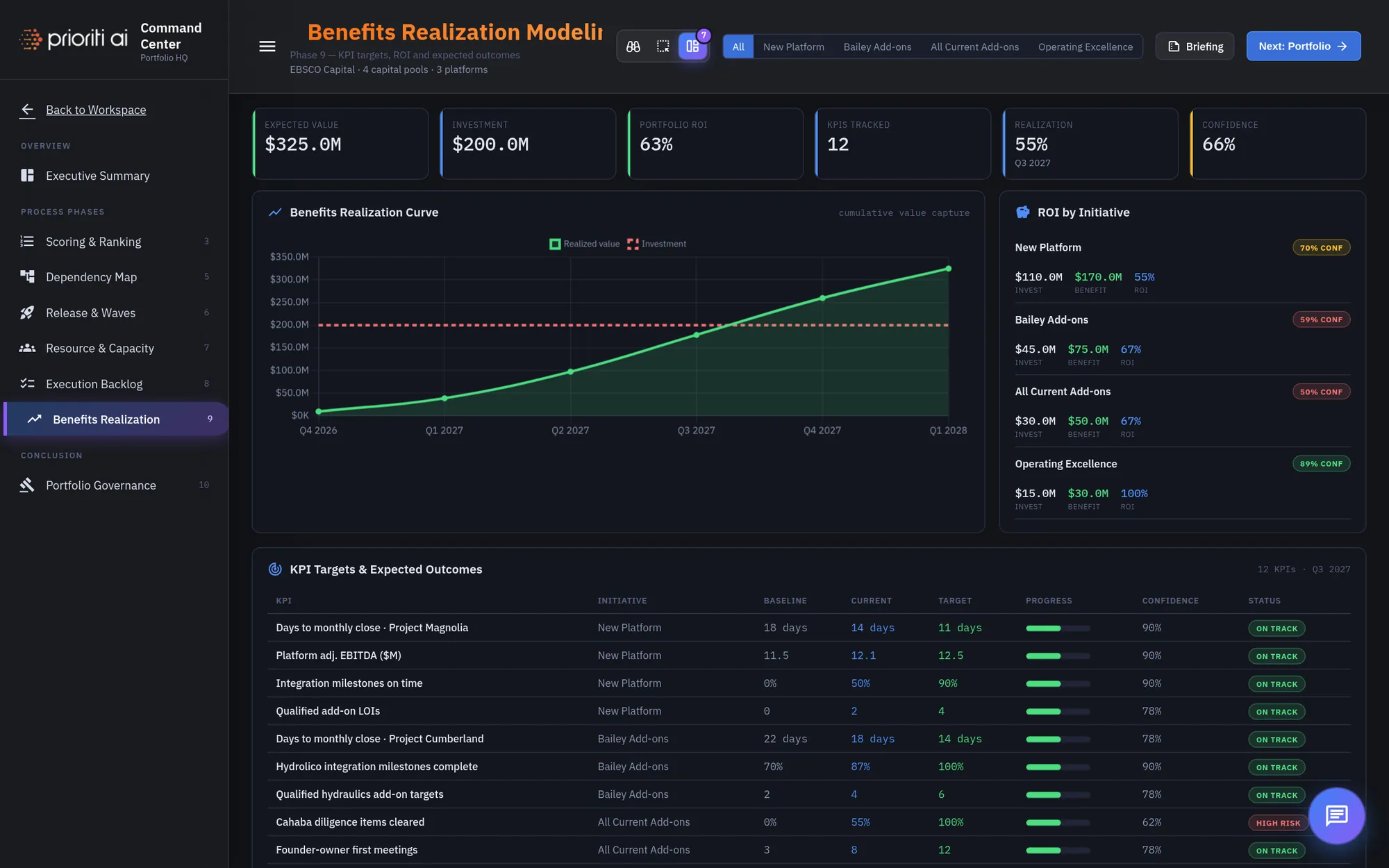
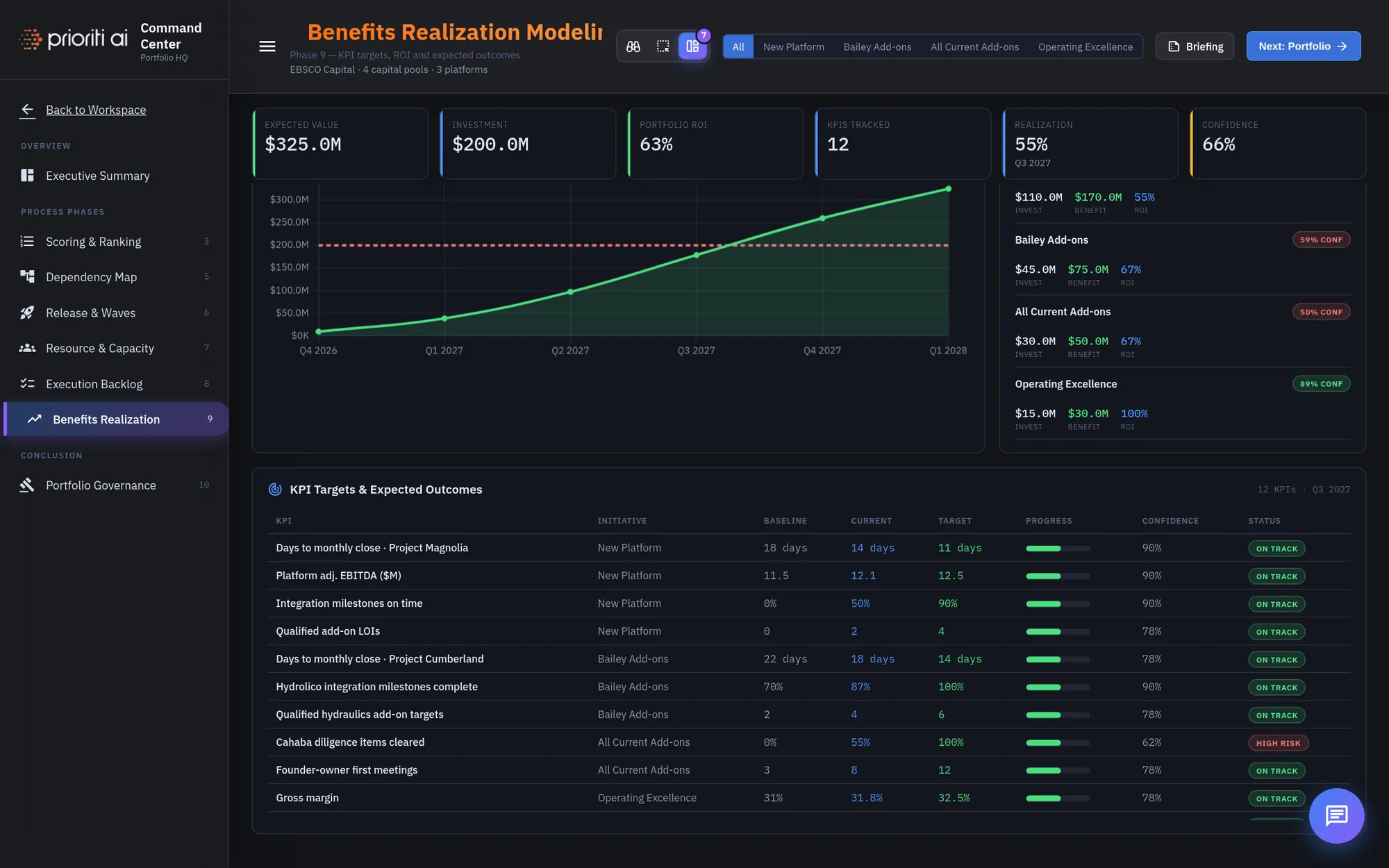
Phase nine, Benefits Realization, tracks the value the portfolio is expected to return.
The KPIs show expected value, investment, return, how many KPIs are tracked, and the confidence behind the forecast.
The Benefits Realization Curve shows cumulative value over time against the amount invested. Where the lines cross is payback.
ROI by Initiative shows the investment, expected value, and return for each capital pool.
KPI Targets and Expected Outcomes lists every measure, with its baseline, current value, target, progress, and status.
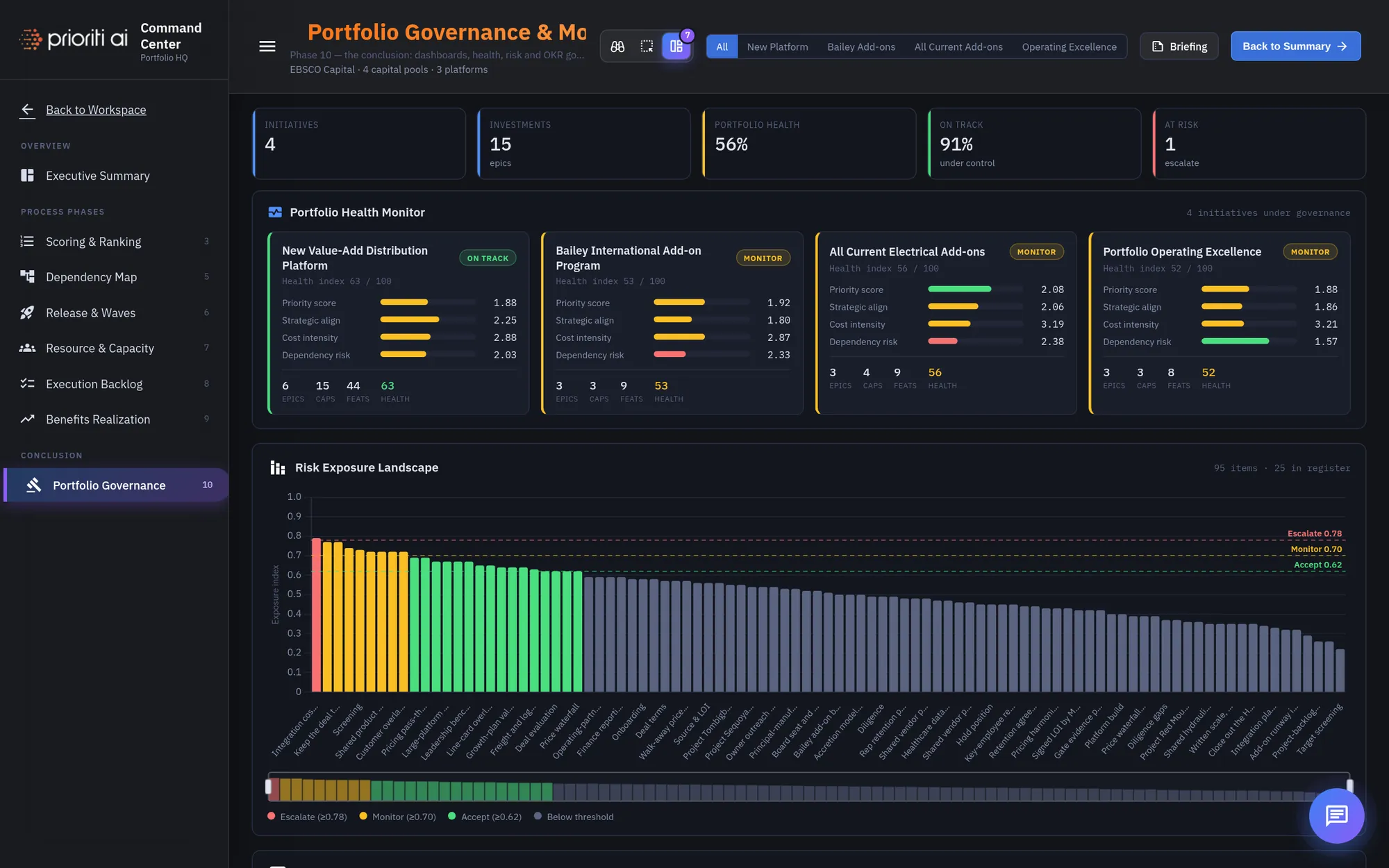
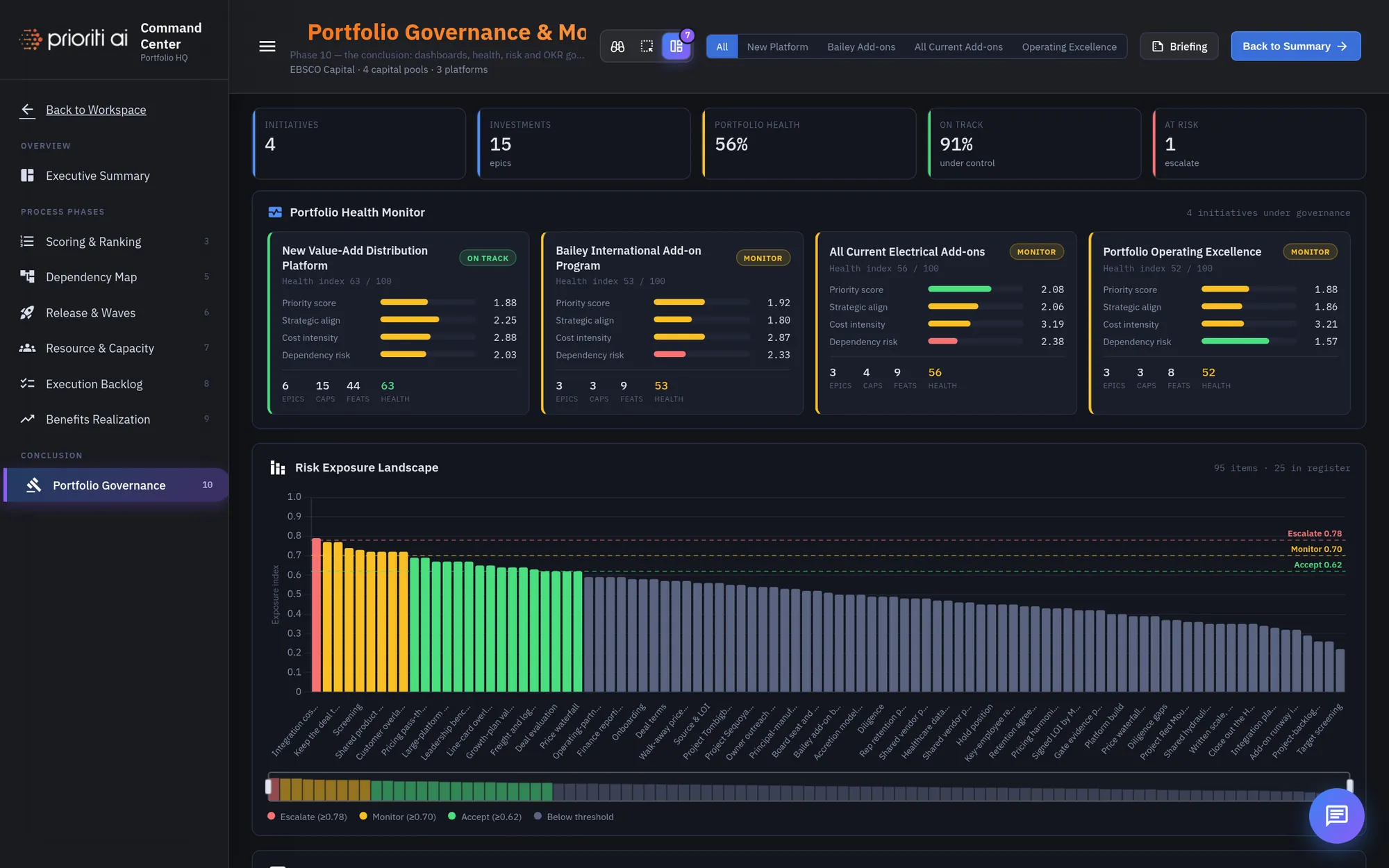
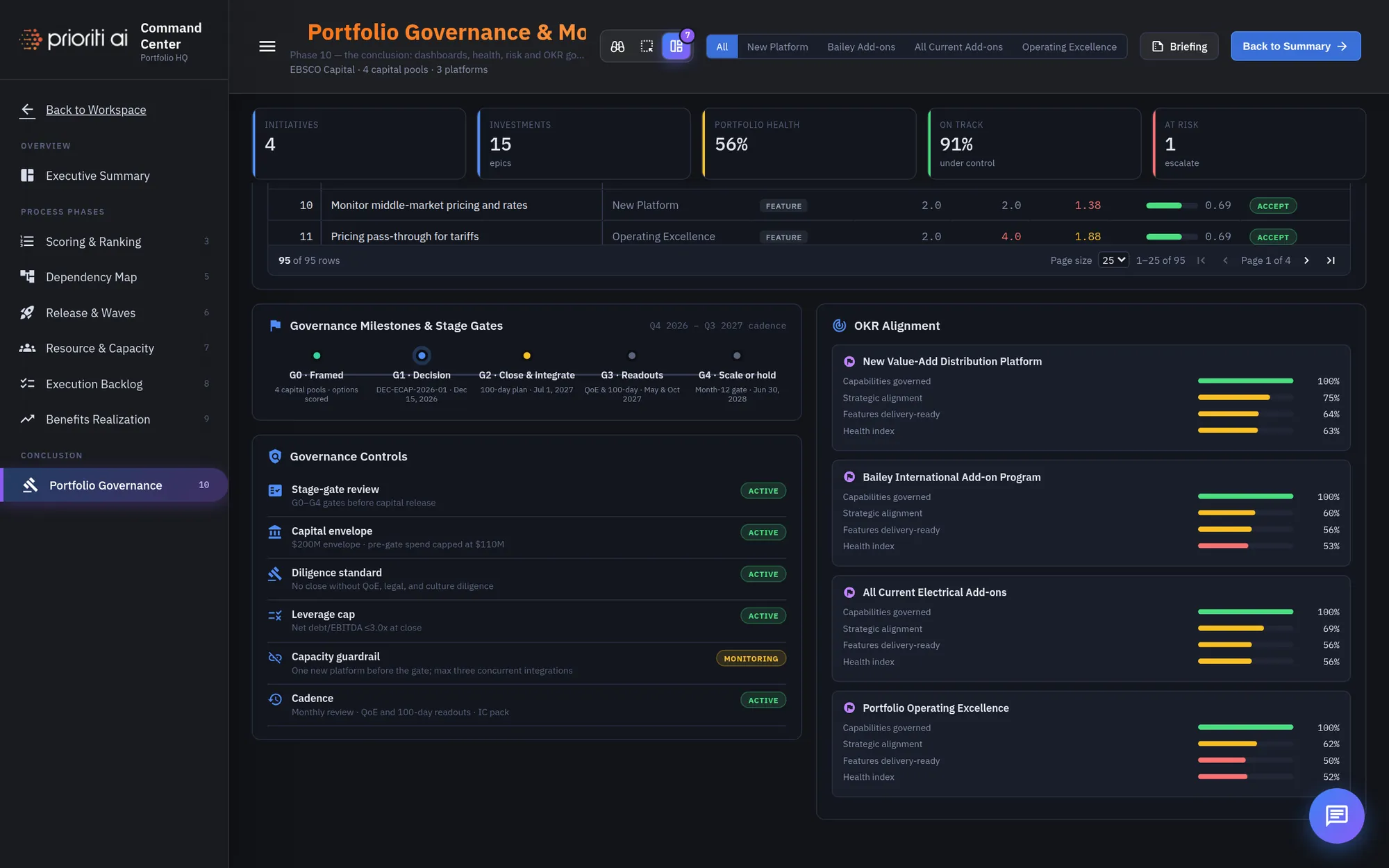
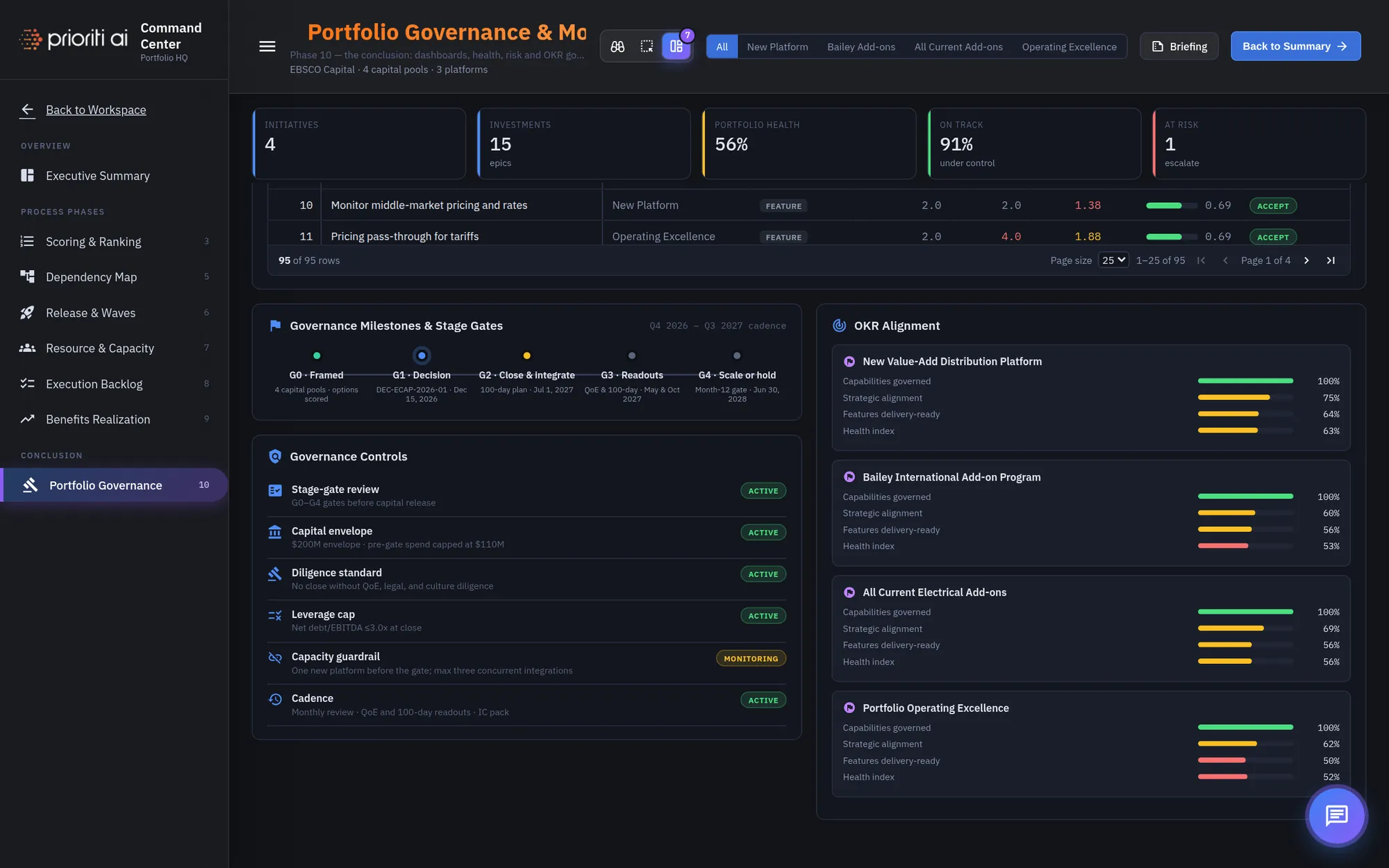
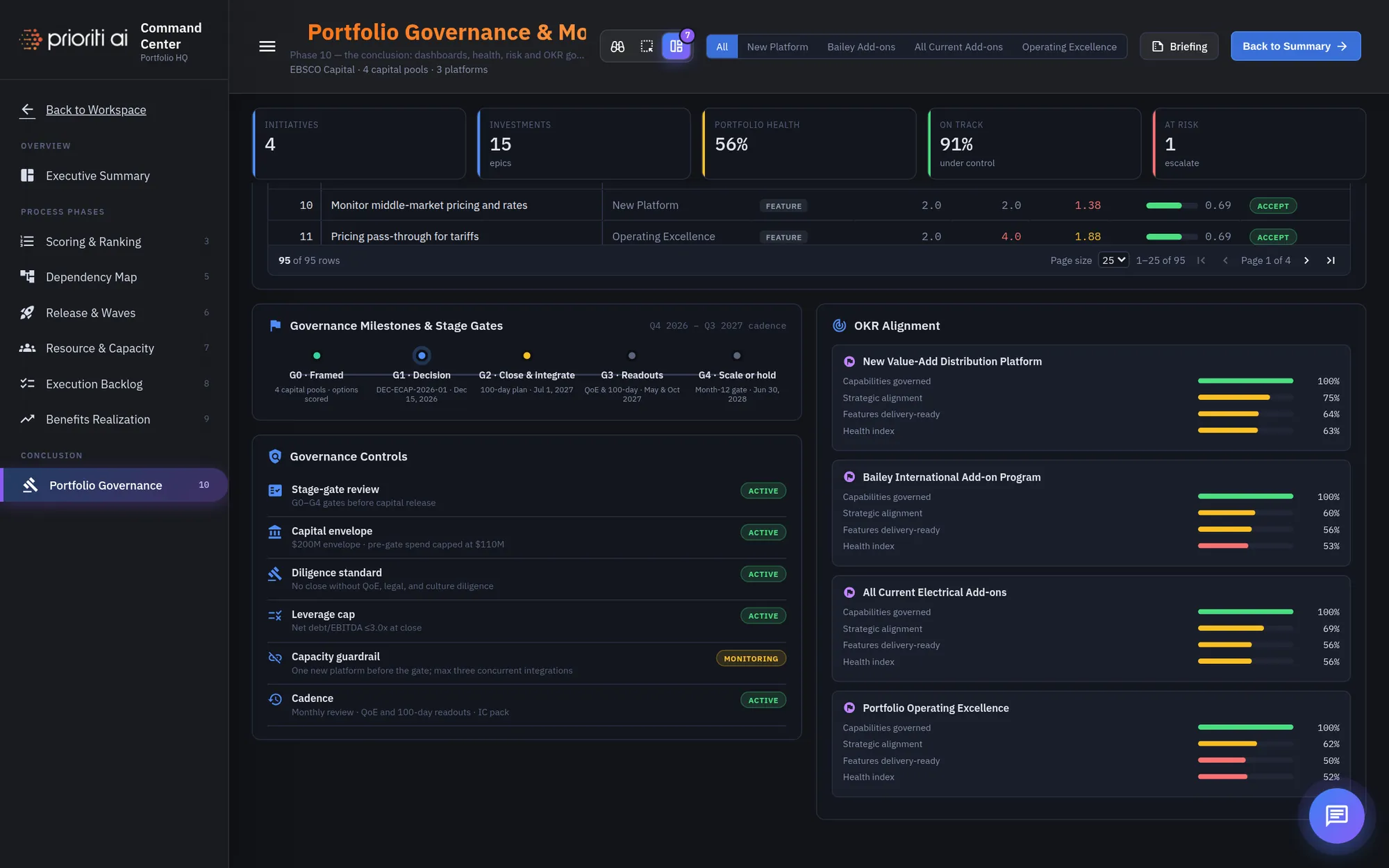
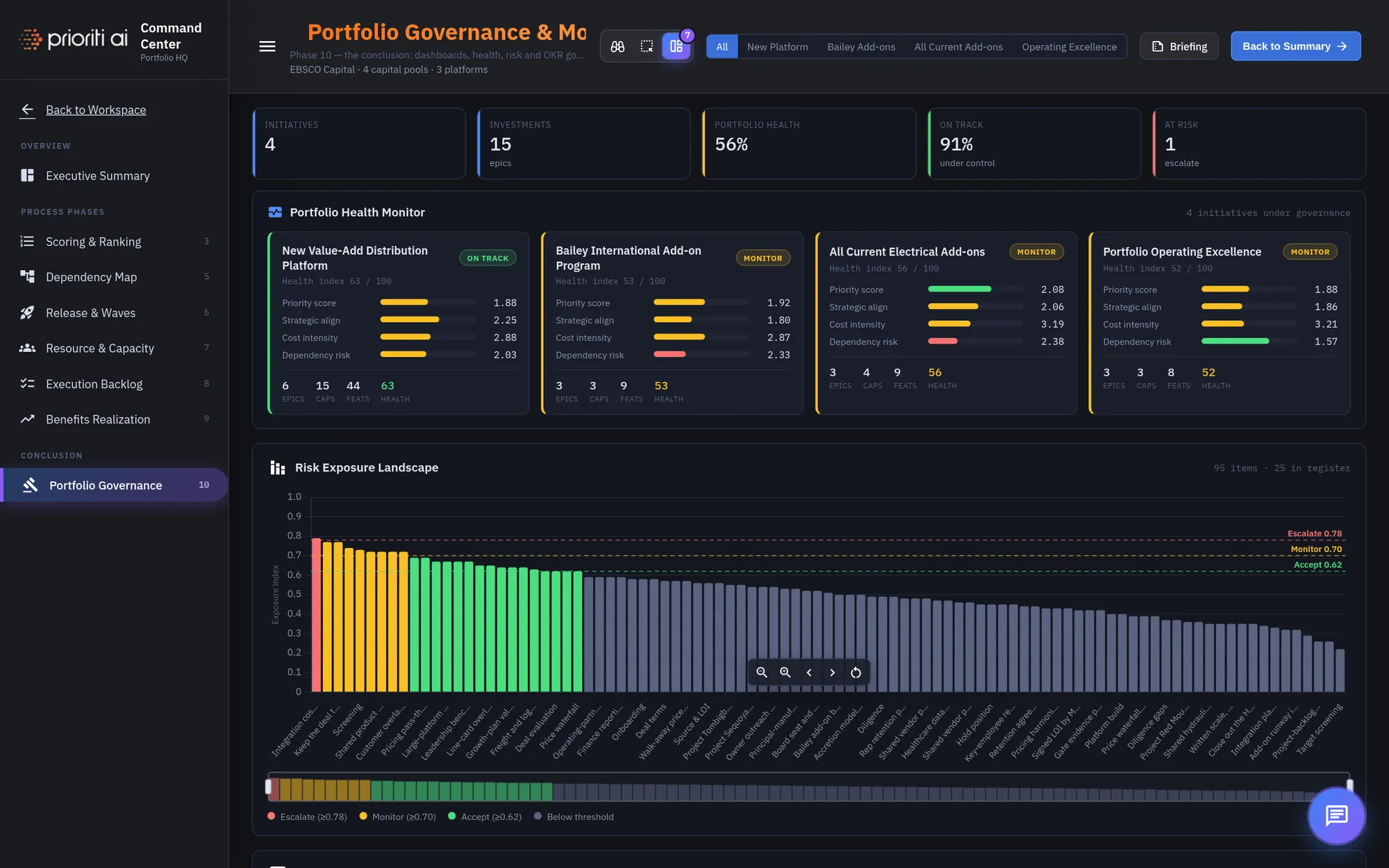
Phase ten, Portfolio Governance, is the conclusion. It's where the approved portfolio is monitored and controlled.
The Portfolio Health Monitor gives each initiative a health index and status, with its scores for priority, alignment, cost, and dependency risk.
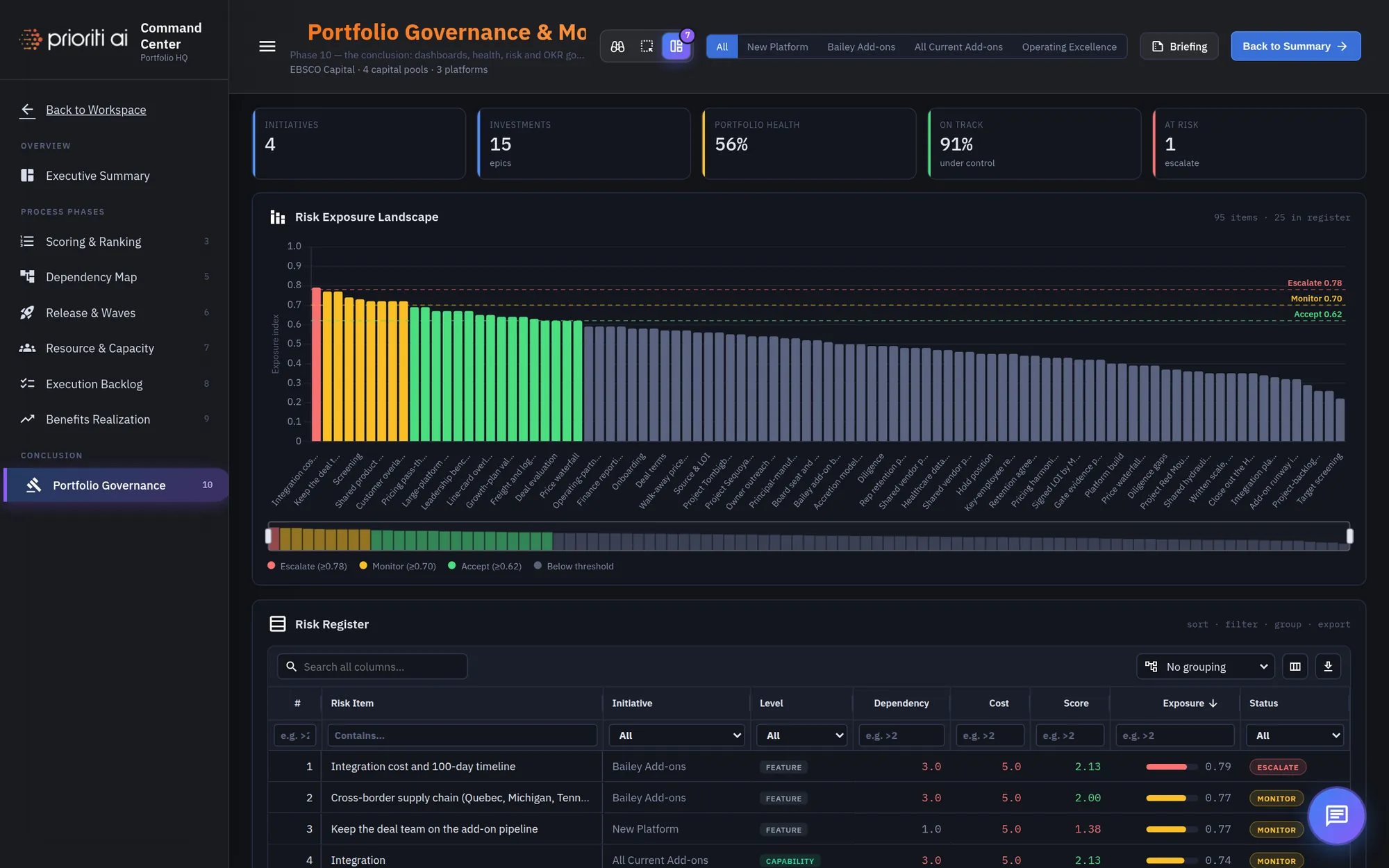
The Risk Exposure Landscape ranks every work item by risk, from highest to lowest.
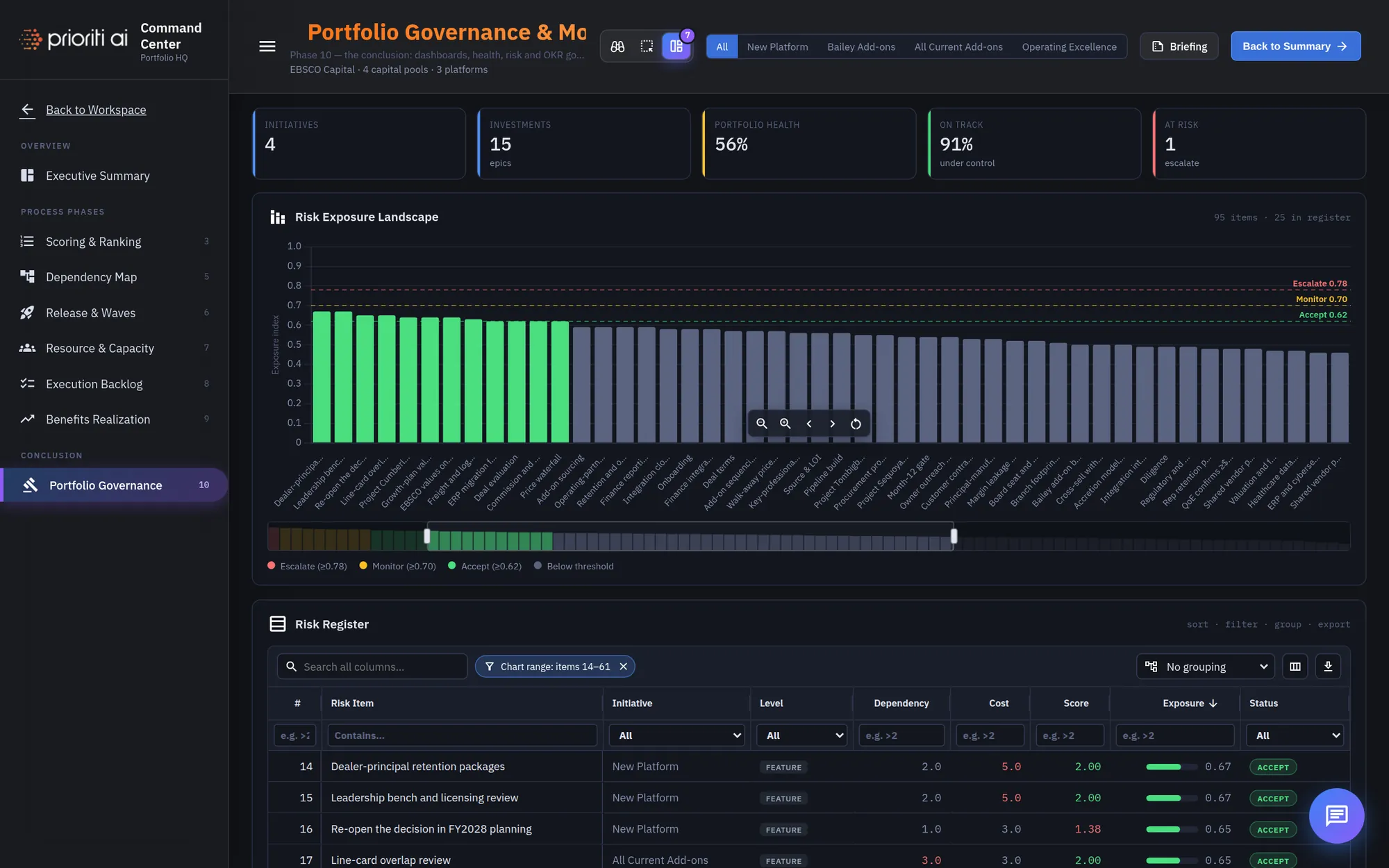
Scroll over the chart to zoom, or drag across it to zoom into an area. The navigator below shows where you are. Double-click to reset.
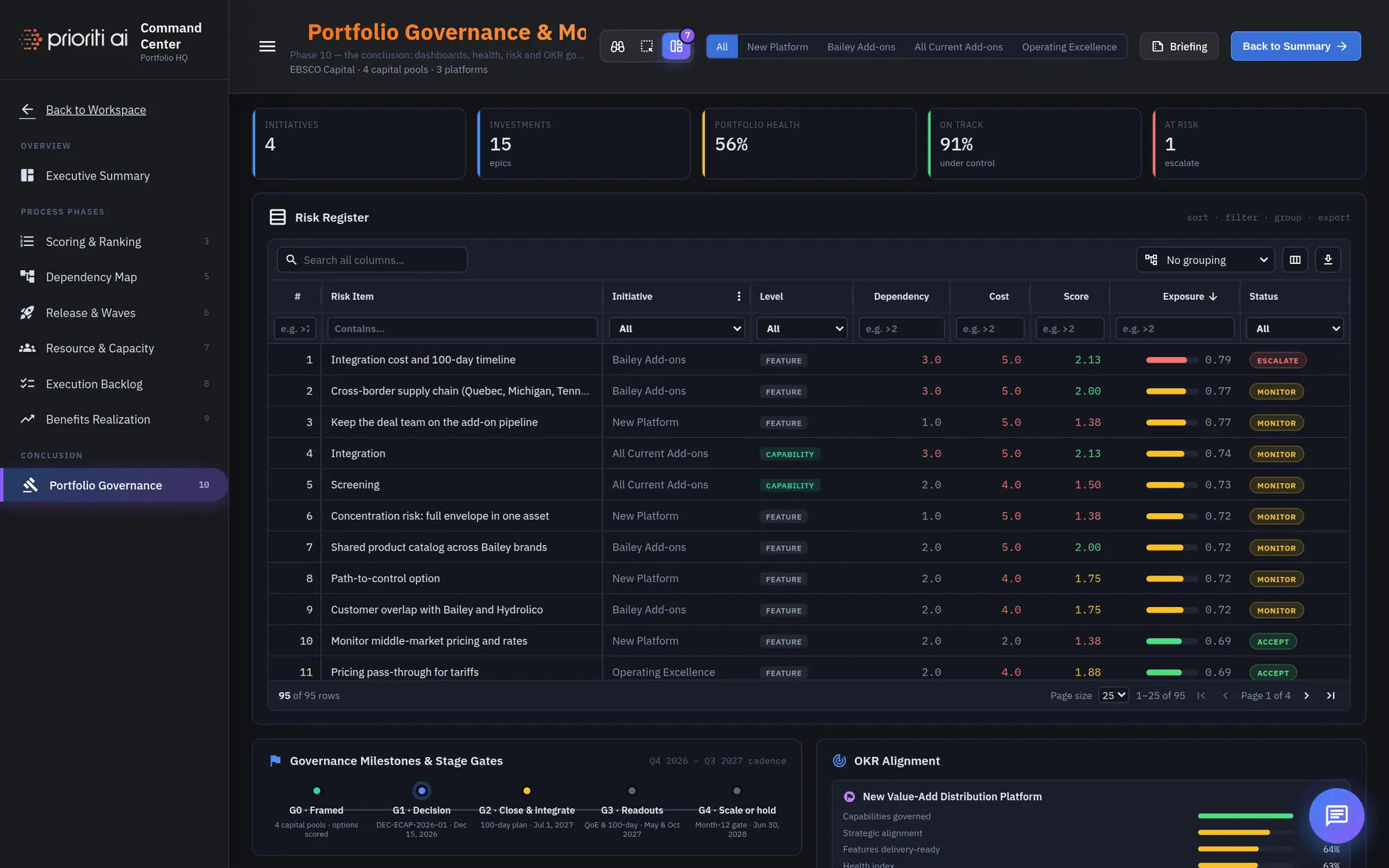
The Risk Register is a full data grid. Click a column header to sort it, type in the filter row, or group rows from the column menu.
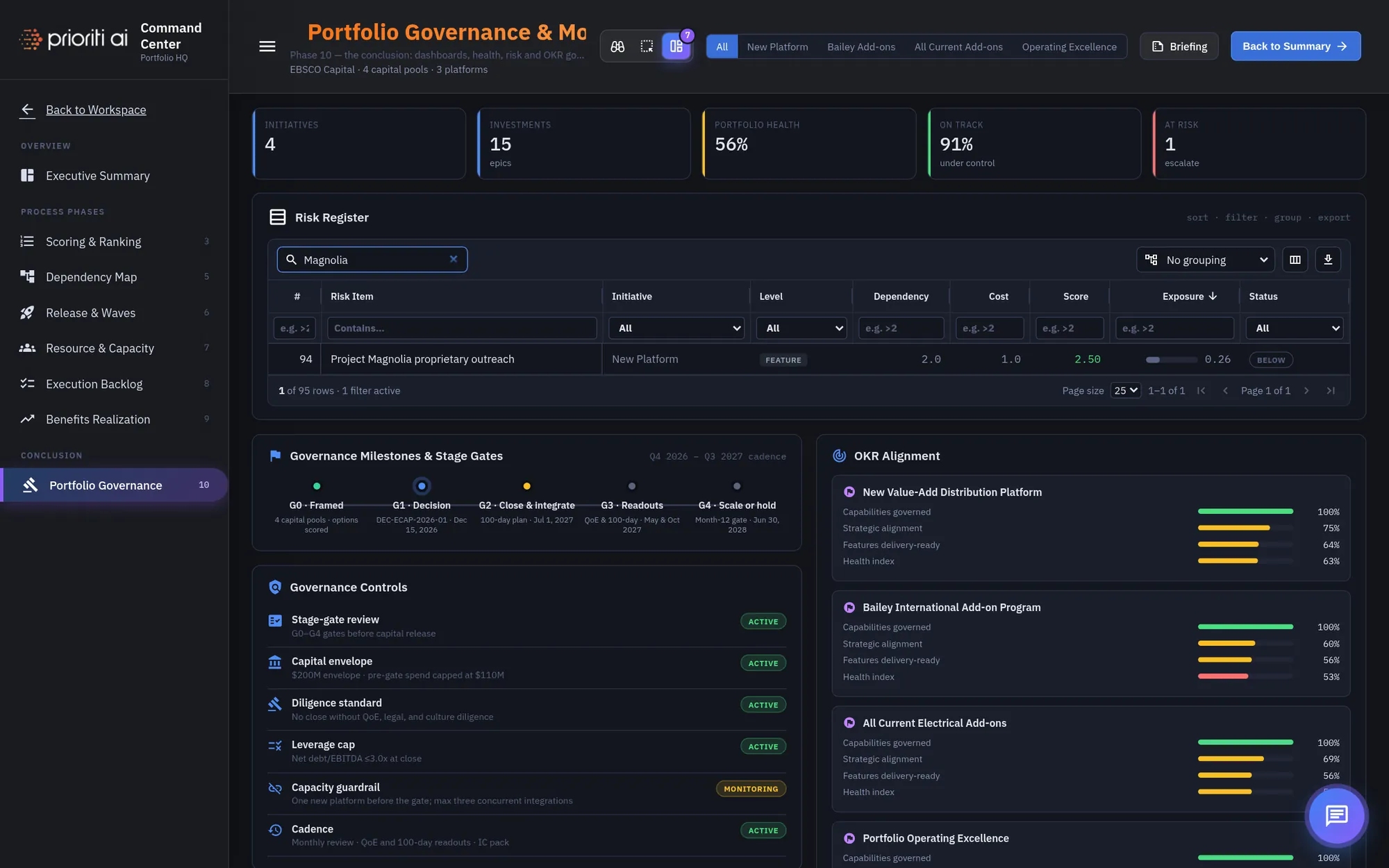
Quick search finds any risk. The toolbar lets you choose columns and export the register as a CSV file.
Governance Milestones and Stage Gates set the review cadence for the year ahead.
Governance Controls list the rules in force, such as stage-gate reviews, the capital envelope, and diligence standards, each with its status.
OKR Alignment checks each initiative against its objectives and key results.
At the end of the process, Next phase changes to Back to Summary, which returns you to the Executive Summary.
Need the big picture again? Click Briefing in the header to reopen the Executive Briefing from any view.
That's the Command Center: the briefing, the summary, the seven process views, and governance. Use the filters, Lens tools, and Pria to dig in, and Next phase to move through the process.