 Training
Chapter 1 of 9 · Get oriented
Training
Chapter 1 of 9 · Get oriented

Learn to use Orchestration
A narrated tour of the new Orchestration: ask one question, explore your data in six views, and act on Pria's recommendation, from deep dives and alternates to Cost of Inaction and Perspectives. 33 steps in 9 chapters · about 5:21.

Welcome to Orchestration training. Ask one decision question, and Prioriti AI turns your data into a picture you can explore, with Pria's recommendation beside it.
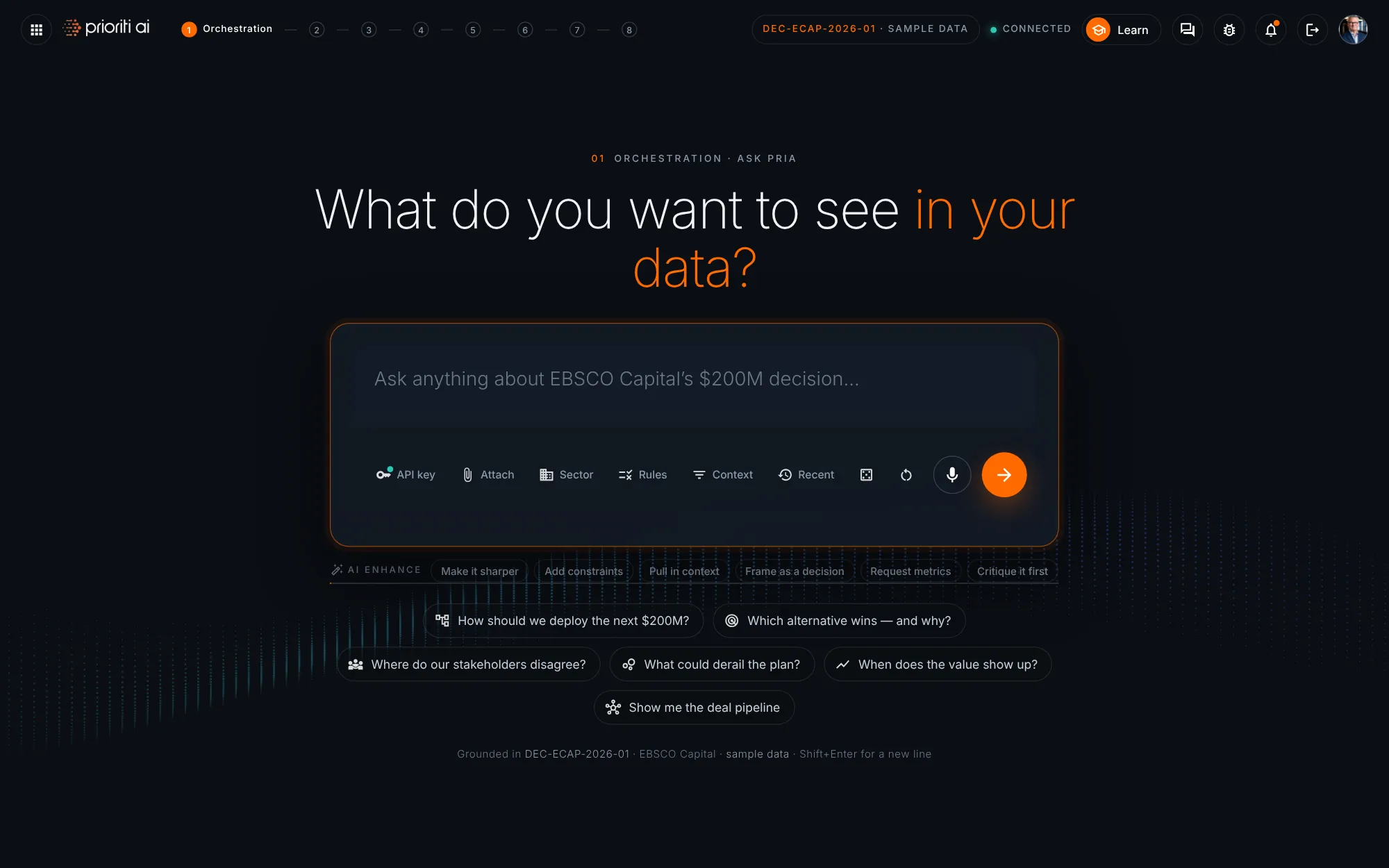
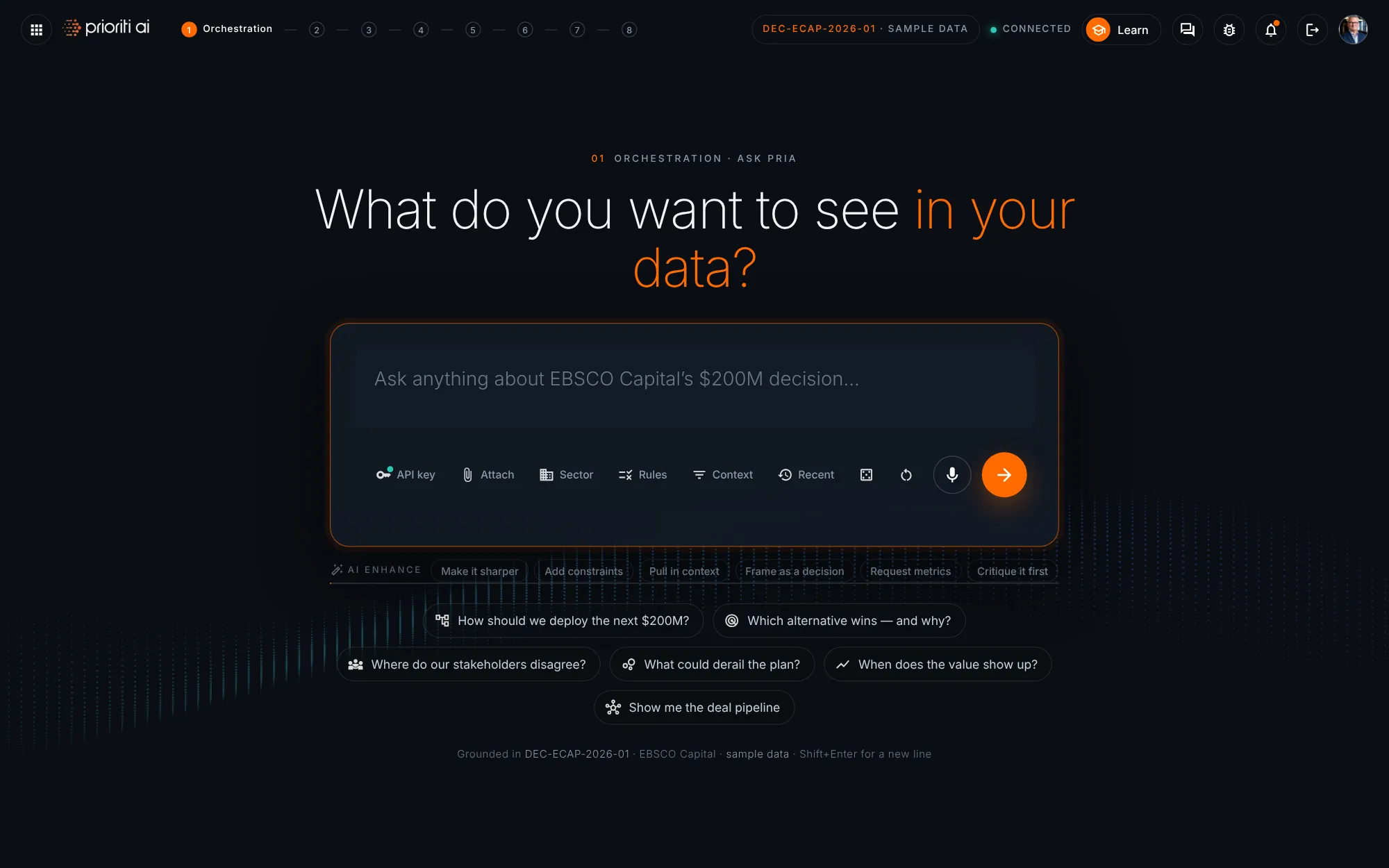
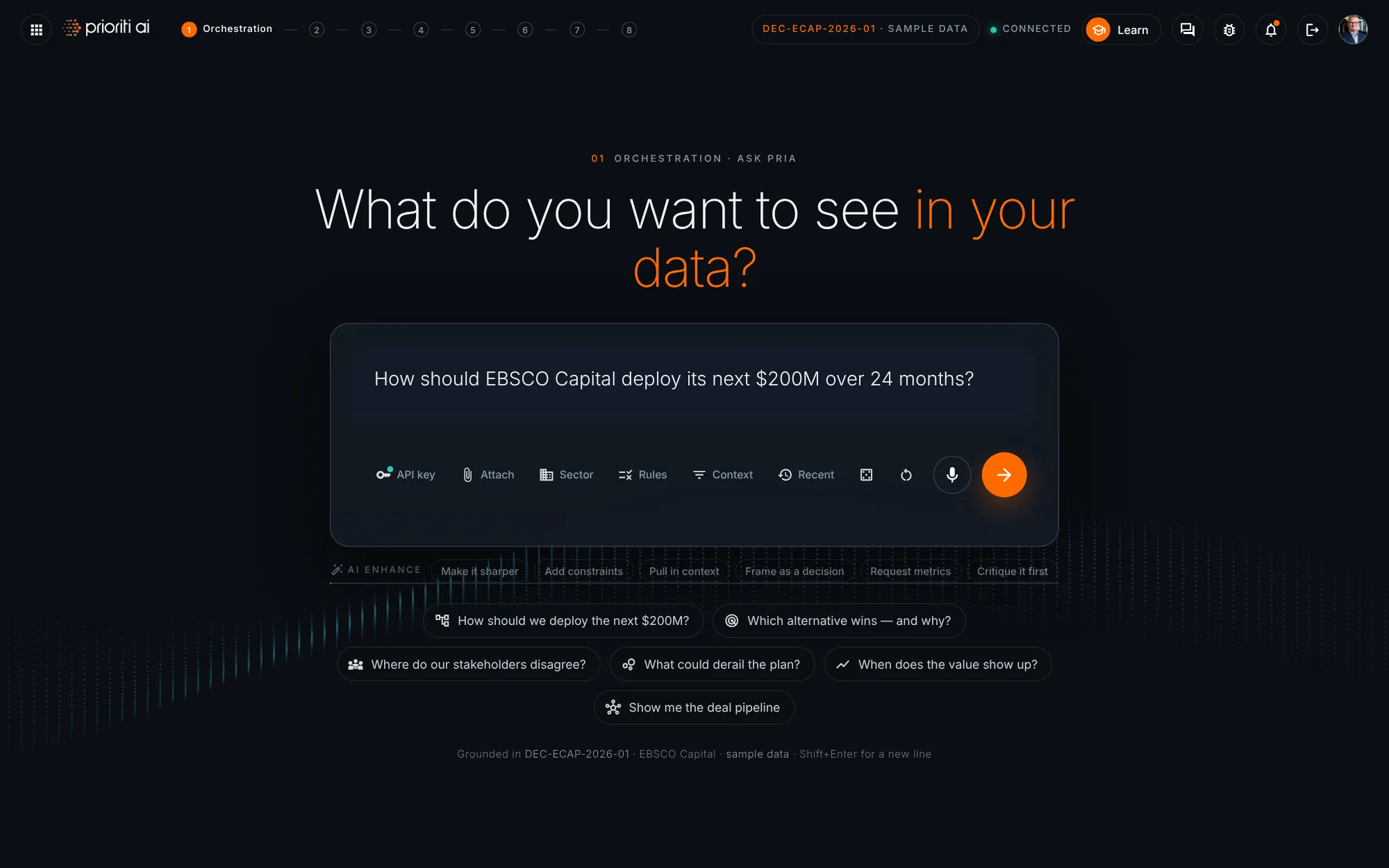
The top bar stays small: the workbench menu, your place in the eight-step process, Learn, chat with Pria, and issue reporting.
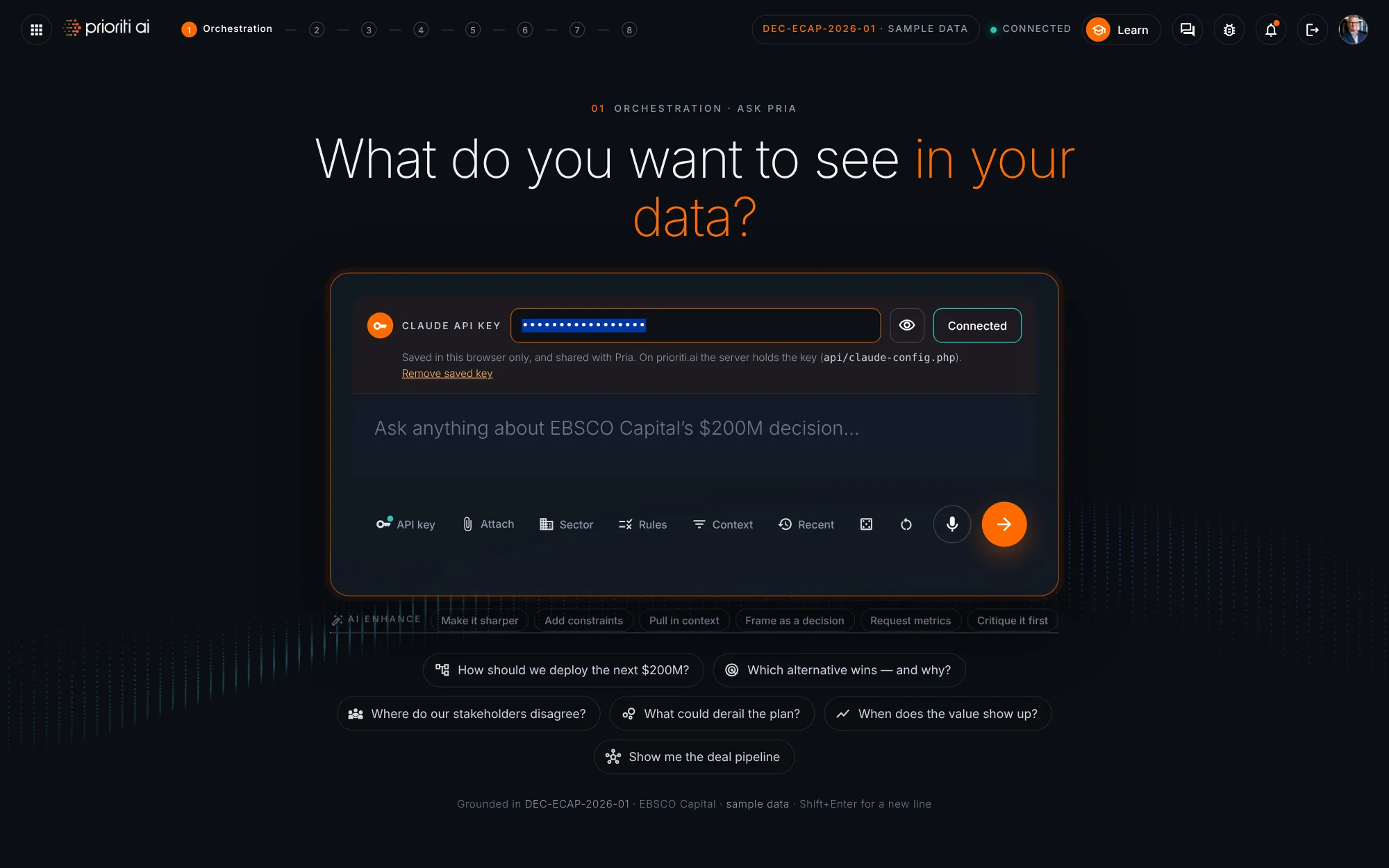
Working on a local copy? Save your Claude API key here once. On prioriti.ai the server holds the key, so this field never appears.
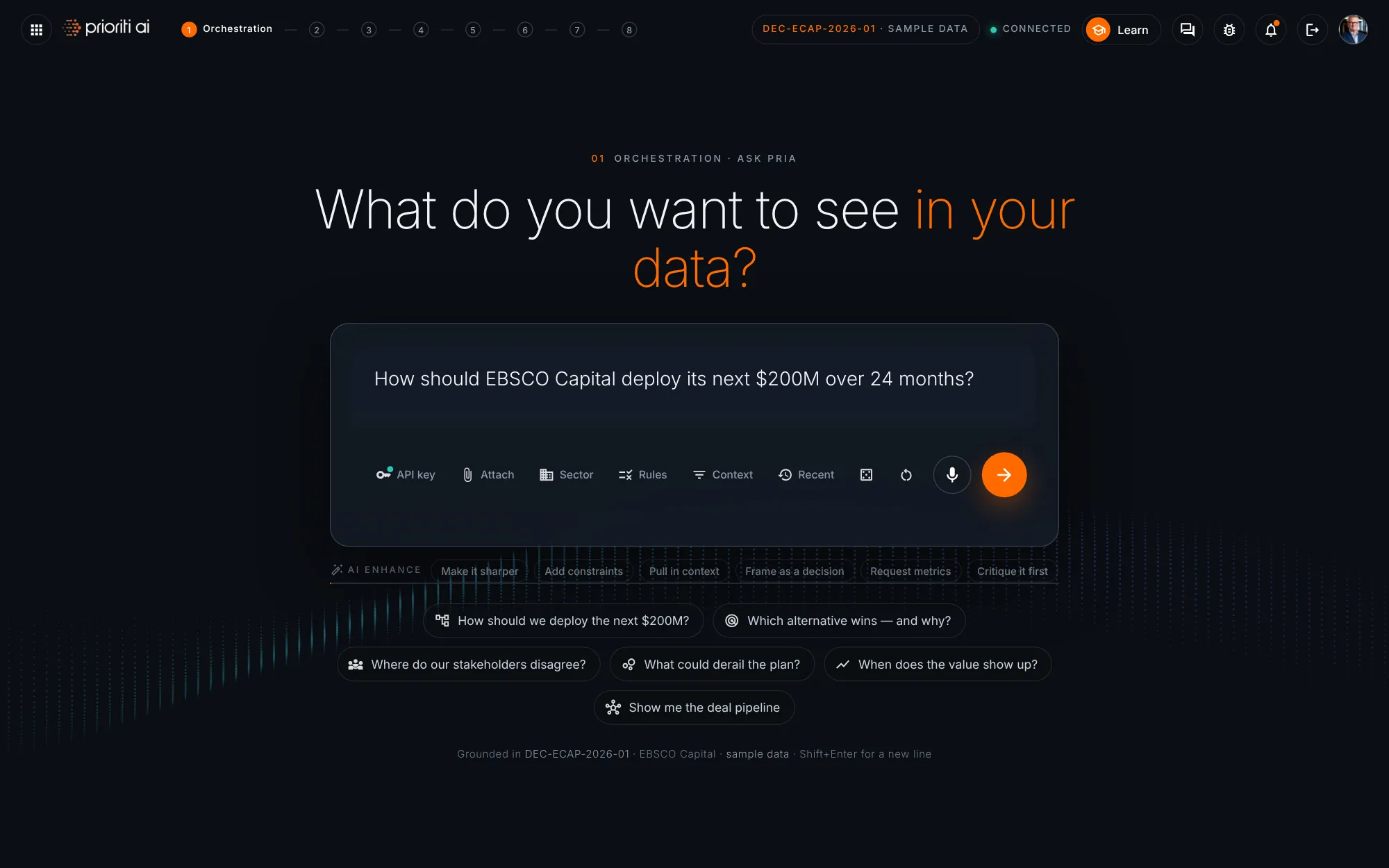
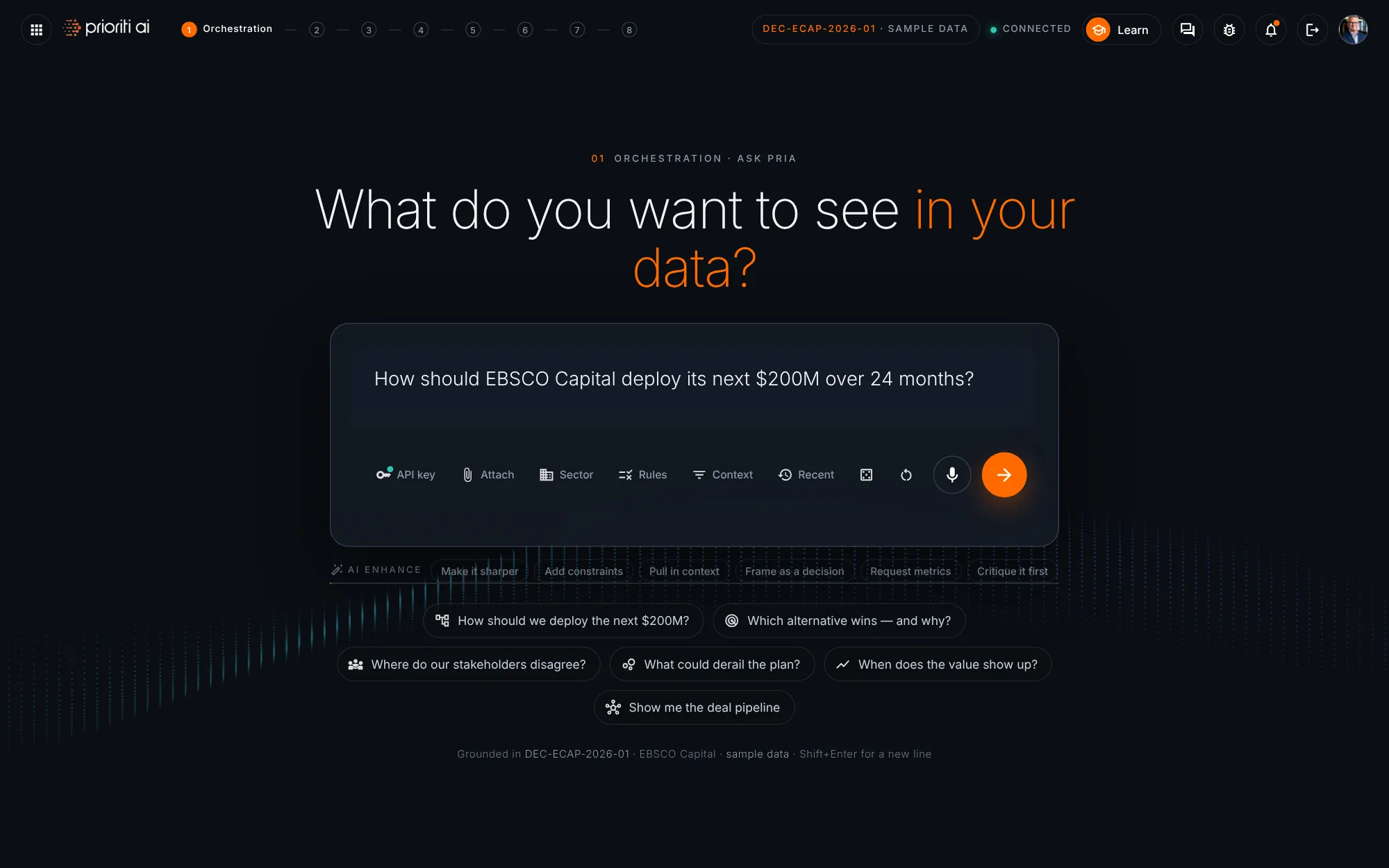
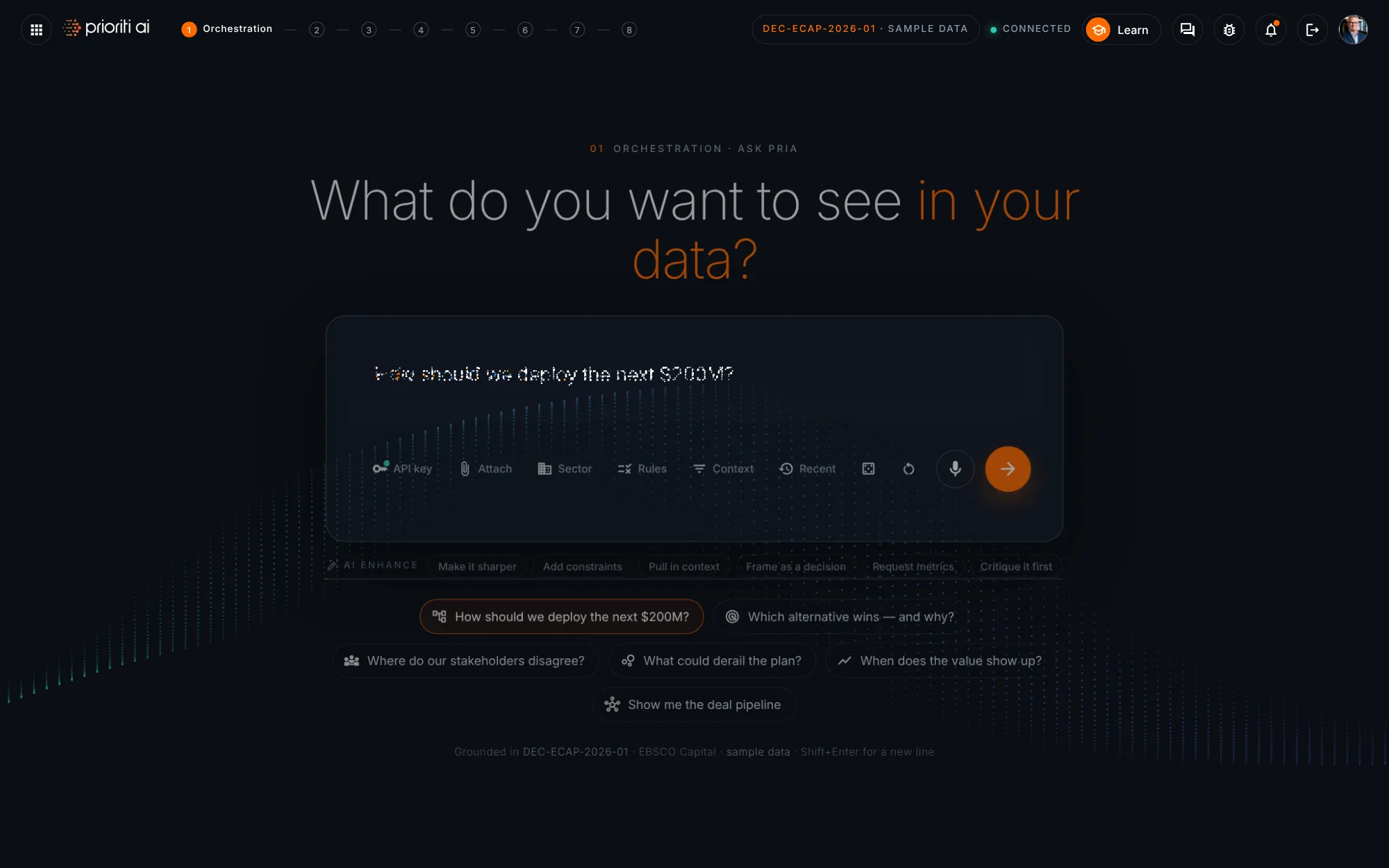
Type your decision question in plain English. Press Enter to launch. Shift and Enter adds a new line.
Not sure where to start? Each sample question opens a different view of the decision data.
These tools shape the ask: your API key, attach a file, sector context, prompt rules, context focus, recent asks, a sample question, and reset.
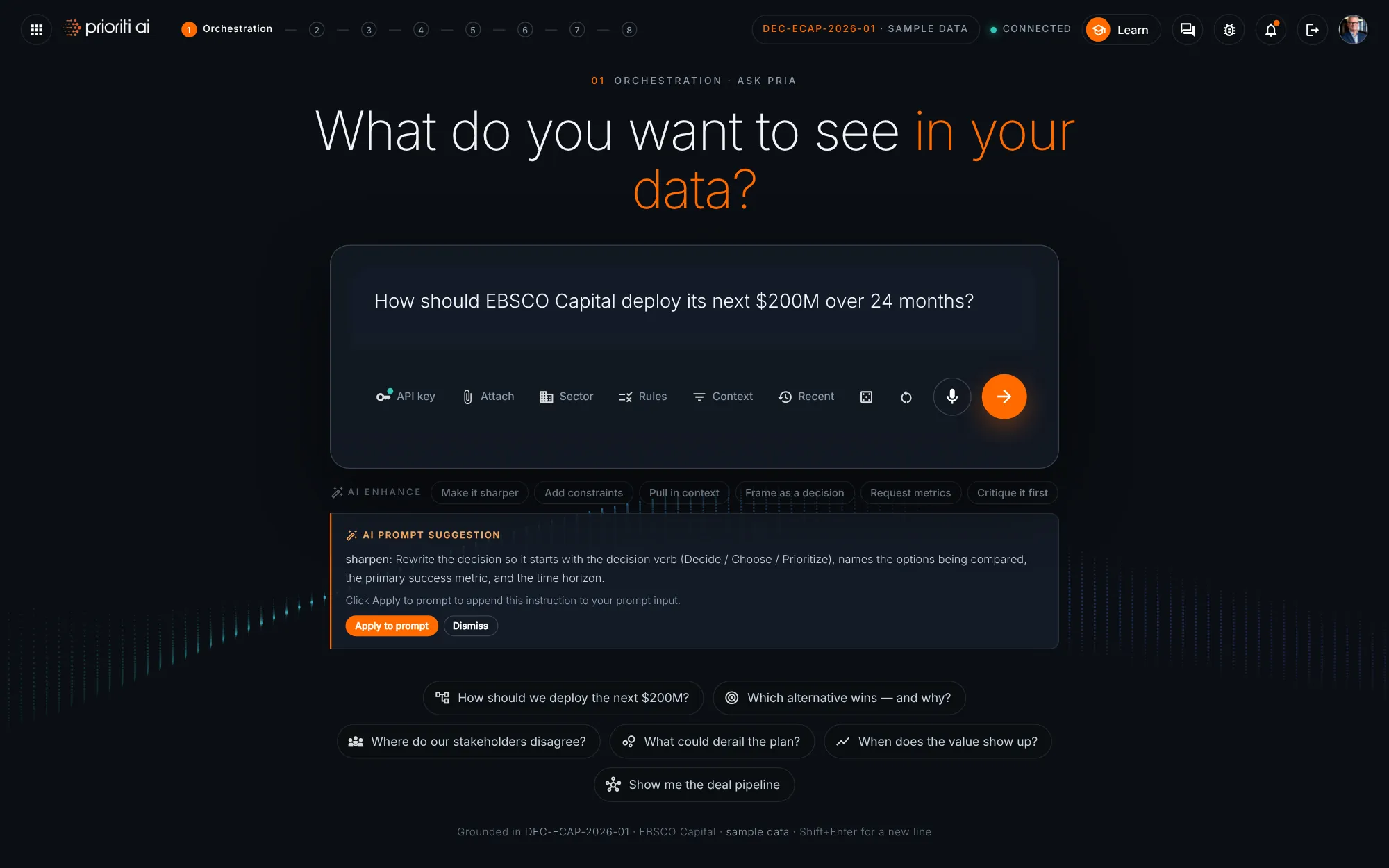
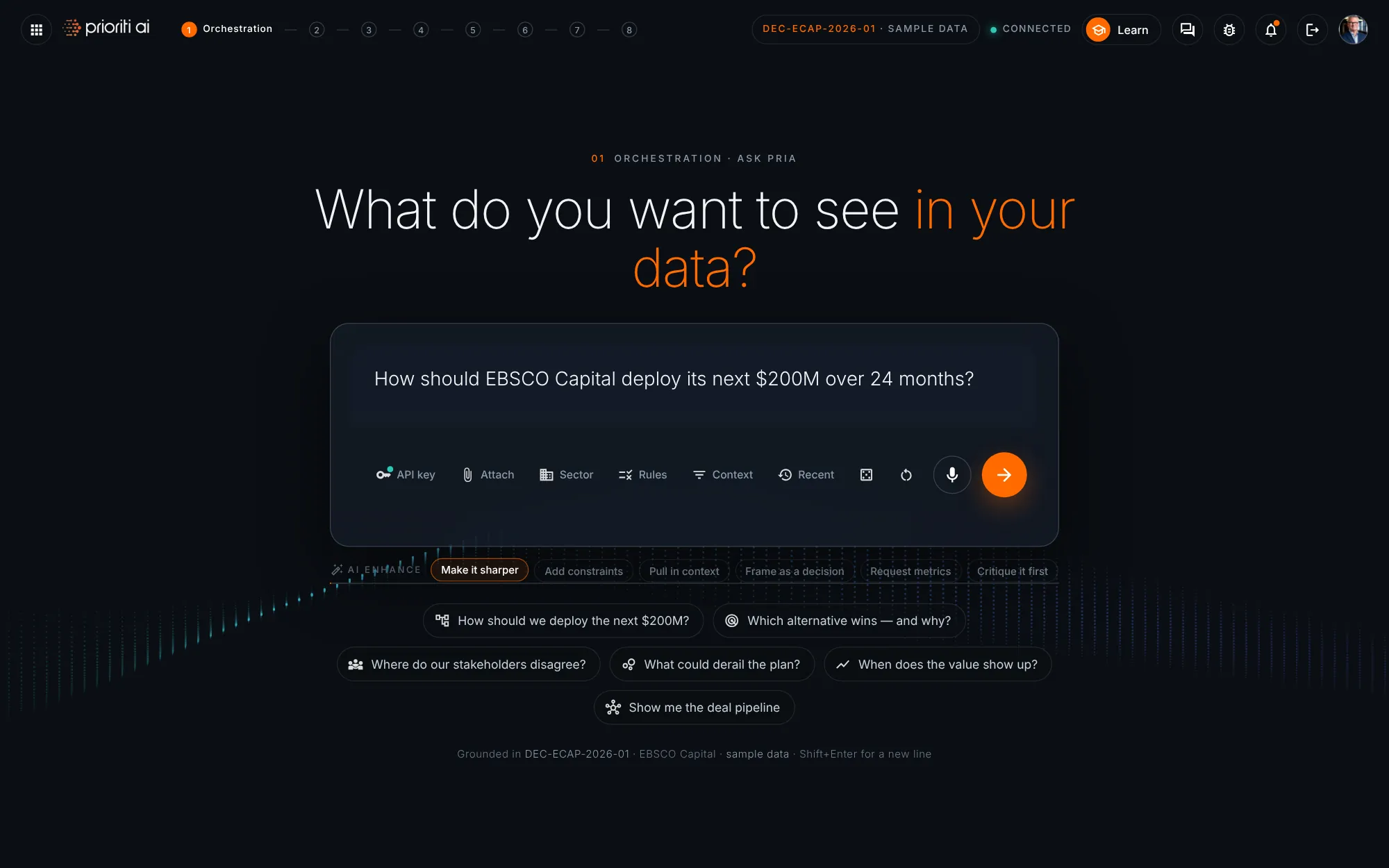
AI Enhance tightens your prompt. Pick a chip, review the suggestion, and apply it to your question.
Prefer to talk? Use the mic. When you're ready, the orange arrow asks Pria and launches the data view.
Your question dissolves into the data. Pria starts reading the decision record while the picture builds.
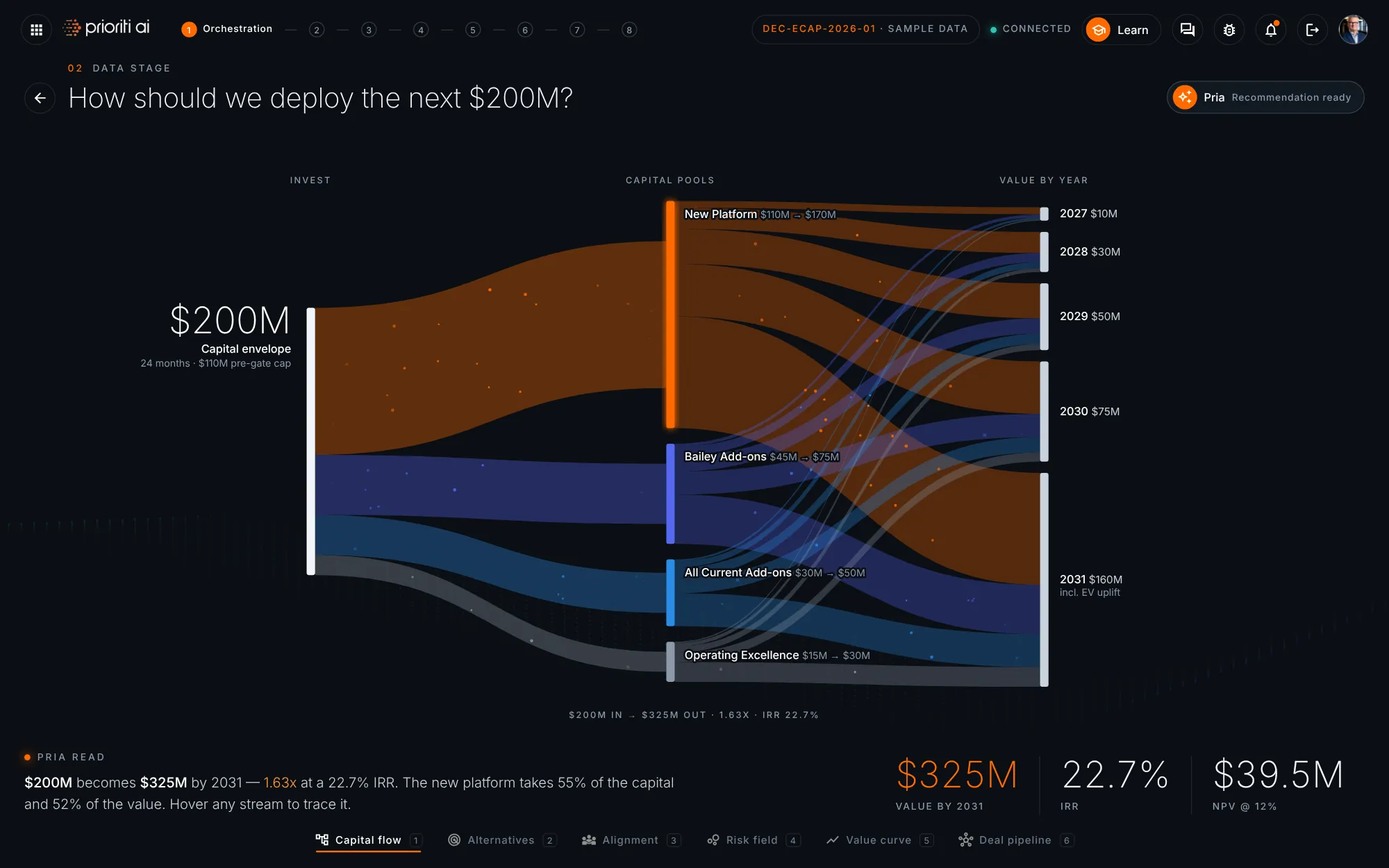
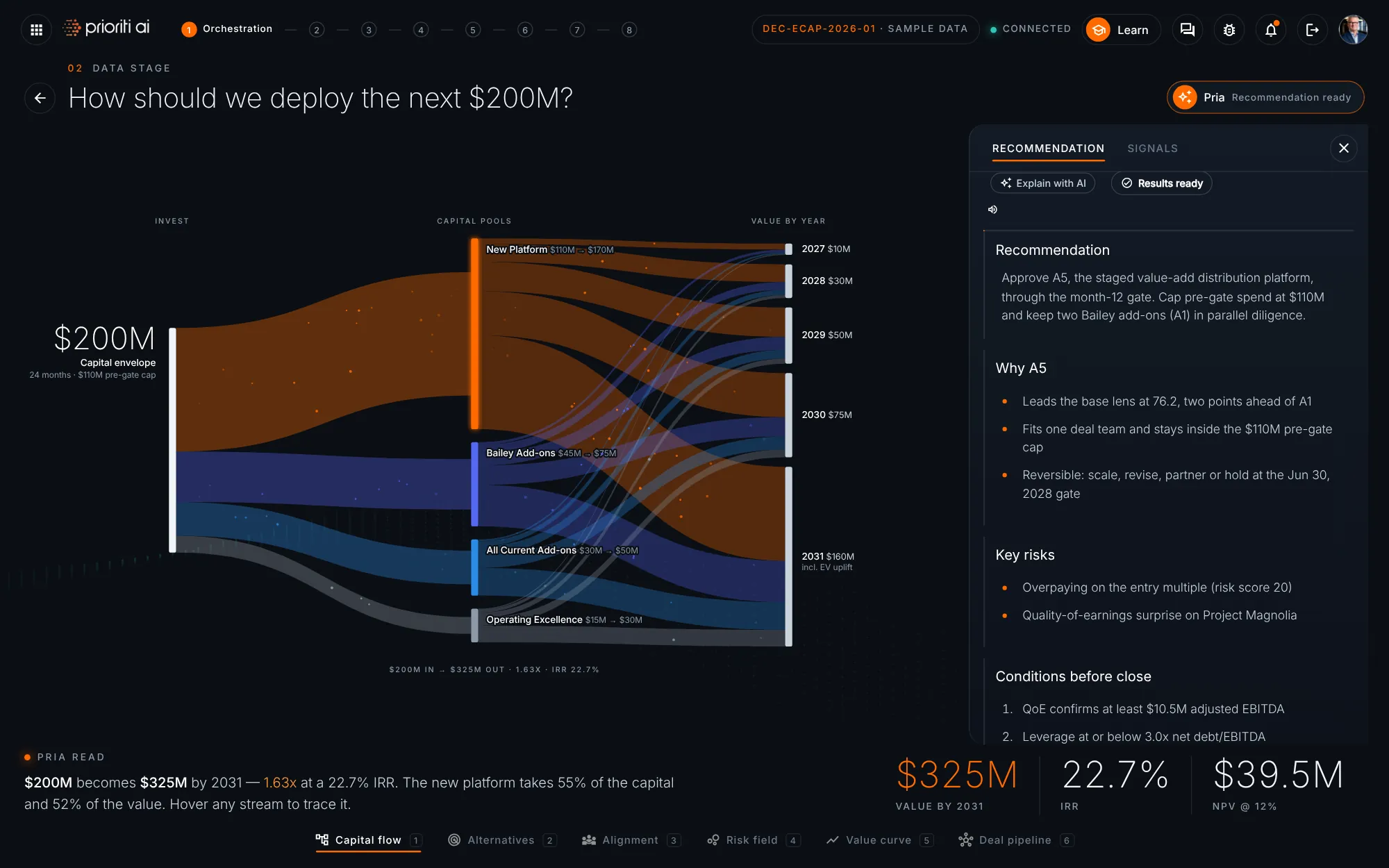
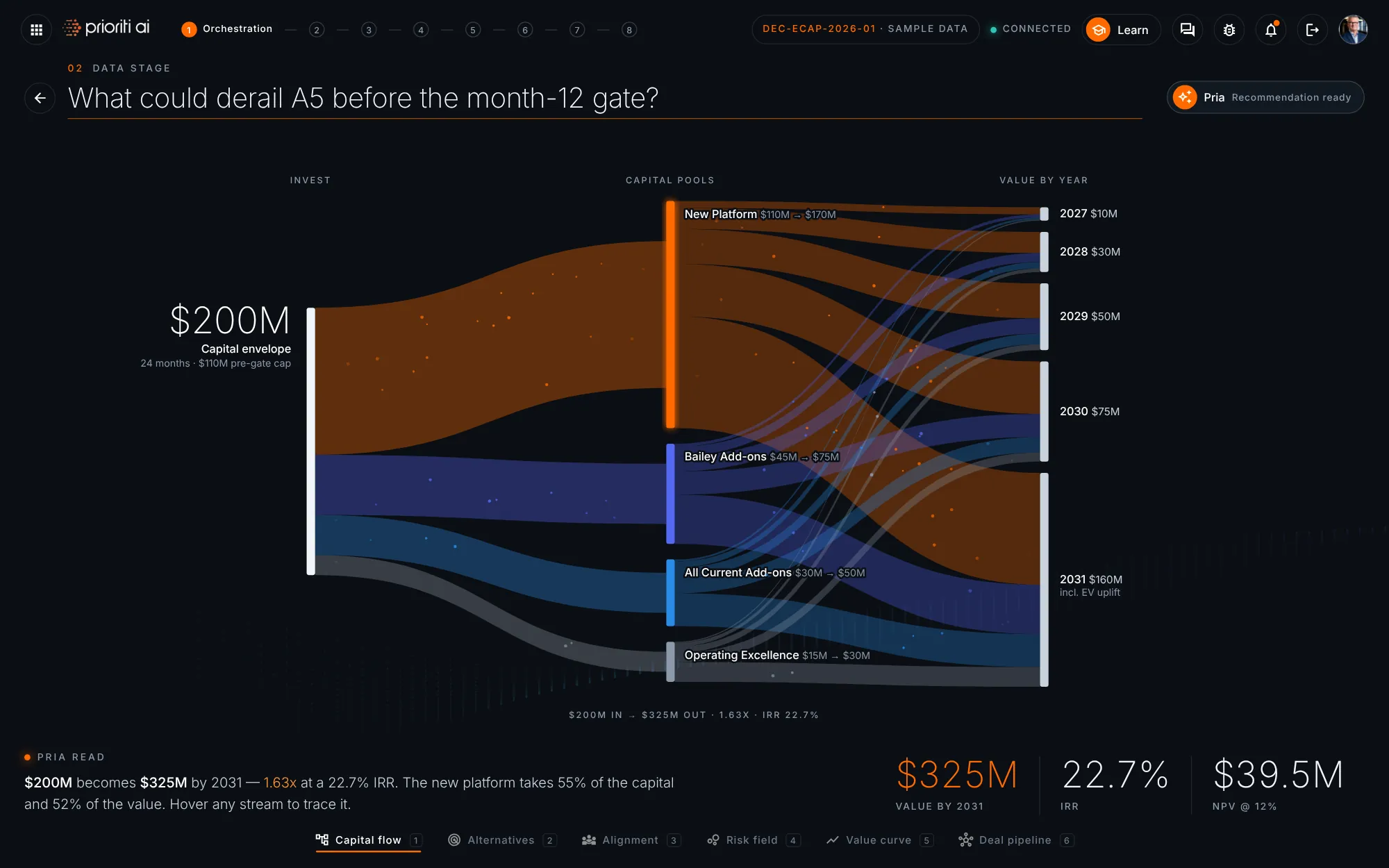
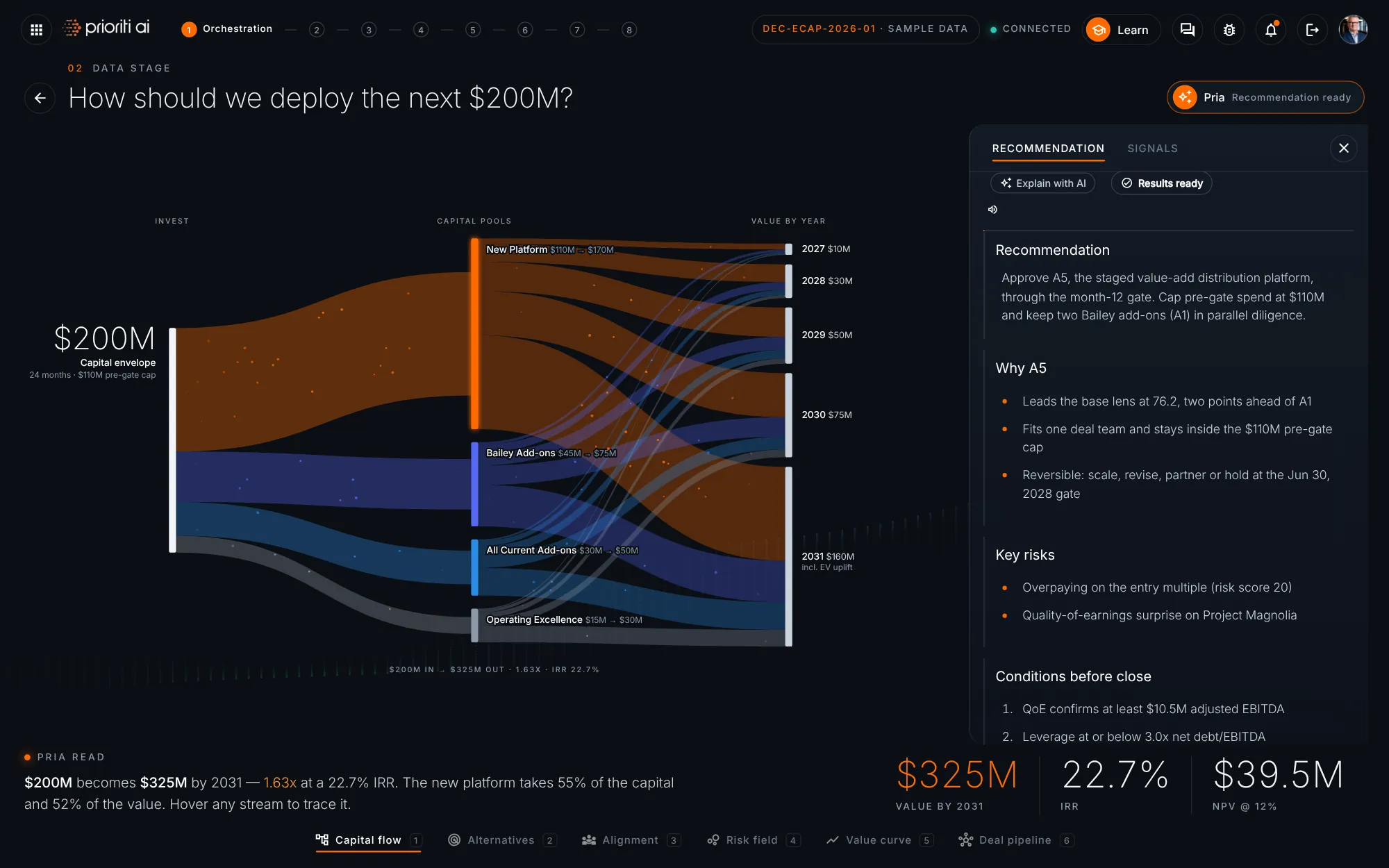
This is the data stage. Your question sits on top, the picture fills the middle, and Pria's read with three key numbers sits below. The views run along the bottom.
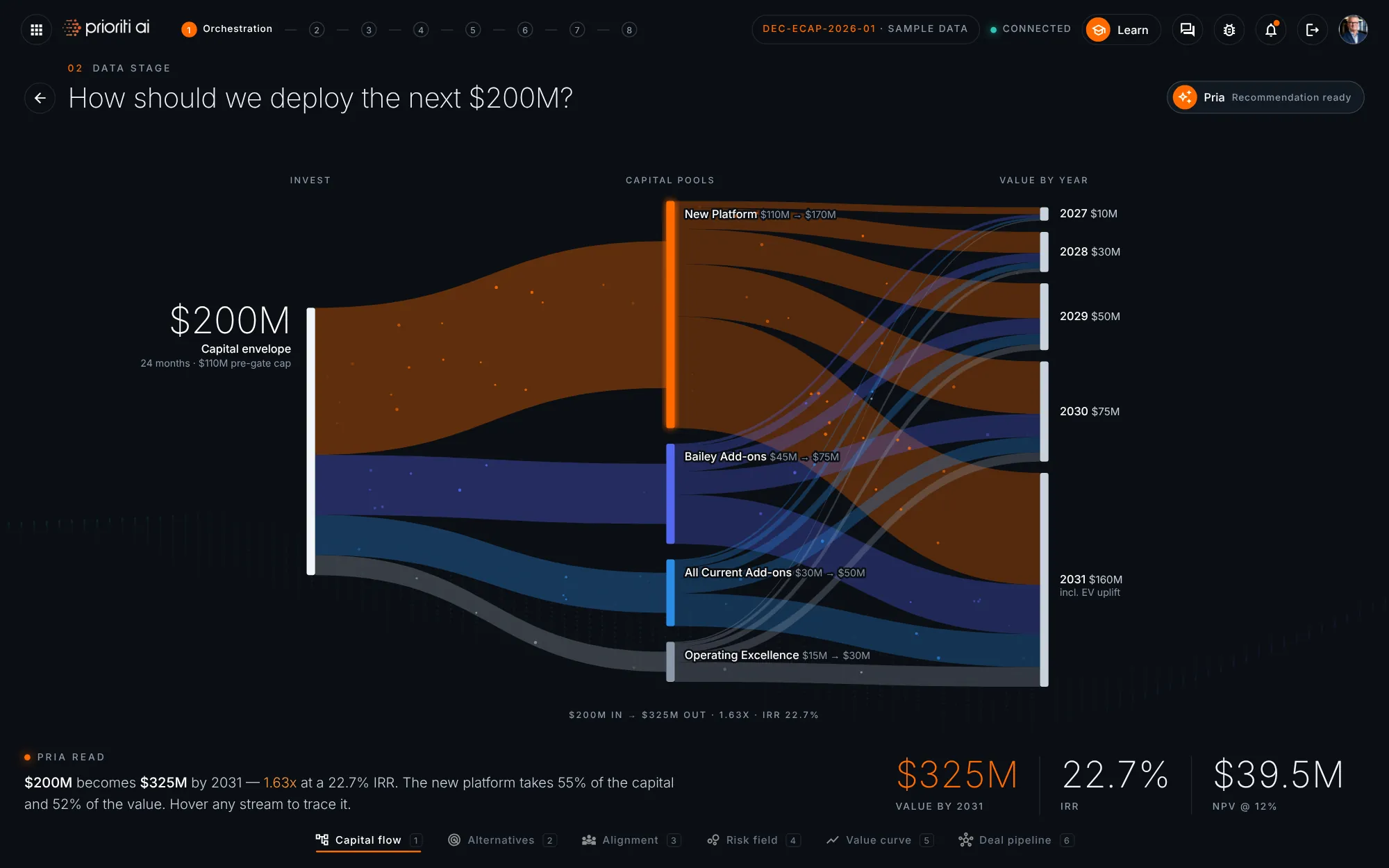
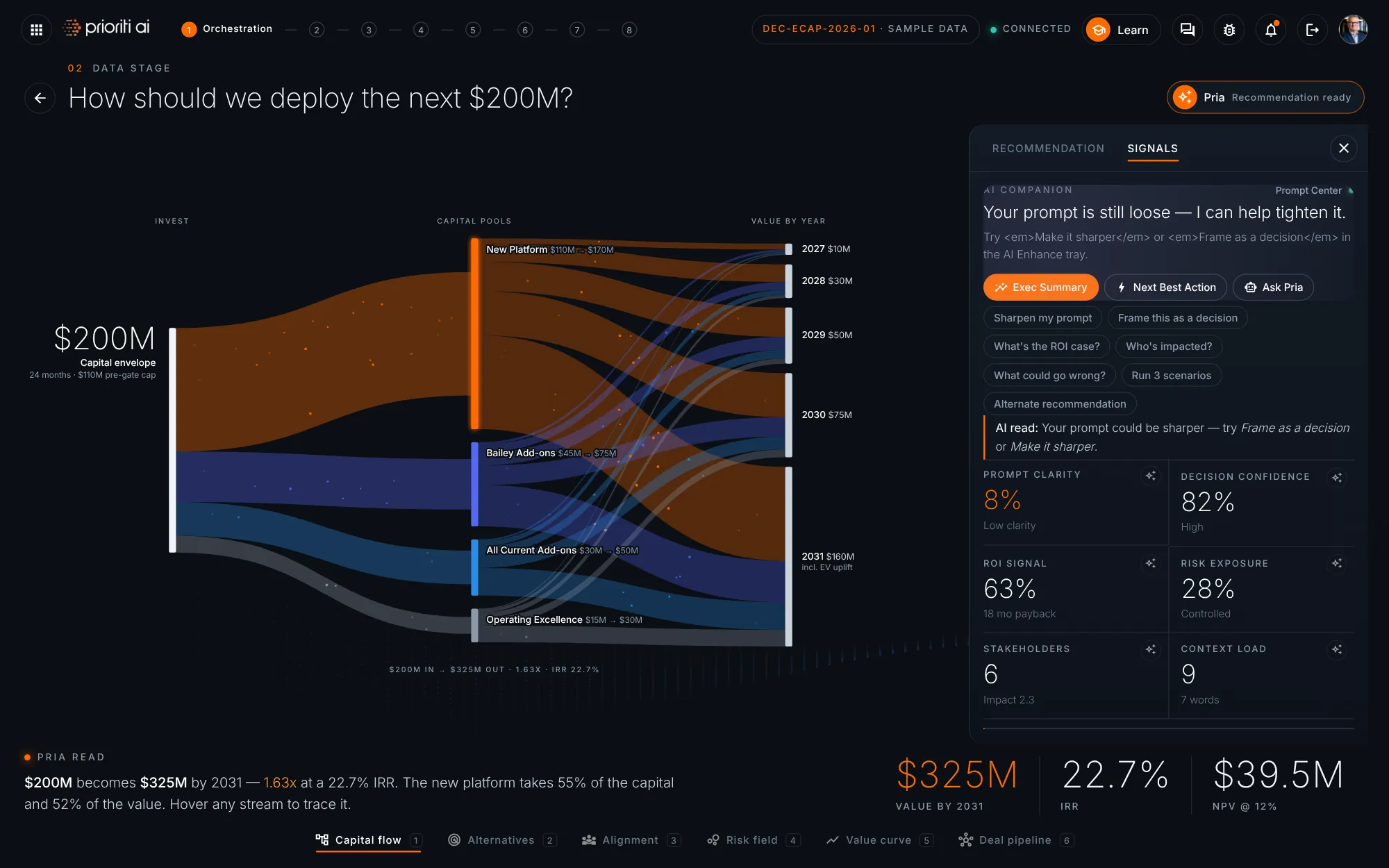
Capital flow traces the two hundred million dollar envelope through four capital pools to the value each year returns. The new platform carries the most.
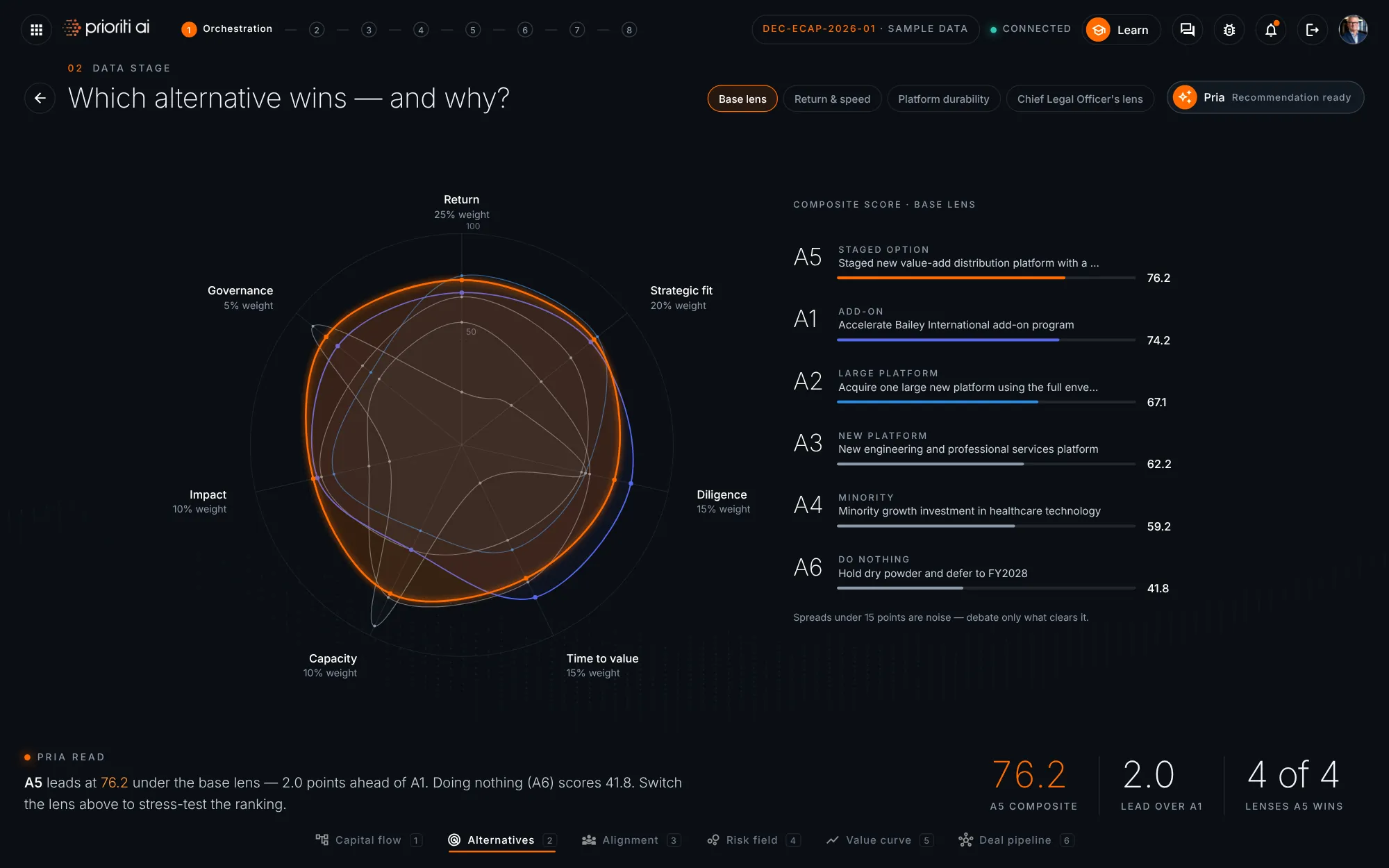
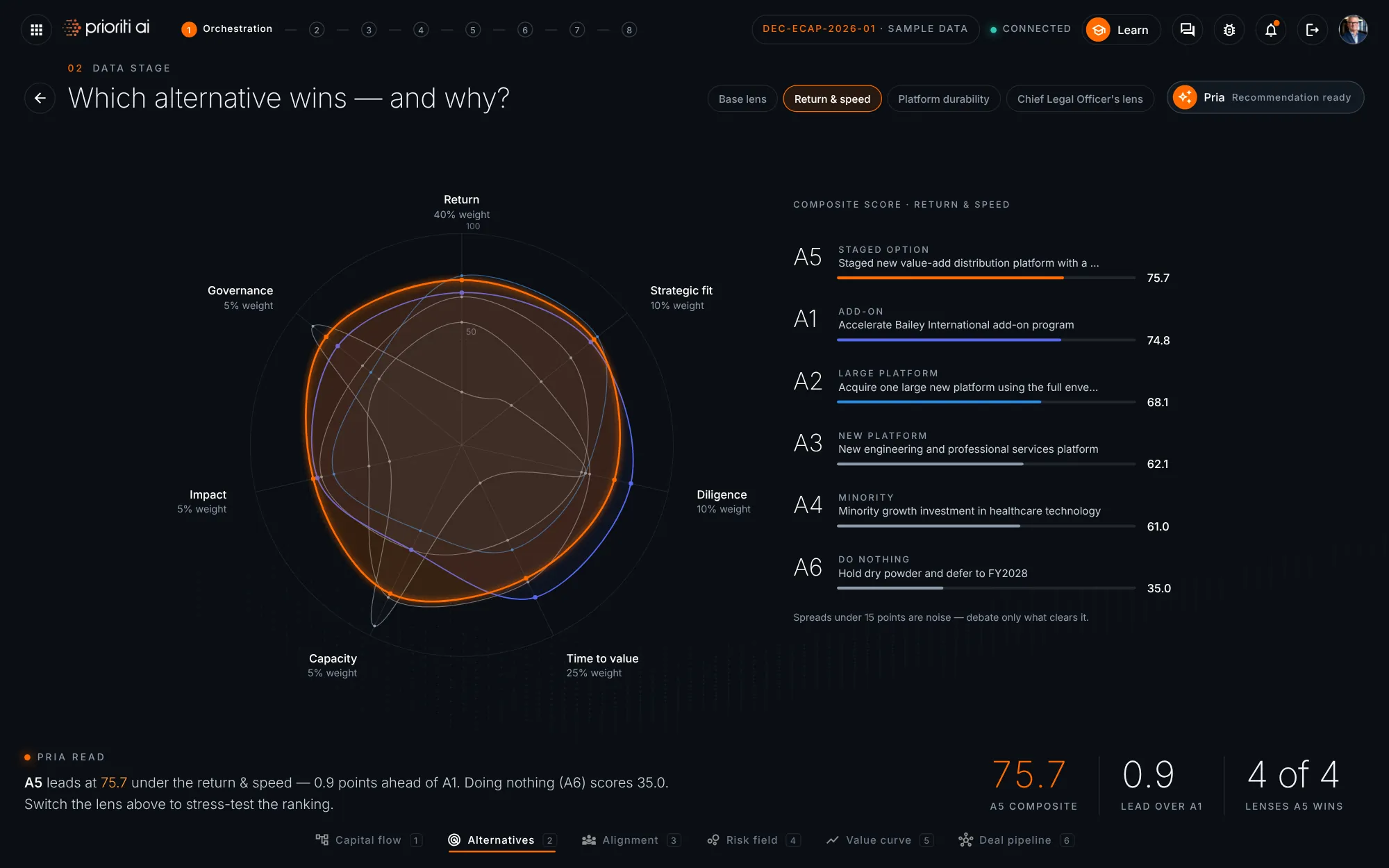
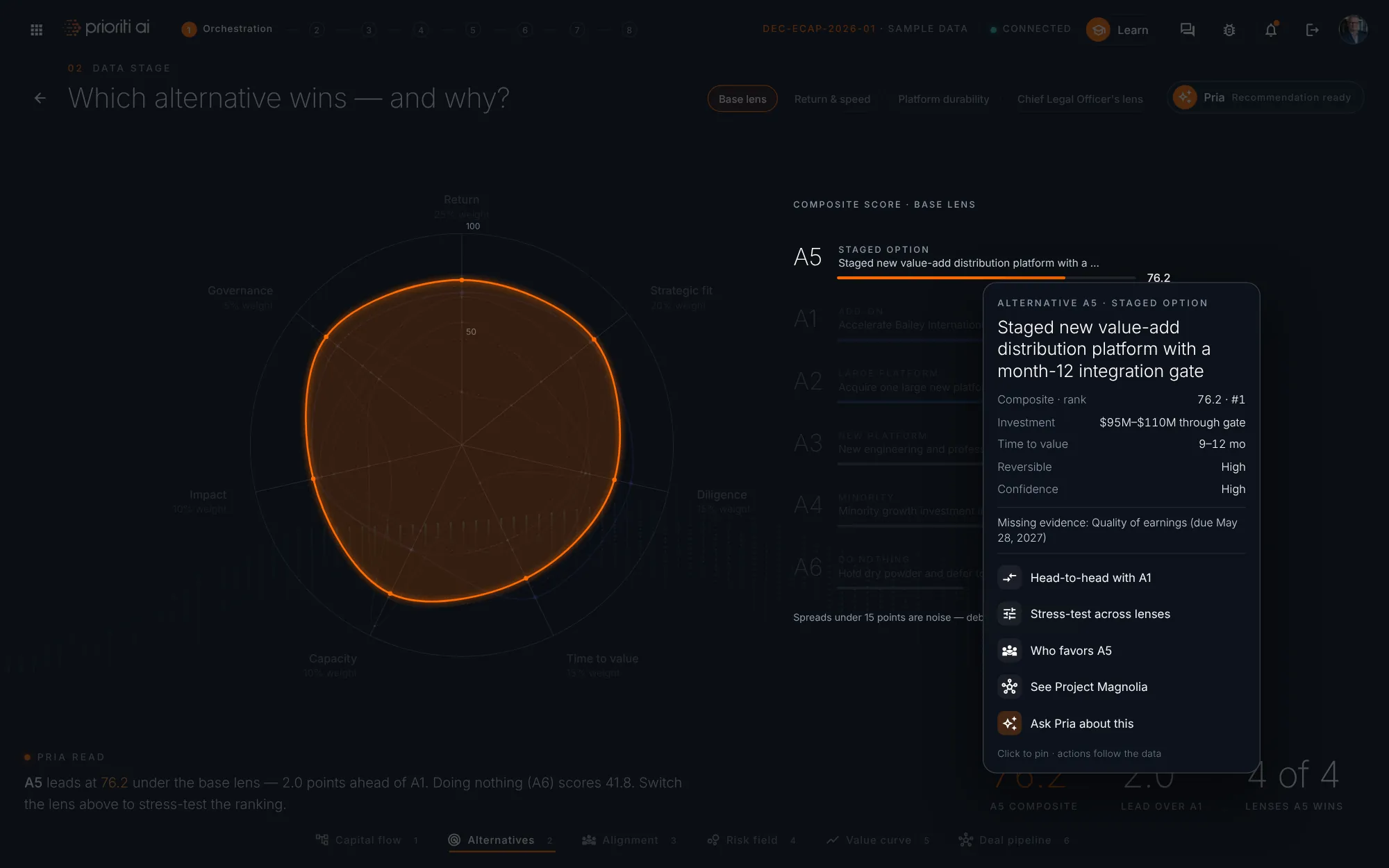
Alternatives compares all six options on seven criteria. A5 leads the base lens at seventy-six point two.
Switch lenses up top and the ranking re-sorts. Under Return and speed, A5 still leads, by less than a point.
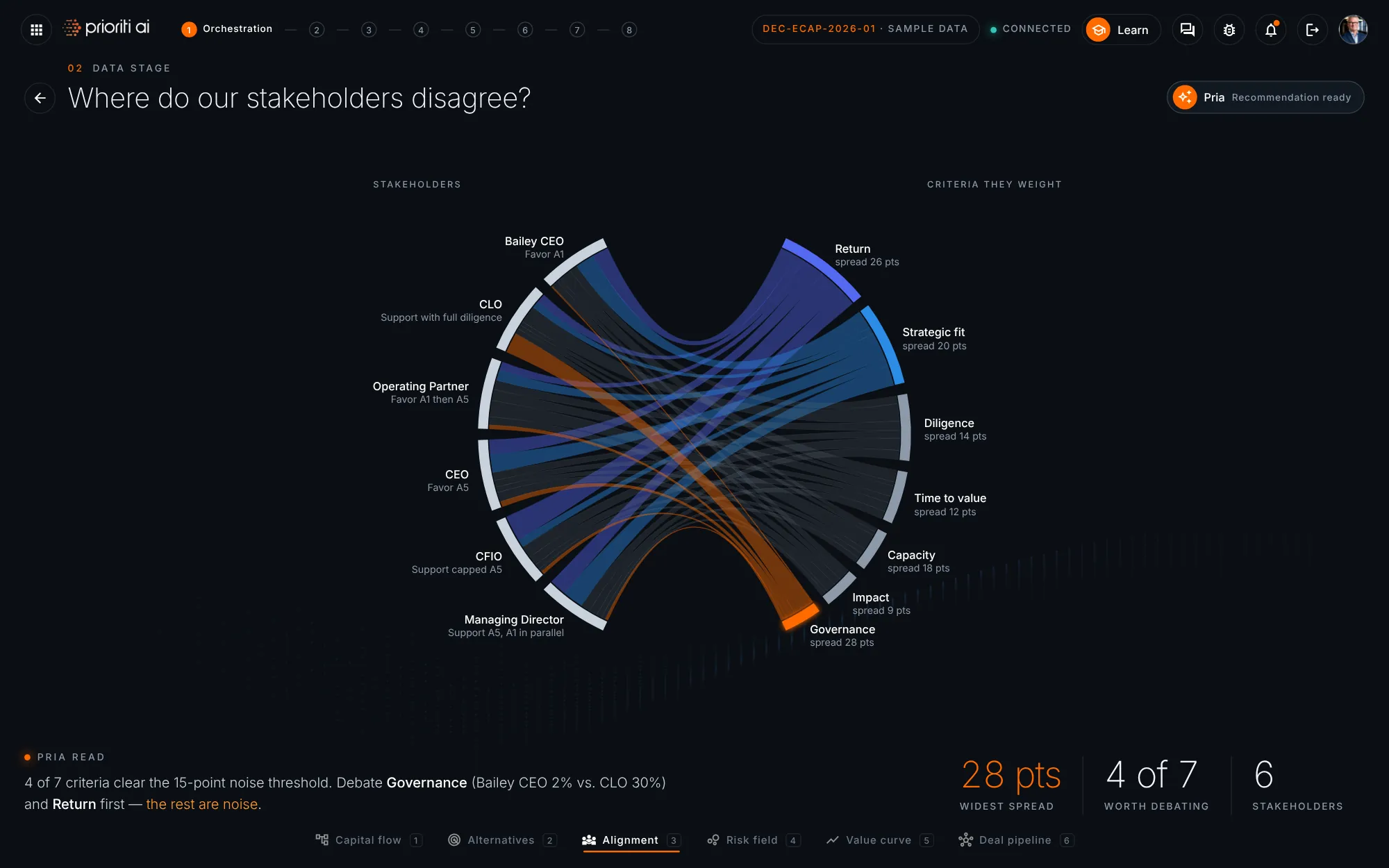
Alignment shows how each stakeholder weights the criteria. Governance and Return have the widest spreads, so debate those first.
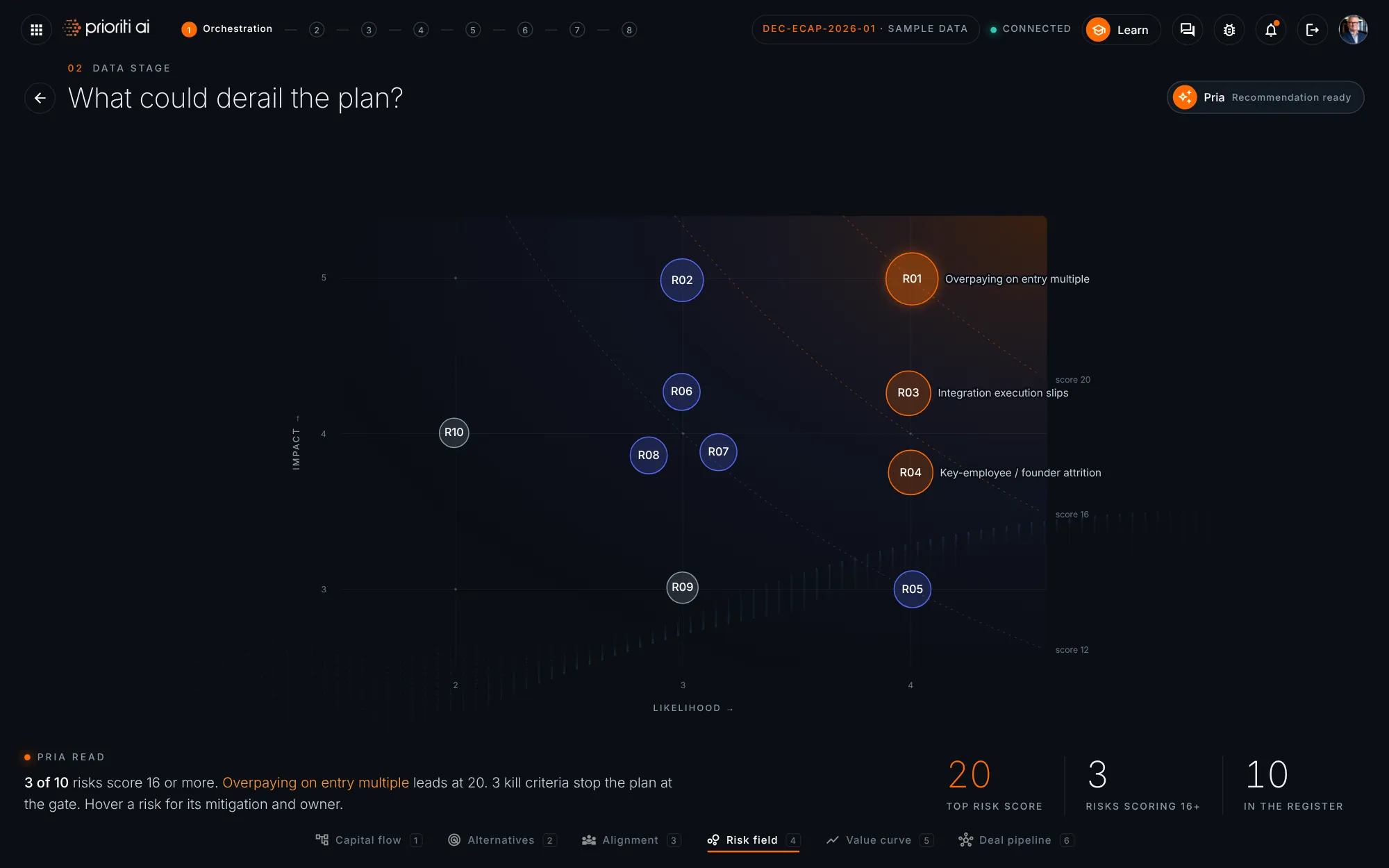
The risk field plots likelihood against impact. Overpaying on the entry multiple scores highest, at twenty.
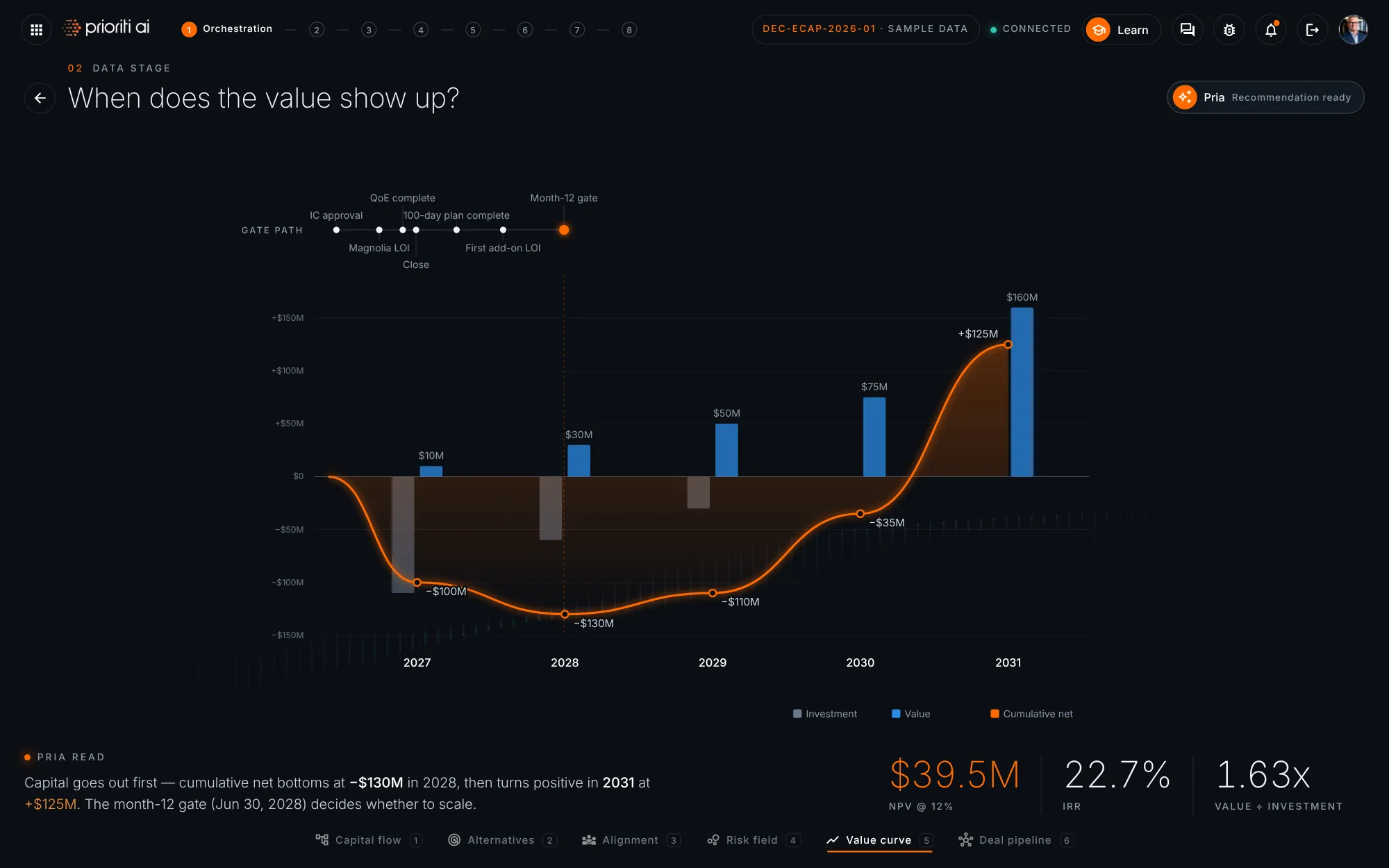
The value curve shows when money goes out and comes back. Cumulative net bottoms out in 2028 and turns positive in 2031.
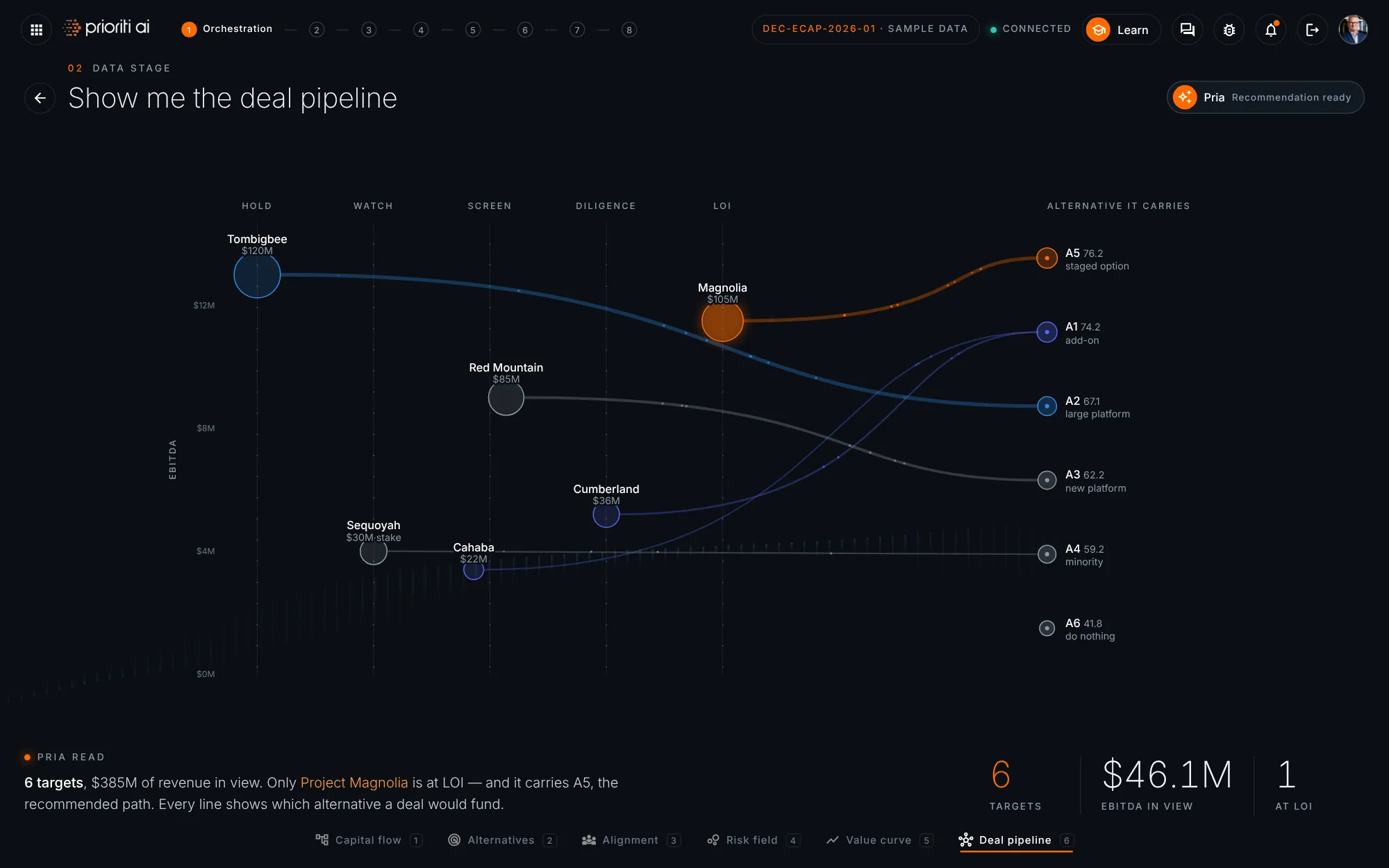
The deal pipeline links each target to the alternative it would fund. Only Project Magnolia is at the letter-of-intent stage.
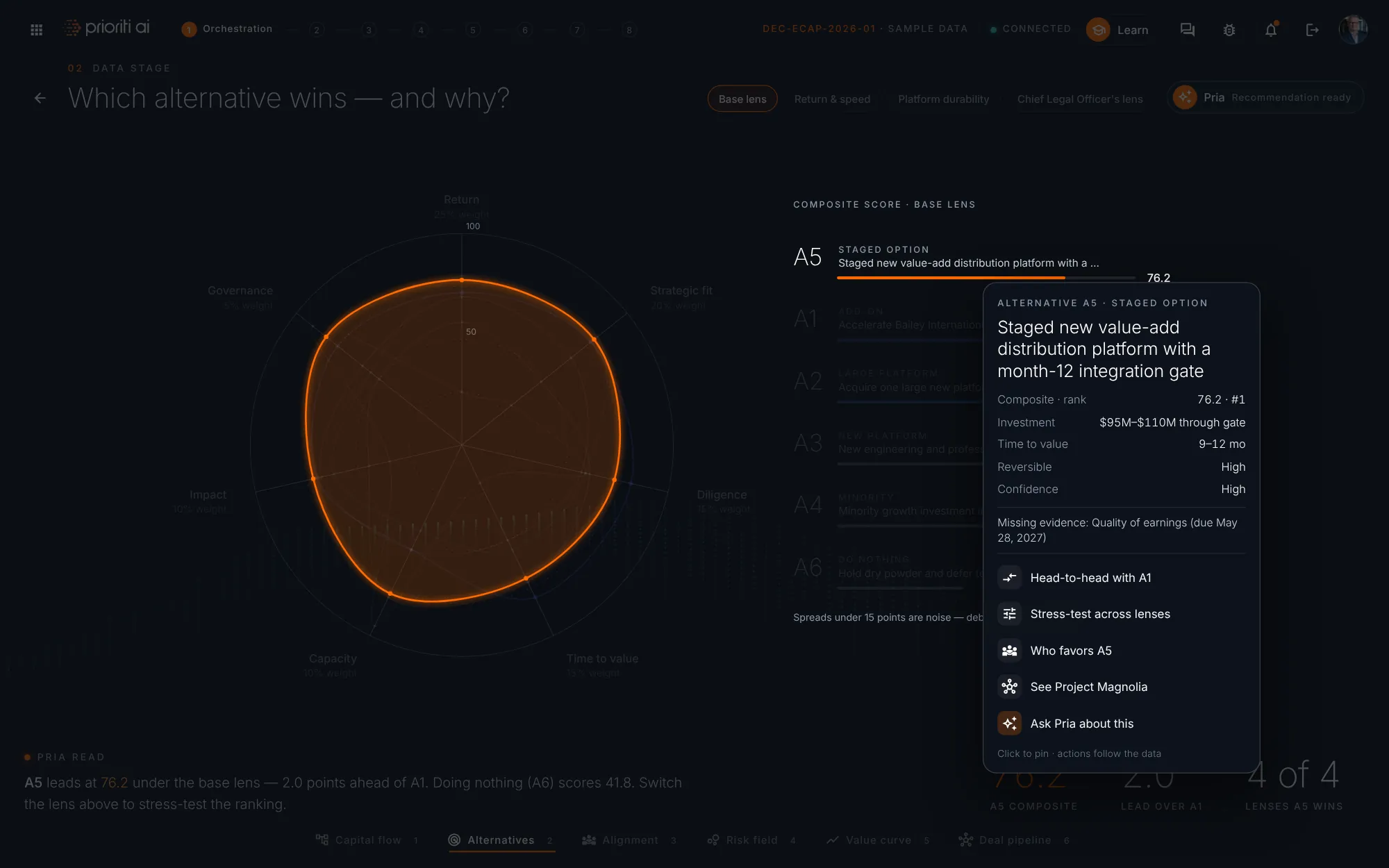
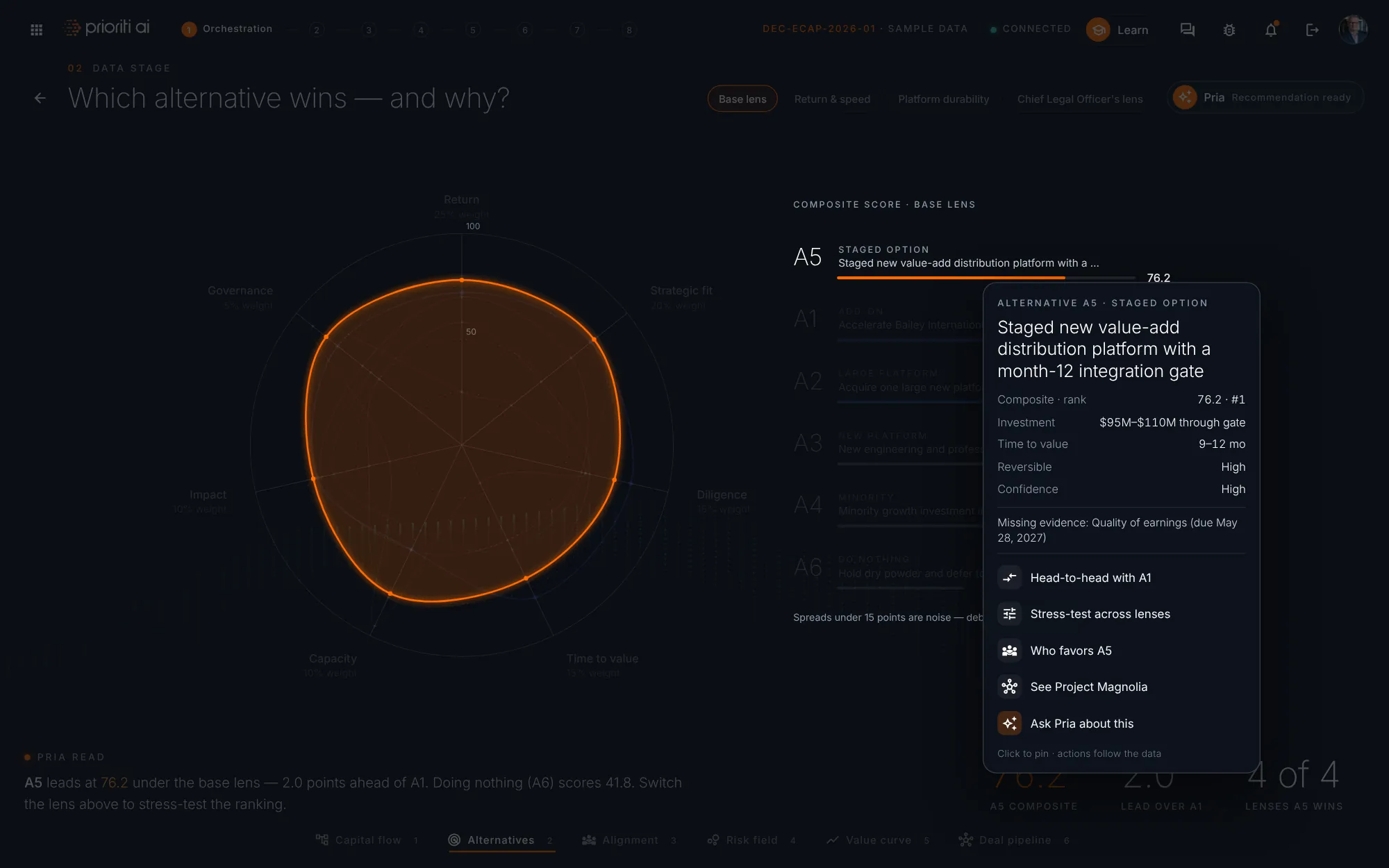
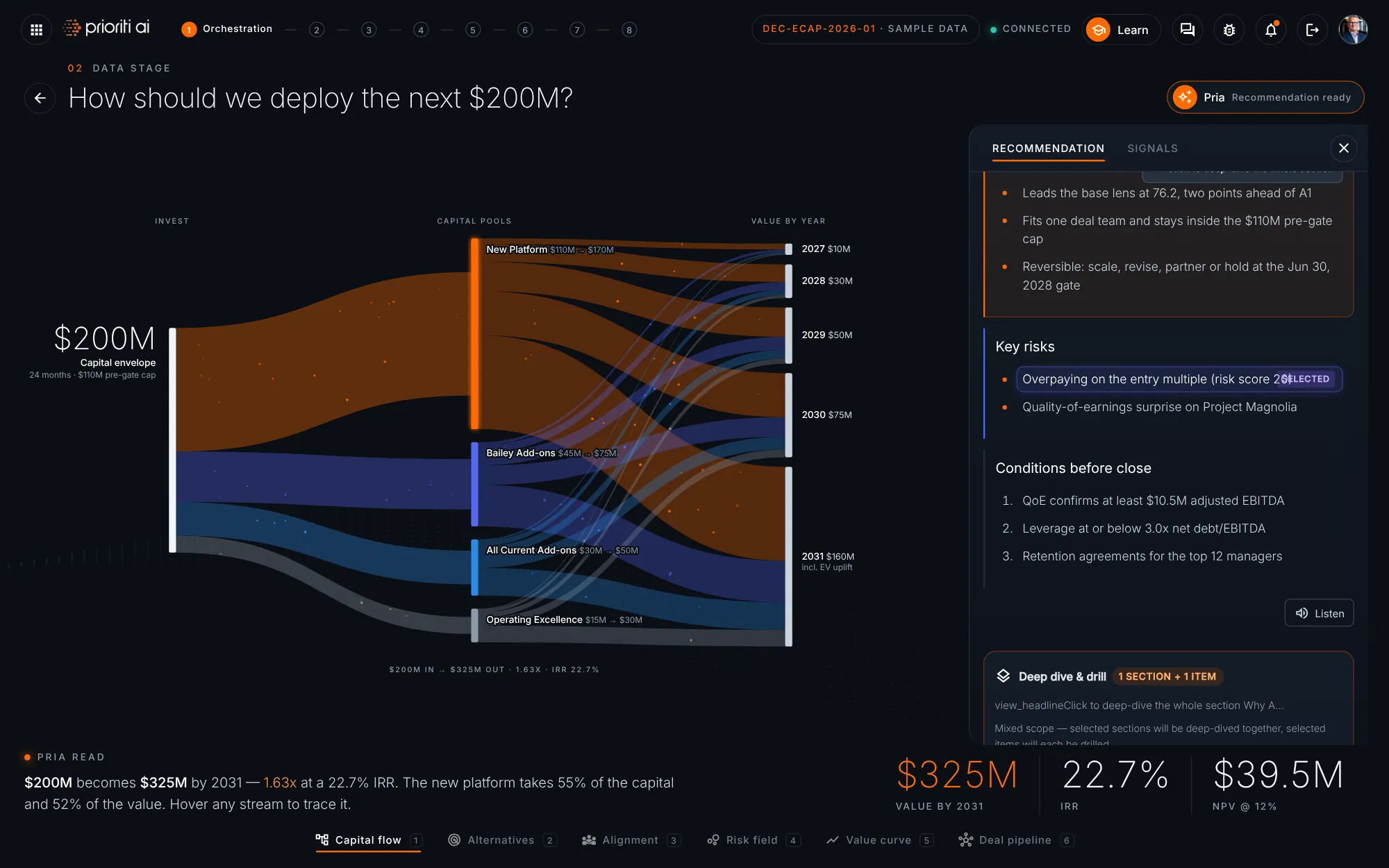
Hover any data point. Everything connected stays lit, the rest dims, and a card shows the numbers. Click to pin it.
The actions change with the data. For an alternative, go head-to-head, stress-test every lens, see who favors it, or open its deal.
Ask Pria about this sends a question built from that data point straight to Pria.
Pria's recommendation streams into this panel. The Pria button shows when she's thinking, and when the answer is ready.
Click a section to deep-dive all of it, or a single bullet to drill into one point. Stack as many as you like, then run the deep dive.
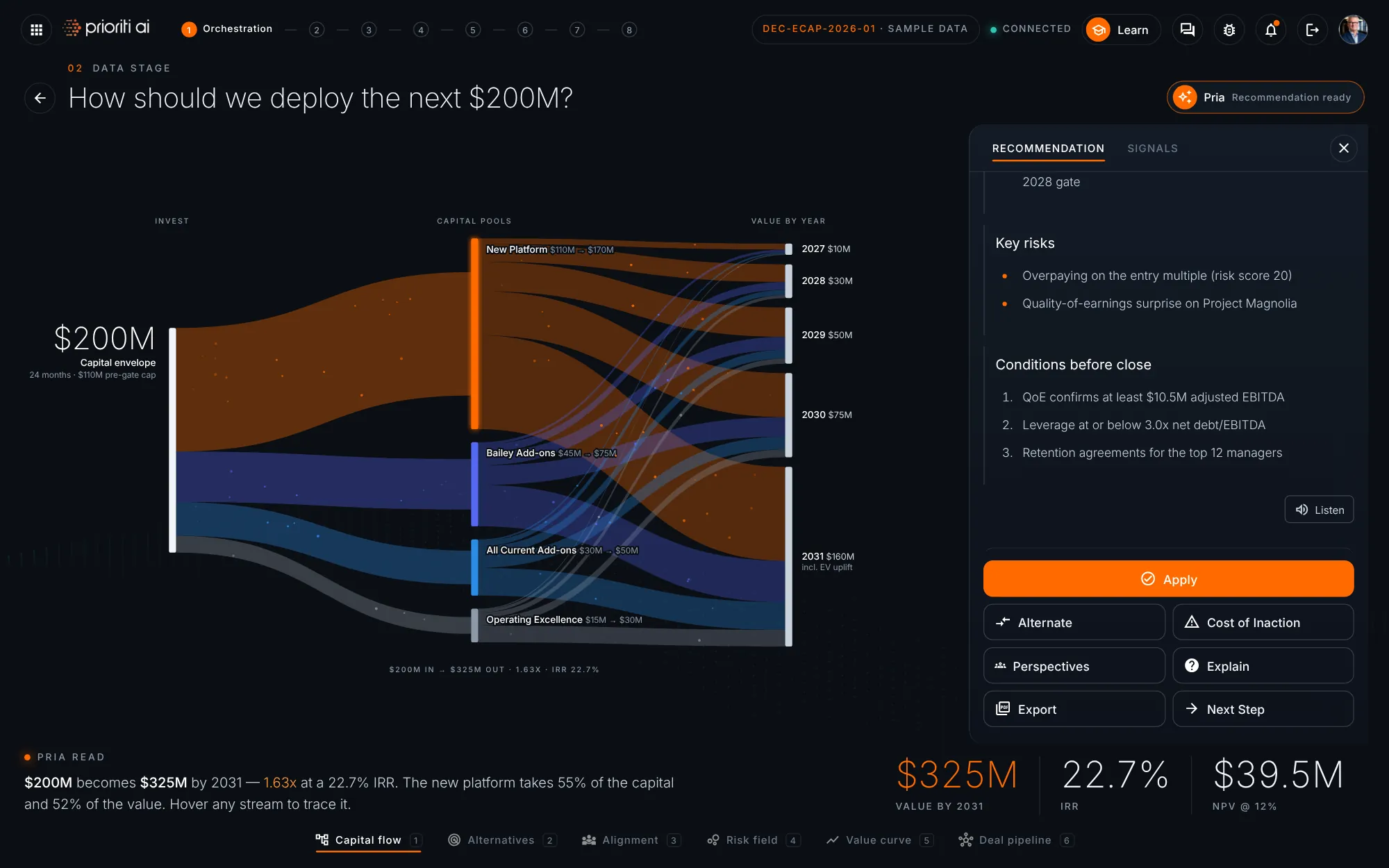
Act on the answer: apply it, ask for an alternate, see the cost of inaction, get perspectives, explain it, export a PDF, or take the next step.
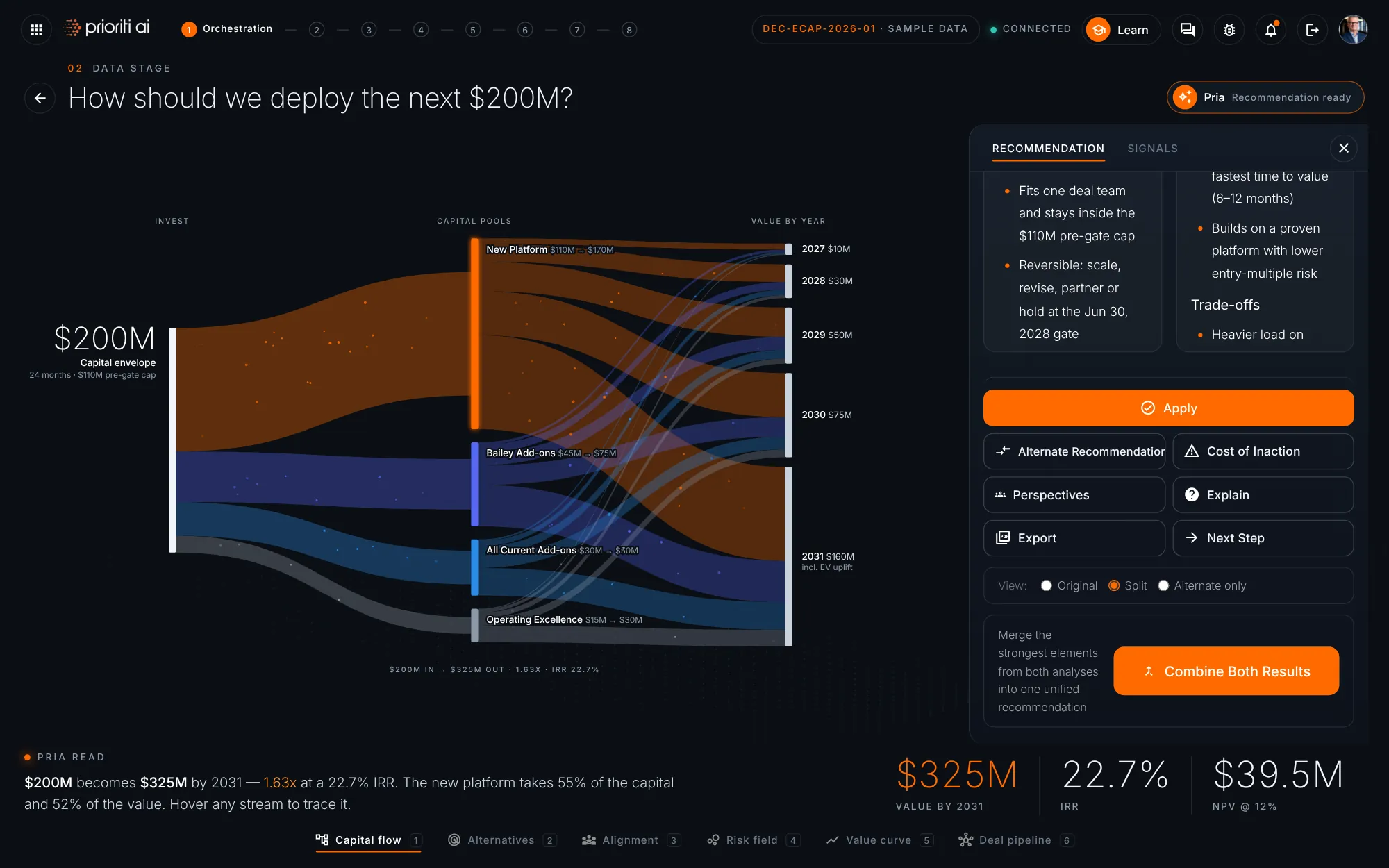
Alternate asks for a different strategy. Compare both answers side by side, then combine the strongest parts into one recommendation.
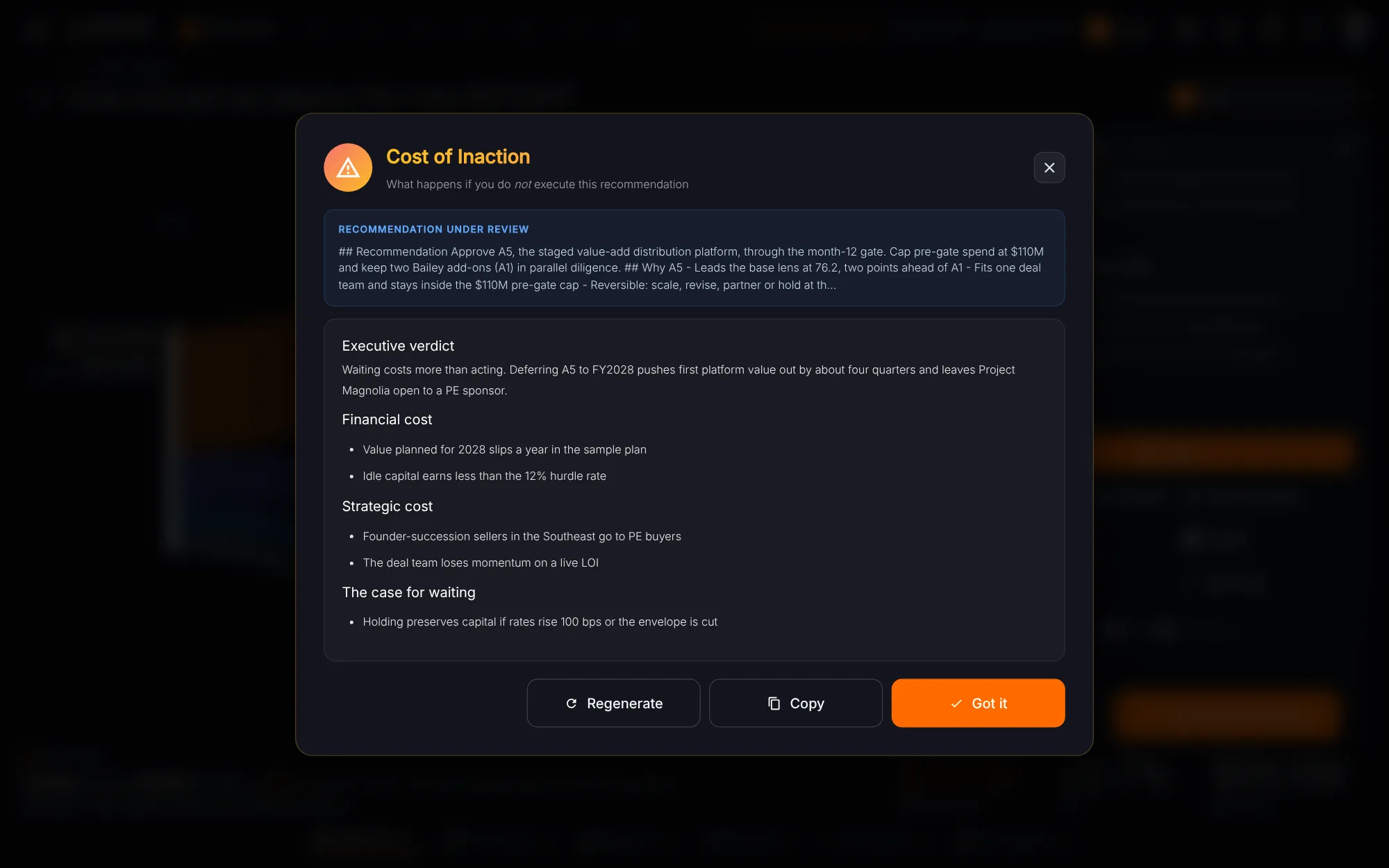
Cost of Inaction shows what happens if you don't act: the money, the time, and the opportunities you give up.
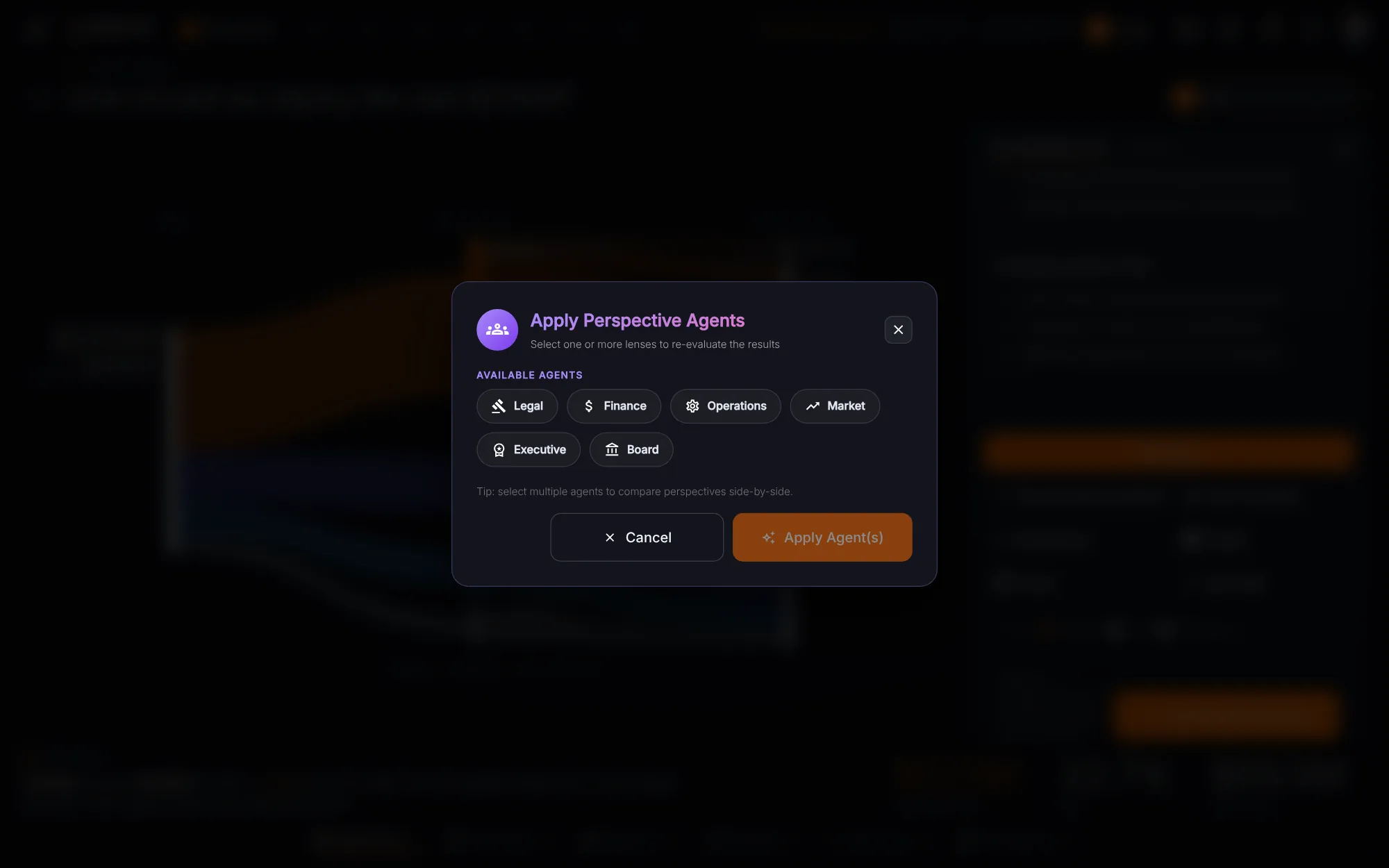
Perspectives re-reads the recommendation through expert agents, such as finance, legal, and the board, then merges what they find.
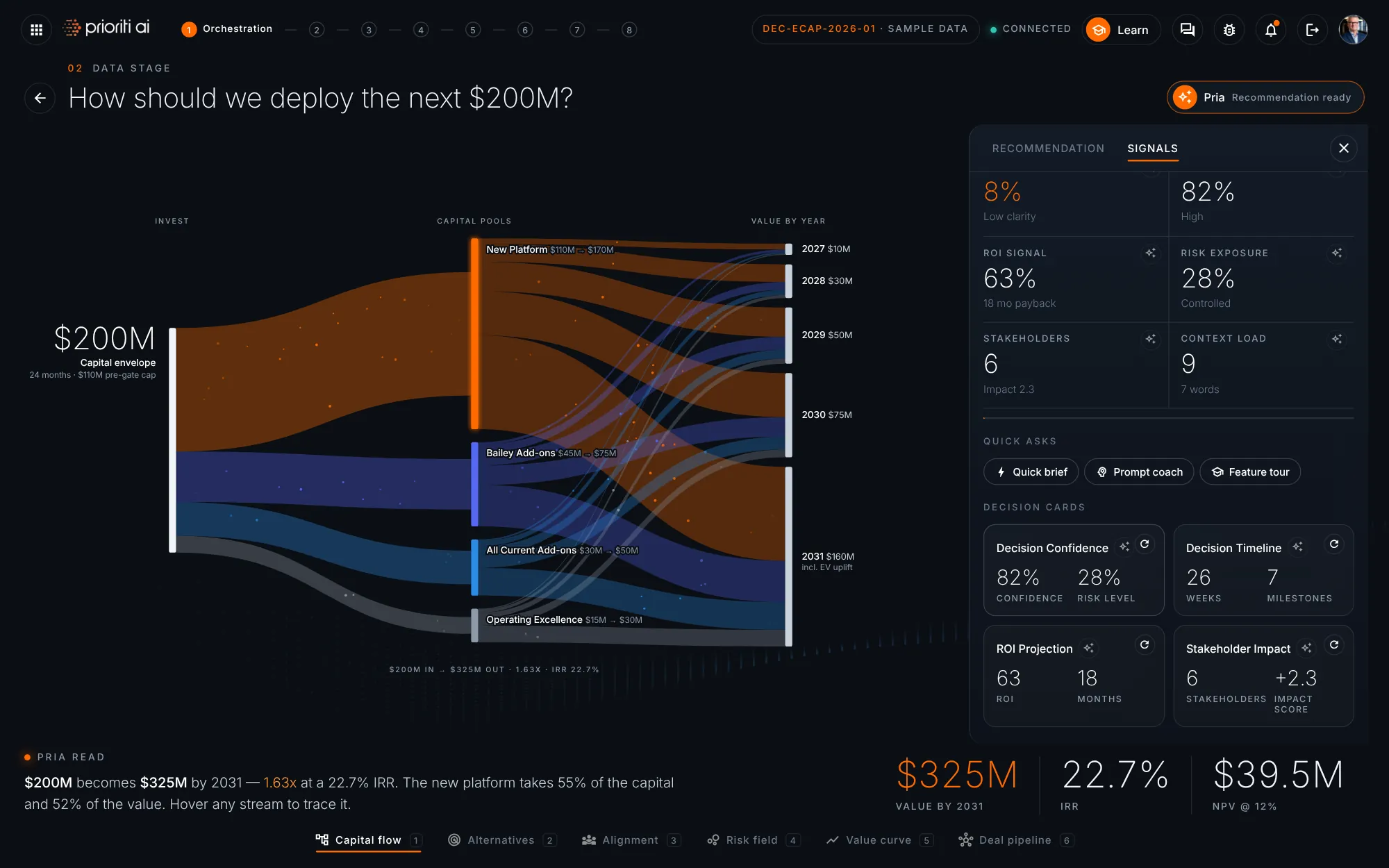
The Signals tab holds the AI companion: an executive summary, the next best action, and quick questions you can send in one click.
Below are the live KPIs and decision cards for confidence, risk, return, timeline, and stakeholders. Each answer from Pria updates them.
Ask a follow-up right here. Edit the question and press Enter. The view and Pria's answer update together.
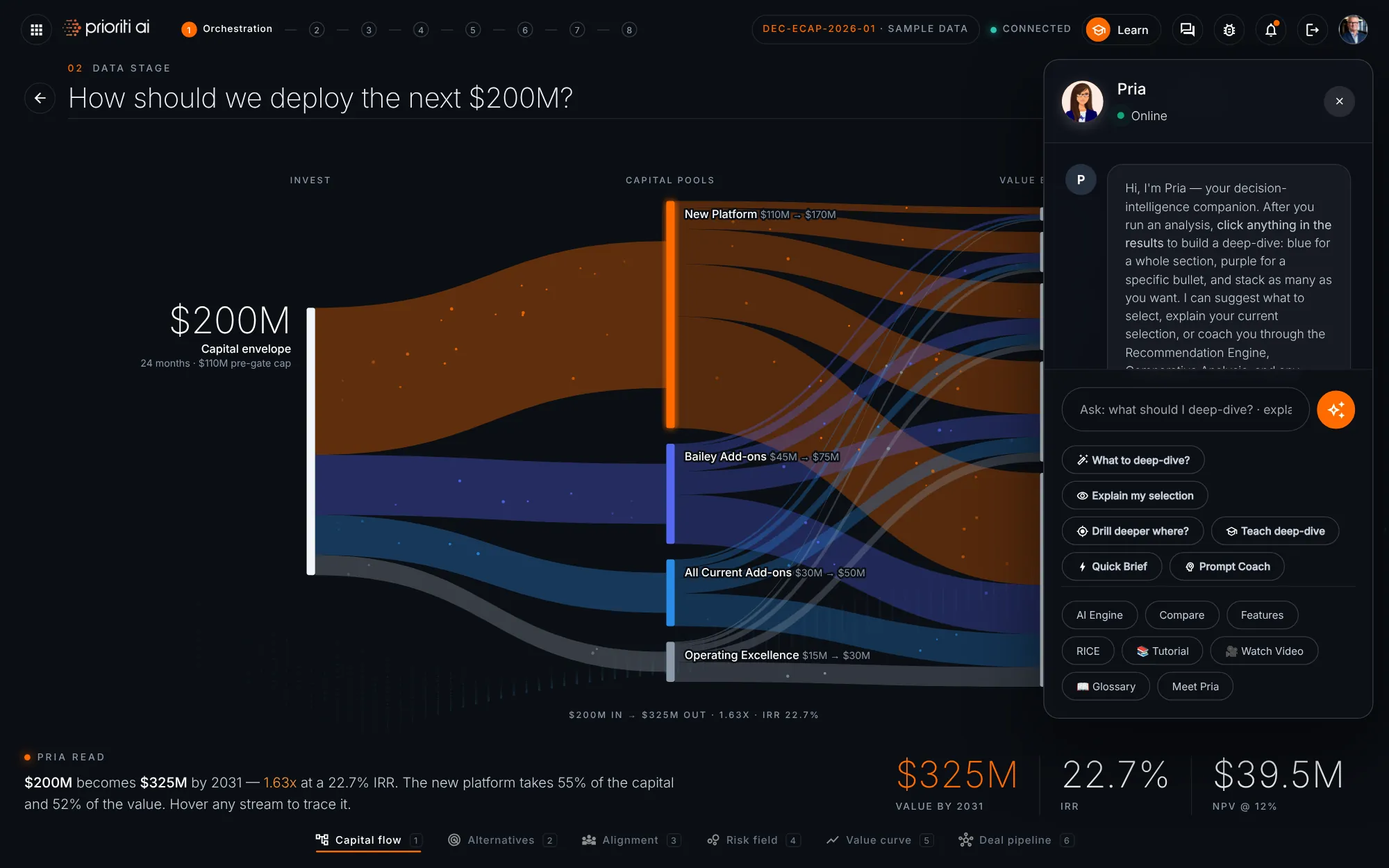
Chat with Pria any time for coaching, deep-dive suggestions, and help with any feature.
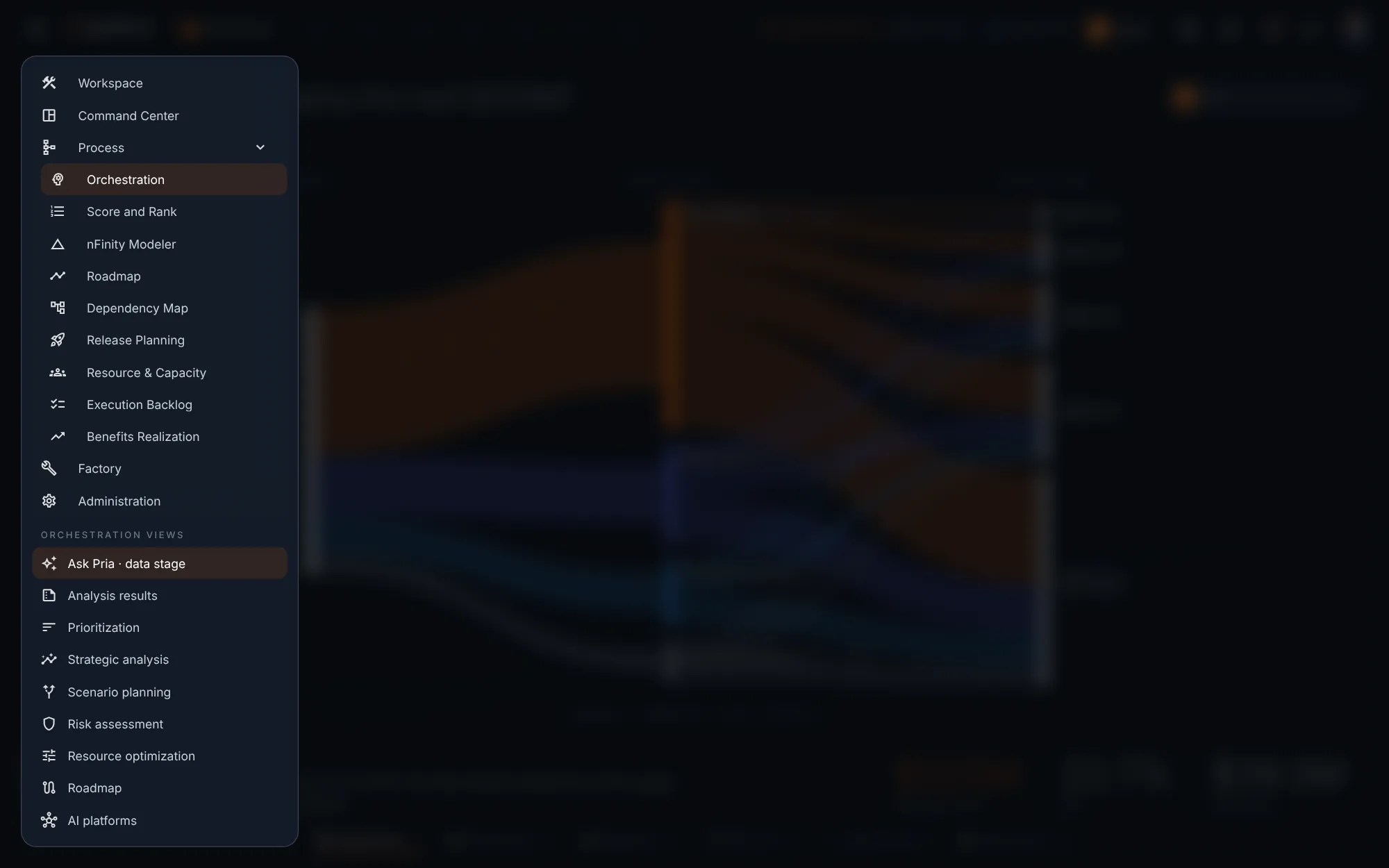
The menu holds the full workbench, plus Prioritization, Scenario Planning, Risk Assessment, and the other Orchestration views.
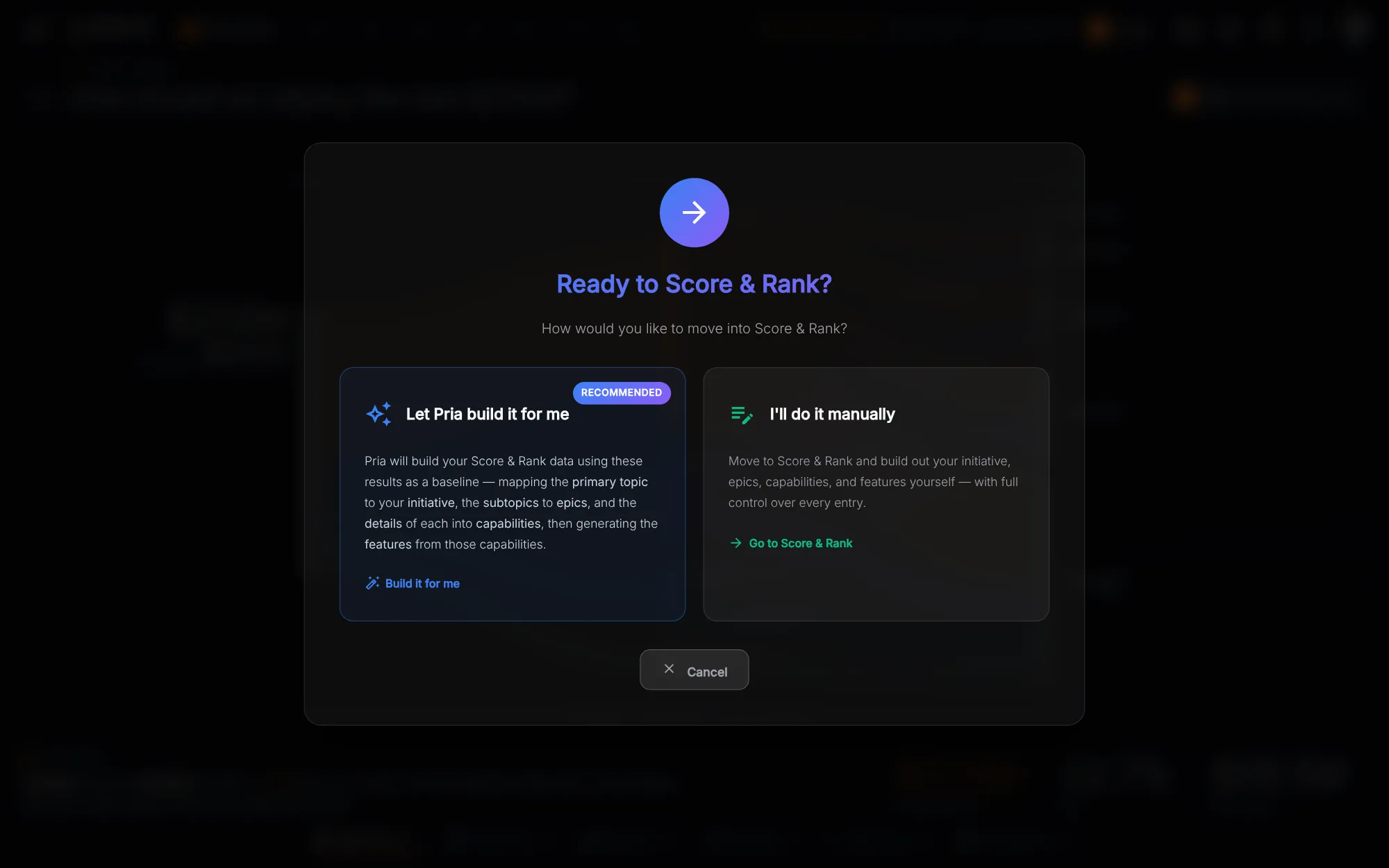
When you're ready, Next Step carries this decision into Score and Rank.
That's Orchestration. Ask one question, explore the data, and act on Pria's recommendation. Click Try this screen to start.